





A Windows 10 display that suddenly appears too large can make icons, text, and applications difficult to use. This problem is usually caused by incorrect resolution settings, increased display scaling, outdated graphics drivers, or accidental zoom changes. This guide explains the common reasons behind an oversized screen display and provides simple solutions to restore normal screen size, including adjusting Windows settings and updating display drivers.
Step 1: Check the Display Resolution Setting
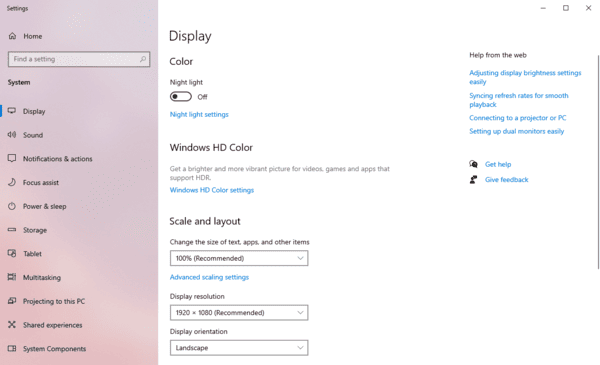
Display resolution is an important parameter that determines the effect of computer screen display. If the resolution setting is not correct, it may cause the screen content to look very large or very small. Generally, Windows will recommend the best resolution, and users can follow this setting to make sure the screen is displayed properly.
1. Right-click on the desktop and select Display Settings.
2. On the Display Settings page, find the item "Display Resolution". Usually, the system will recommend a suitable resolution for your monitor (e.g. 1920×1080) by default.
3. If the current resolution setting does not meet the recommended value, click the drop-down menu, select the recommended resolution, and then click Apply.
4. After confirming the settings, click Keep Changes and the settings will be saved automatically if the resolution returns to normal.
Step 2: Adjusting Zoom Settings
The Windows operating system has a zoom function that allows you to adjust the display size of all content on the screen, including text, applications, and other elements. If the zoom is set too large, it can cause text, icons, and windows on the screen to appear larger than normal.
1. Right-click the desktop and select Display Settings.
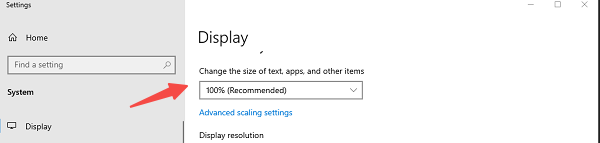
2. On the Display Settings page, locate the Scaling and Layout area with the option to Change the size of text, applications, and other items.
3. Typically, Windows will recommend using 100% zoom. If the current display is set to 125%, 150% or higher, all interface elements will become very large.
4. Click the drop-down box and select 100%, then the system will automatically apply this setting.
5. If you change the scaling, the system may ask you to log off or restart the computer to apply the new setting.
Step 3: Checking the Display Driver
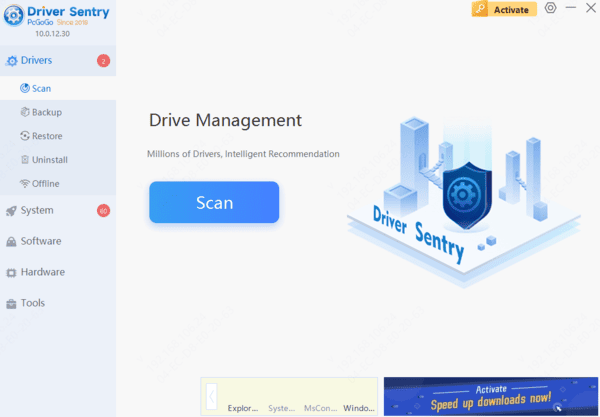
The display driver is essential to ensure good communication between the monitor and the operating system. If the display driver is malfunctioning or needs to be updated, it may cause the screen to display abnormally. For example, the screen content is too large or the resolution cannot be adjusted to the recommended value. Updating or reinstalling the graphics card driver using "Driver Sentry" can effectively solve such problems.
Step 4: Adjust the Display Ratio
If you don't want to go to the settings page, you can use the shortcut keys to quickly adjust the display ratio:
1. Press and hold the Ctrl key, and then scroll the mouse wheel to resize the content on the screen.
2. In a blank space on your desktop, hold down the Ctrl key and press the 0 key (zero on the numeric keypad) at the same time to restore the zoom to 100% on your browser or desktop.




