





Windows 10 error code 0x80072f8f commonly appears when Windows cannot establish a secure connection with Microsoft services, including Windows Update, the Microsoft Store, or activation servers. The problem is often related to incorrect date and time settings, network connectivity, certificate or TLS issues, damaged system components, or security software blocking the connection. Instead of immediately resetting Windows, it is better to troubleshoot the underlying cause first. This guide covers practical ways to fix error 0x80072f8f, including checking your network and system clock, repairing Windows components, reviewing security settings, and checking problematic drivers.
Check Network Connection
Check the network connection:
Click the network icon in the lower-right corner of the taskbar to ensure your device is connected to a working Wi-Fi or Ethernet network.
If it shows "Not Connected" or "No Network", try reconnecting to the network.
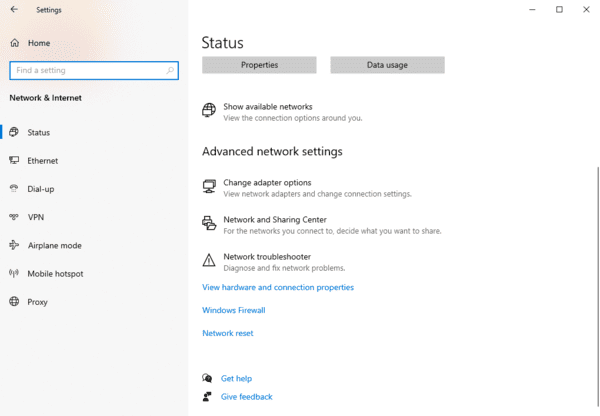
Test internet access:
Open a browser and try to visit a website (e.g., www.google.com). If you can't access the website, the issue may be caused by network problems affecting the Microsoft Store.
Restart the router or modem:
Power off your router or modem, wait a few minutes, then turn it back on.
Once the network is stable, test the Microsoft Store again.
Check and Correct Date and Time Settings
Enable automatic settings:
Right-click on the time in the lower-right corner of the taskbar and select "Adjust date/time".
In the "Date and Time" settings window, enable the options "Set time automatically" and "Set time zone automatically".
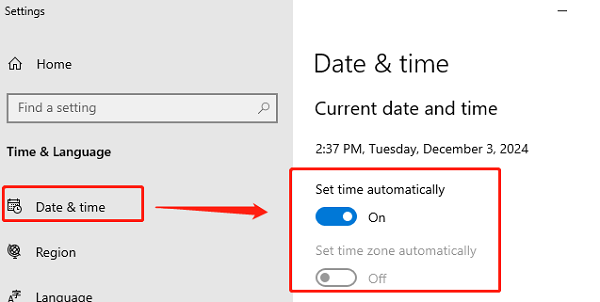
Manually adjust (if automatic settings don't work):
Turn off the Set time automatically option, then click "Change date and time".
Manually set the current date and time, then click "Change" to confirm.
Sync with an internet time server:
Scroll to the bottom of the page and find the option Synchronize with an Internet time server.
Click "Sync now" to ensure the time matches the server.
Modify Registry Key
Press WIN + R, type "regedit", and press Enter to open the Registry Editor.
Navigate to the following path in the Registry Editor:
HKEY_LOCAL_MACHINE > Software > Microsoft > Windows > CurrentVersion > Setup > OOBE
Right-click on the "MediaBootInstall" key, then select "Modify".
Change the value of MediaBootInstall from 1 to 0, then click "OK".
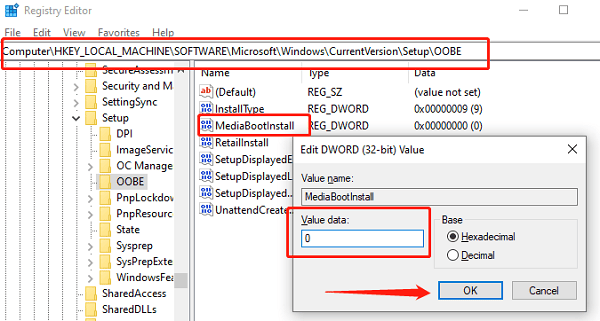
After making the changes, close the Registry Editor and restart your computer.
Open Command Prompt (CMD) as Administrator and enter the following command: slmgr /rearm
Execute the command and restart your computer.
Important Note:
The registry contains critical Windows components, so make sure to modify it carefully. Incorrect changes may lead to system errors or data loss.
It is recommended to back up your system and important data before making changes, or seek professional assistance if you're not familiar with registry editing.
Update Drivers
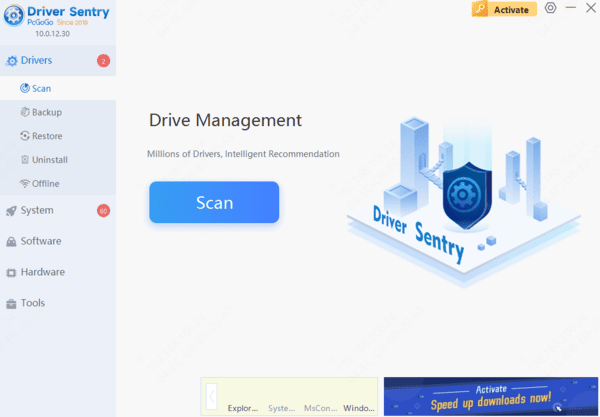
Outdated or corrupted drivers are a common cause of the 0x80072f8f error in Windows 10. Keeping drivers up-to-date can help prevent this issue. It's recommended to use Driver Sentry to automatically detect and update drivers, saving time and avoiding the risk of downloading or installing incorrect drivers.
Run the Windows Store Apps Troubleshooter
Press Win + I to open "Settings".
Go to "Update & Security" > "Troubleshoot" > "Additional Troubleshooters".
Find "Windows Store Apps" and click "Run the troubleshooter". The system will automatically detect and attempt to fix issues with the Microsoft Store.
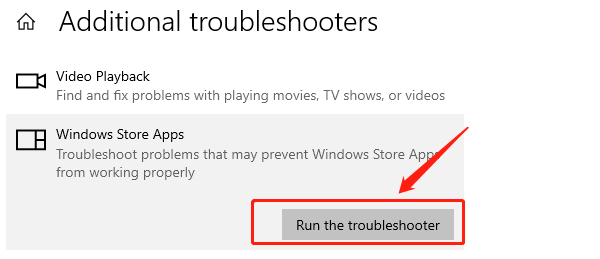
If the troubleshooter detects an issue, it will provide options to fix it. Follow the on-screen instructions.
After completing the process, try accessing the Microsoft Store again.
Disable Firewall or Security Software
Disable Windows Firewall:
Press Win + R, type "control", and press Enter to open the Control Panel.
Go to "System and Security" > "Windows Firewall" > "Turn Windows Firewall on or off".
Select "Turn off Windows Firewall (not recommended)" and click "OK".
Temporarily disable third-party security software:
If you're using third-party antivirus software, right-click on its icon in the system tray and select "Pause Protection" or a similar option.
The steps may vary depending on the software, so refer to the user manual for more details.
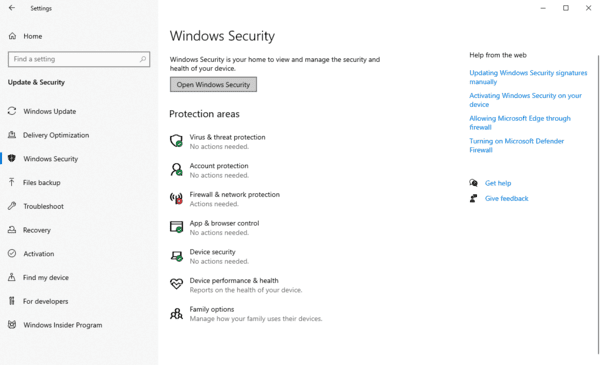
Test the Microsoft Store:
After disabling the firewall or security software, open the Microsoft Store and check if the issue is resolved.
Once testing is complete, ensure that you re-enable the firewall and security software to protect your system.
Reset Windows 10 System
Press Win + I to open "Settings".
Go to "Update & Security" > "Recovery".
Under "Reset this PC", click the "Get Started" button.
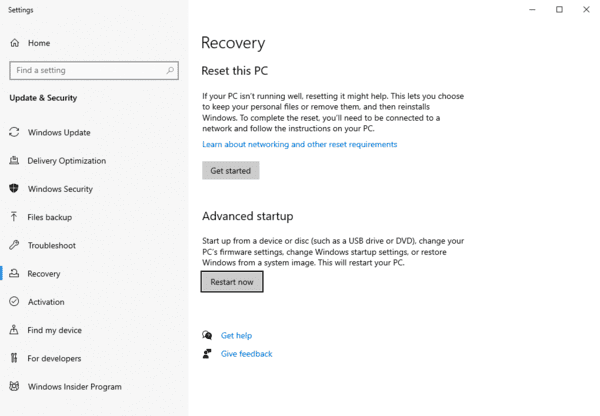
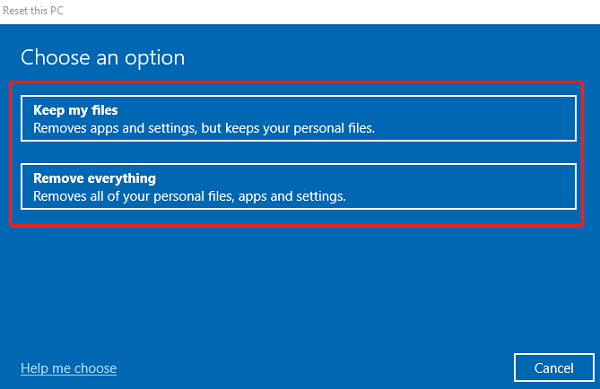
Choose "Keep my files" or "Remove everything" depending on your preference.
Keep my files: This option removes apps and settings but keeps your personal files.
Remove everything: This option removes all files, apps, and settings, restoring the system to its default state.
If prompted, select "Cloud download" or "Local reinstall".
Cloud download is recommended for downloading the latest system image.
Follow the on-screen instructions to complete the reset process. The system will automatically install and reboot.
By following these steps, you can resolve issues with the Windows Store and related features. If the problem persists, contact technical support for further assistance.




