






Windows 10 crashing issues can interrupt work, gaming, and everyday tasks, often causing unexpected restarts, freezes, blue screens, or application failures. These crashes may happen because of outdated or corrupted drivers, damaged system files, hardware problems, malware infections, overheating, or recent Windows updates. While frequent crashes can seem difficult to diagnose, most causes are related to software conflicts or system instability rather than permanent hardware damage. This guide provides practical solutions to identify the cause and fix Windows 10 keeps crashing problems, helping restore a more stable and reliable PC experience.
Run System File Repair Commands
Run System File Checker (SFC):
Press Windows + S, type "Command Prompt", and select "Run as administrator".
In the Command Prompt window, enter the following command and press Enter: sfc /scannow
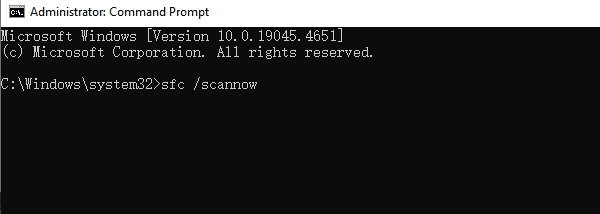
The system will automatically scan and repair any corrupted system files. Once completed, restart your computer and check if the issue is resolved.
Run the DISM Tool:
If the SFC tool fails to fix the issue, try using the Deployment Image Servicing and Management (DISM) tool to repair the Windows image.
Open Command Prompt (Admin) and enter the following command: DISM /Online /Cleanup-Image /RestoreHealth
Wait for the command to complete, then restart your computer.
Repair Hard Drive Errors
Press Windows + S, type "Command Prompt", and select "Run as administrator".
In the Command Prompt window, enter the following command and press Enter: chkdsk C: /f /r
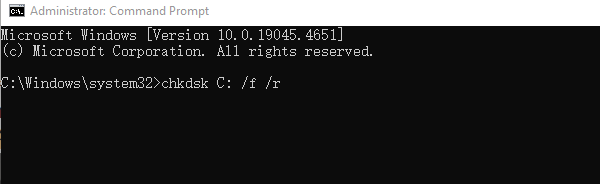
If prompted to schedule a disk check at the next restart, type "Y" and press Enter.
Restart your computer. The system will automatically scan and repair hard drive errors. The repair process may take some time, depending on the size of your drive and the number of errors.
Update Device Drivers
Outdated or corrupted drivers are one of the common causes of persistent system crashes. Checking and updating your device drivers can effectively resolve this issue. It is recommended to use Driver Sentry for automatic driver detection and updates, saving time and preventing incorrect driver installations.


Run Memory Diagnostics
Press Win + R, type "mdsched.exe", and press Enter.
When the Windows Memory Diagnostic tool pops up, select "Restart now and check for problems (recommended)" or "Check for problems the next time I start my computer".
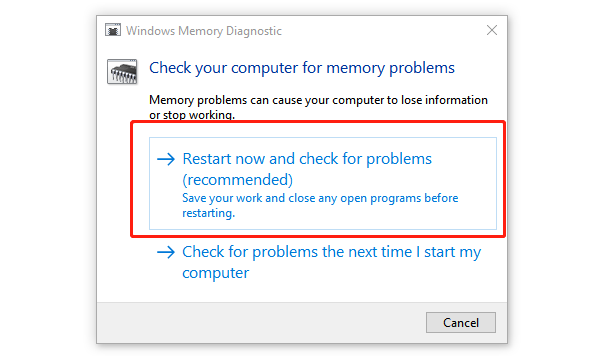
Your computer will restart and begin the memory diagnostic process. The system will check for memory errors and display the results.
If memory errors are detected, you may need to replace or repair faulty RAM modules. After making necessary changes, check if the system stability improves.
Scan for Viruses and Malware
Use Windows Defender to Scan for Viruses:
Press Win + I to open Settings, select "Update & Security", then click "Windows Security".
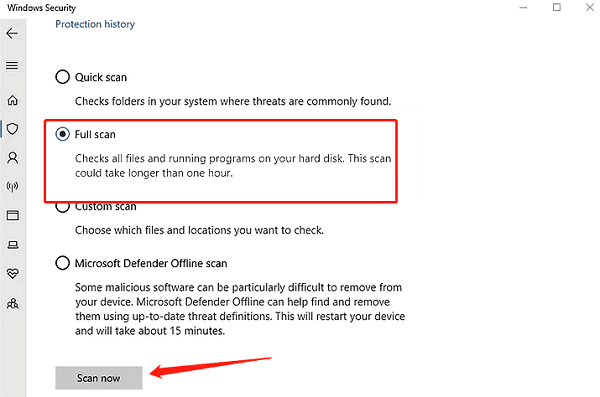
Click "Virus & Threat Protection", then choose "Quick scan" or "Full scan" to check for viruses or malware.
Use Third-Party Antivirus Software:
If Windows Defender does not detect any threats, consider using third-party antivirus software for a deep scan.
After completing the scan, follow the instructions to remove any detected threats. Restart your computer and check if the issue is resolved.
Perform a System Restore
Press Win + R, type "rstrui.exe", and press Enter to open the System Restore wizard.
Choose a restore point created before the system crashes began, then click "Next".
Follow the on-screen instructions to complete the restoration process. The system will revert to the selected restore point, undoing any recent updates or changes that may have caused the crashes.
After the restoration is complete, your computer will restart. Check if the issue has been resolved.
By following the above steps, you should be able to diagnose and fix persistent Windows 10 crashes. If the problem persists, consider contacting Microsoft Support or seeking professional repair services.




