






Connecting a second monitor should normally be as simple as plugging in an HDMI, DisplayPort, or VGA cable, but Windows 10 may occasionally fail to recognize the additional display. The second screen might remain black, show "No Signal," disappear from Display Settings, or stop working after a Windows or graphics driver update. In many cases, the monitor itself is not faulty. A loose cable, incorrect display mode, disabled graphics adapter, outdated display driver, or temporary detection problem can prevent Windows from communicating with the second screen. The troubleshooting steps below will help you determine where the connection is failing and get your dual-monitor setup working again.
1. Check the Physical Connections
Before troubleshooting software or driver issues, make sure the monitor is physically connected properly. Check all cables to ensure the monitor is powered on, and the connection cables (HDMI, VGA, or DisplayPort, etc.) are securely plugged in. If possible, try replacing the cable or using a different port to connect the monitor. Often, physical connection issues are the most common cause of a monitor not being detected.
2. Restart Your Computer
Sometimes, Windows 10 might fail to recognize the second monitor due to a temporary glitch or configuration issue. The simplest solution is to restart your computer. After rebooting, the system may automatically detect all connected displays. If the issue persists, continue with the following methods.
3. Check Display Settings
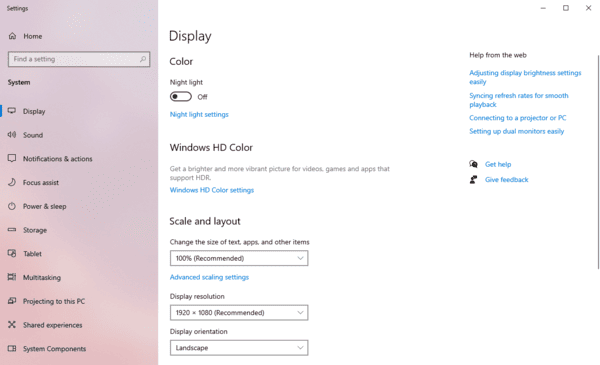
If your monitor is connected properly but Windows 10 still doesn't recognize it, the next step is to check if multi-monitor functionality is enabled in the display settings. Follow these steps:
Right-click on the desktop and select "Display Settings".
In the Display Settings window, scroll down and click the "Detect" button to see if the system can find the undetected monitor.
If Windows 10 detects the second monitor, click the "Multiple Displays" dropdown and select the appropriate display mode (Extend, Duplicate, or Show only on the second monitor).
4. Update Graphics Drivers
Issues with graphics drivers are also a common reason why a second monitor might not be recognized. Outdated or corrupted graphics drivers may not handle multiple displays correctly. Updating your graphics drivers can often resolve this issue.
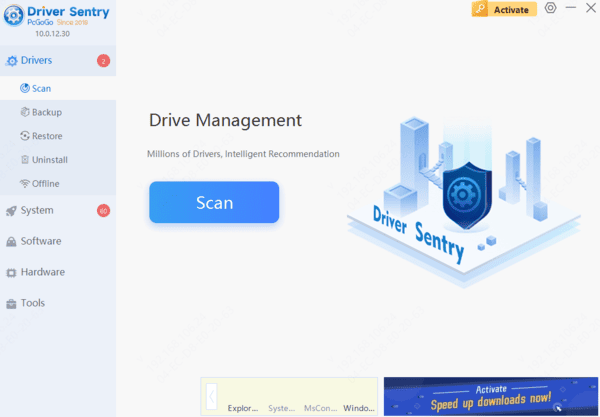
For convenience, you can use Driver Sentry software, which automatically detects your hardware status and helps you update all relevant drivers, preventing issues like undetected monitors due to outdated drivers.
After opening the software, click "Scan" to check your computer's status and detect any issues with the drivers.
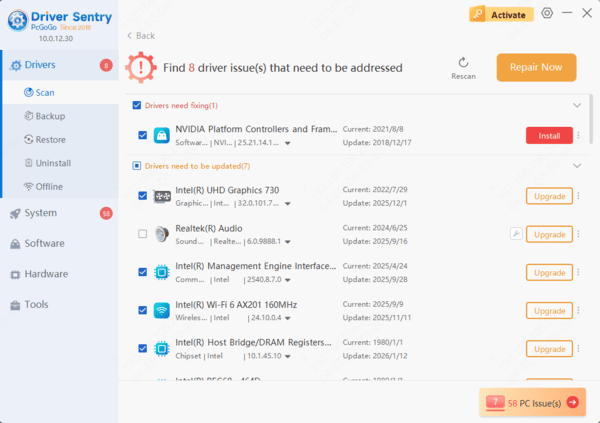
Once the scan is finished, you'll see which drivers need updating. Click "Upgrade" and wait for the process to complete.
5. Adjust Display Adapter Settings
At times, the display adapter settings in Windows 10 might cause the second monitor to not be recognized. You can go into the graphics card control panel and manually set the monitor to resolve the issue. Here's how:
Right-click on the desktop and select your graphics card control panel (such as NVIDIA Control Panel or AMD Radeon Settings).
Look for the "Multiple Displays" settings and confirm whether the second monitor is enabled.
If it's not enabled, manually add or adjust the display mode.
6. Check the Display Adapter Settings in Windows 10
If the previous steps haven't worked, you may need to further adjust the display adapter settings in Windows 10. In some cases, the system might disable certain display ports or adapters, preventing the second monitor from connecting.
Press Win + X and select "Device Manager".
Expand the "Display Adapters" section and make sure all display adapters and ports are enabled.
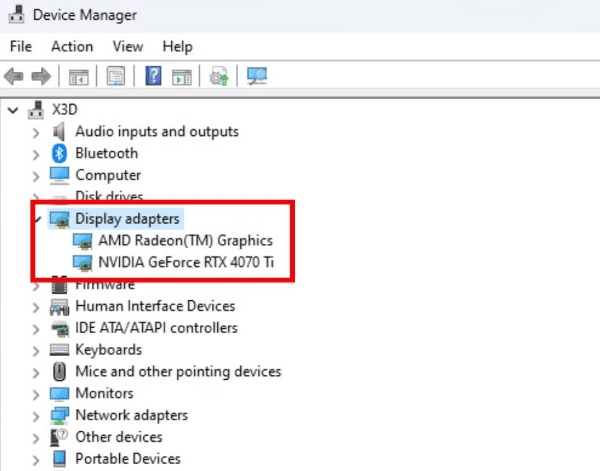
Right-click on any display adapter and select "Enable Device" (if the option is available).
7. Use Windows Troubleshooter
Windows 10 comes with a "Hardware and Devices" troubleshooter that can automatically detect and fix display connection issues. To use this tool, follow these steps:
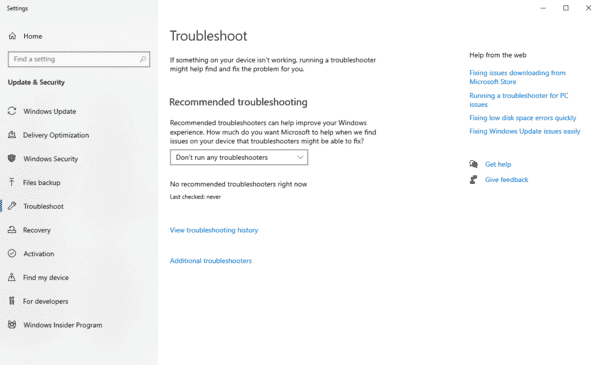
Press Win + I to open Settings, then click on "Update & Security".
Select the "Troubleshoot" tab and find "Hardware and Devices" on the right.
Click "Run the Troubleshooter" and let the system automatically detect and fix the problem.
By following these methods, you should be able to resolve the issue of the second monitor not being detected on Windows 10. Usually, a simple restart or adjusting the display settings will solve the problem. However, if the issue persists, checking for driver updates or using the troubleshooter can also play a key role.




