





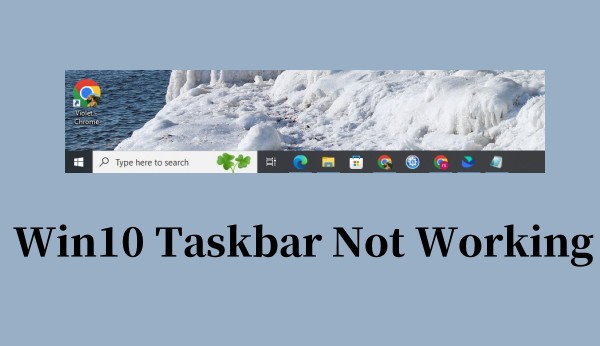
A frozen or unresponsive Windows 10 Taskbar can prevent you from accessing apps, settings, Wi-Fi controls, and other essential system features. Some users may experience missing icons, a blank Taskbar, or a Taskbar that turns black and reloads repeatedly without recovering. This issue can be caused by corrupted system files, Windows Explorer problems, software conflicts, or system configuration errors. In this guide, we'll explain the common causes of Windows 10 Taskbar problems and provide step-by-step solutions to restore normal Taskbar functionality.
Part 1. Why Is My Taskbar Not Working on Windows 10?
System Glitches: Temporary bugs or glitches in Windows 10 can cause the taskbar to freeze or become unresponsive.
Corrupted Files: Damaged system files or incorrect updates can interfere with the taskbar’s functionality.
Third-Party Software Conflicts: Some apps or programs may conflict with the taskbar, causing it to stop working.
Outdated Drivers: If your display or graphics drivers are outdated, the taskbar may not function properly.
Explorer.exe Issues: The Windows Explorer process manages the taskbar. If it crashes or malfunctions, the taskbar may stop working.
Incorrect Settings: Changes in system settings or user profiles can sometimes disrupt the taskbar.
Part 2. How to Fix Windows 10 Taskbar Not Working
Method 1: Restart Windows Explorer
The Windows Explorer process is responsible for managing the taskbar, Start menu, and other graphical elements. If it crashes or freezes, your taskbar may become unresponsive. Restarting this process is a simple yet effective way to resolve the issue without restarting your entire system.
Step 1. Press Ctrl + Shift + Esc to open Task Manager.
Step 2. Find Windows Explorer in the list of processes.
Step 3. Right-click on it and select Restart.
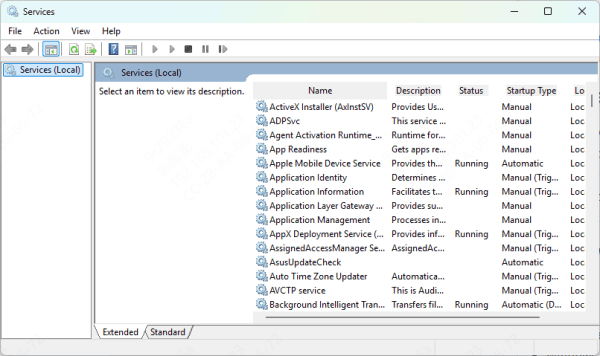
Step 4. Check if the taskbar is working again.
Method 2: Run the Windows Troubleshooter
Windows 10 includes a built-in troubleshooter that can automatically detect and fix common system issues, including problems with the taskbar. This tool is user-friendly and doesn't require technical expertise, making it a great first step for troubleshooting.
Step 1. Go to Settings > Update & Security > Troubleshoot.
Step 2. Select Additional troubleshooters.
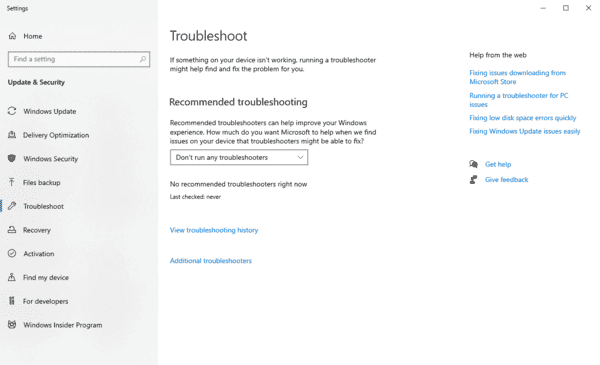
Step 3. Choose Windows Store Apps and click Run the troubleshooter. Follow the on-screen instructions to complete the process.
Method 3: Update Windows
Outdated system files or missing updates can cause the taskbar to malfunction. Keeping your system up to date ensures that you have the latest bug fixes and improvements, which can resolve taskbar issues and enhance overall performance.
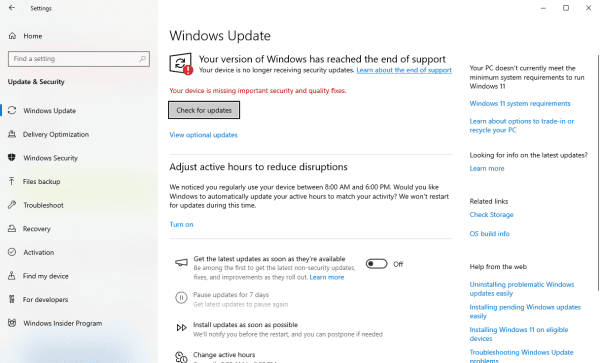
Step 1. Open Settings > Update & Security > Windows Update.
Step 2. Click Check for updates. Install any available updates and restart your computer.
Method 4: Check for Corrupted Files
Corrupted or missing system files can interfere with the taskbar’s functionality. The System File Checker (SFC) tool is a built-in utility that scans and repairs damaged files, helping to restore normal operation.
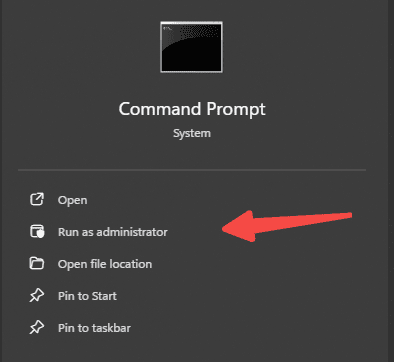
Step 1. Open Command Prompt as an administrator.
Step 2. Type sfc /scannow and press Enter.
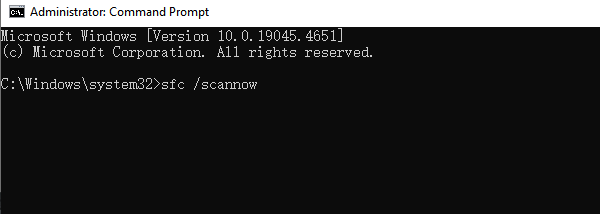
Step 3. Wait for the scan to complete and restart your PC.
Method 6: Create a New User Profile
Sometimes, taskbar issues are caused by a corrupted user profile. Creating a new user profile allows you to start fresh, bypassing any profile-specific problems that may be affecting the taskbar.
Step 1. Go to Settings > Accounts > Family & other users.
Step 2. Click Add someone else to this PC and follow the prompts.
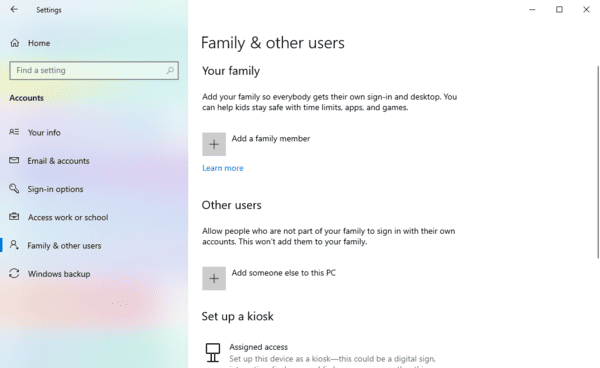
Step 3. Log in to the new account and check if the taskbar works.
Method 7: Update Graphics Drivers
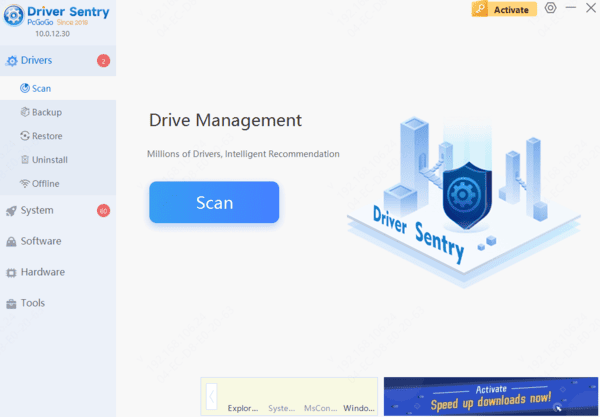
Taskbar issues may also be related to display drivers, especially after updating or installing new drivers, which can sometimes cause display problems. It is recommended to use Driver Sentry to automatically detect and update drivers, saving time and avoiding the risk of downloading or installing incorrect drivers.
Method 8: Perform a System Restore
If the taskbar stopped working after a recent change, such as a software installation or system update, a system restore can revert your PC to a previous state where the taskbar was functioning correctly. This method is particularly useful if you're unsure what caused the issue.
Step 1. Type System Restore in the search bar and select Create a restore point.
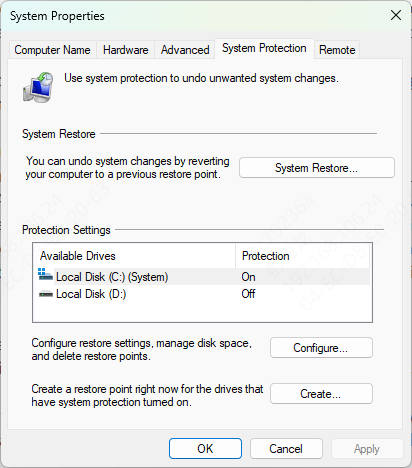
Step 2. Click System Restore and choose a restore point before the issue occurred. Follow the prompts to complete the process.
A non-working taskbar on Windows 10 can be frustrating, but it's usually fixable. By following the methods above, you can resolve the issue and get your taskbar back to normal. And if you are facing driver problems, don't forget to try PcGoGo Driver Sentry.




