






The "The application was unable to start correctly (0xc000007b)" error usually appears when Windows cannot load the files or runtime components an application needs to start. Common causes include damaged Visual C++ packages, corrupted system files, incompatible software, missing permissions, or graphics driver problems. This guide explains several practical ways to fix Windows error code 0xc000007b, including updating graphics drivers with Driver Sentry, reinstalling required runtime libraries, running the program as administrator, repairing Windows with SFC and DISM, reinstalling the affected application, and checking Windows and hardware compatibility.
1. Restart Your Computer
Save all open files and applications to avoid data loss.
Press Win + X, then select "Shut down or sign out" > "Restart".
Alternatively, go to the Start menu, click "Power" and select "Restart".
After the restart, try running the problematic application to see if the error persists.
2. Check and Install Required Runtime Libraries
Open Control Panel and go to "Uninstall a Program".
Locate and uninstall all "Microsoft Visual C++ Redistributable" packages, noting each version's name.
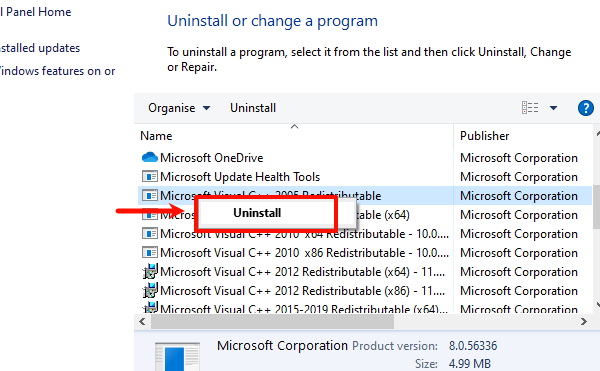
Visit the official Microsoft Visual C++ Redistributable download page.
Search for and download the latest versions of the required runtime libraries (e.g., Microsoft Visual C++ Redistributable 2015).
Install the downloaded packages, then restart your computer and test the application again.

3. Run the Application as Administrator
Right-click the shortcut or executable file (e.g., .exe) of the application and select "Run as Administrator".
If prompted by User Account Control (UAC), click "Yes".
Right-click the application and select "Properties".
Go to the "Compatibility" tab.
Check "Run this program as an administrator" and click "Apply" and "OK".
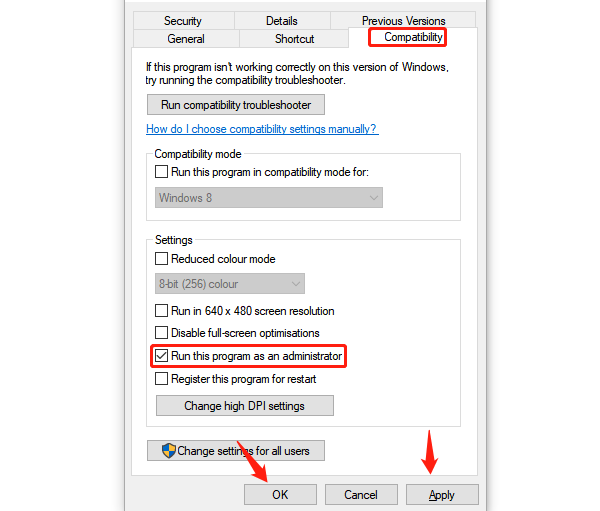
If this resolves the issue, it indicates the application requires elevated permissions to function properly.
4. Repair System Files
Press Win + S and search for cmd. Right-click Command Prompt and select "Run as Administrator".
Run the System File Checker (SFC) tool by entering: sfc /scannow
Wait for the scan to complete. The system will automatically repair any detected issues.
If the issue persists, run the Deployment Image Servicing and Management (DISM) tool with the following command:
DISM /Online /Cleanup-Image /RestoreHealth
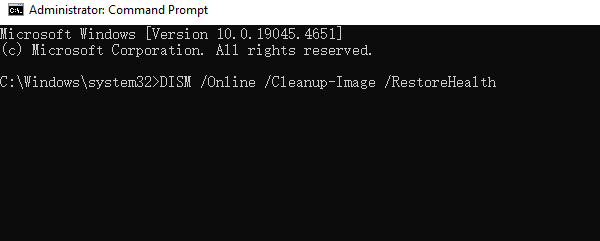
After completing the repair process, restart your computer and check if the application starts correctly.
5. Update Graphics Drivers
Graphics driver issues can trigger the 0xc000007b error. Updating the drivers is a key step in resolving this application error. Using Driver Sentry is recommended for automatically detecting and updating drivers, saving time and reducing the risk of downloading or installing incorrect drivers.
Download the latest version of Driver Sentry using the provided download button. After installation, open the software and click "Scan".
Once the scan is complete, identify the graphics driver in the list of drivers that need updating. Click the "Upgrade" button.
Restart your computer after the update to ensure the new drivers are functioning properly.

6. Reinstall the Application
Uninstall the application:
Press Win + X and select "Apps and Features".
Locate the problematic application, click "Uninstall" and follow the prompts.
Open File Explorer and navigate to the installation directory (typically C:\Program Files or C:\Program Files (x86)).
Delete the folder associated with the application.
Clean the registry(Optional):
Press Win + R, type "regedit", and open the Registry Editor.
Search for and delete registry entries related to the application (backup the registry first).
Download the latest version of the application from its official website.
Follow the installation instructions and test the application after reinstalling.

7. Verify System Compatibility
Update Windows:
Press Win + I to open Settings.
Go to "Update & Security" and click "Check for Updates". Install all available updates.

Check application requirements:
Visit the application's official website to review its minimum system requirements.
Ensure your system meets the necessary version and hardware specifications.
Conclusion
Windows error code 0xc000007b is commonly caused by damaged runtime libraries, corrupted system files, incompatible application components, or driver problems. Start with a restart and repair or install the required Visual C++ Redistributables, including both x86 and x64 packages when necessary. If the error continues, run SFC and DISM, update relevant drivers with Driver Sentry, and reinstall the affected application from its official source.




