






Some Windows 11 users may face the common win32kfull.sys blue screen error. This article provides effective solutions to resolve the issue and restore system functionality.
1. Update Graphics Drivers
Graphics drivers are one of the common causes of the win32kfull.sys blue screen error. Outdated or incompatible drivers may conflict with the system's graphics processing, triggering blue screen crashes. Using Driver Sentry is recommended for automatic detection and updating of drivers, saving time and reducing the risk of installing incorrect drivers.
Click the download button to get the latest version of Driver Sentry. After installation, open the software and click "Scan".

The scan results will display any missing or outdated drivers. Locate the graphics driver in the list and click "Upgrade".
Once updated, restart your computer to ensure the new drivers function properly.
2. Run the System File Checker (SFC)
Press Win + S, type "Command Prompt", and right-click to select "Run as Administrator".
In the Command Prompt, type the following command and press Enter: sfc /scannow
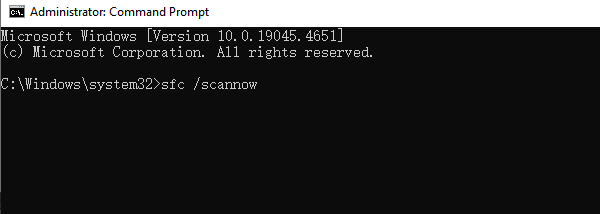
The system will scan and automatically repair corrupted system files. Once the scan is complete, restart your computer to check if the issue is resolved.
3. Repair with DISM
Press Win + S, type "Command Prompt", and right-click to select "Run as Administrator".
Enter the following command and press Enter: DISM /Online /Cleanup-Image /RestoreHealth
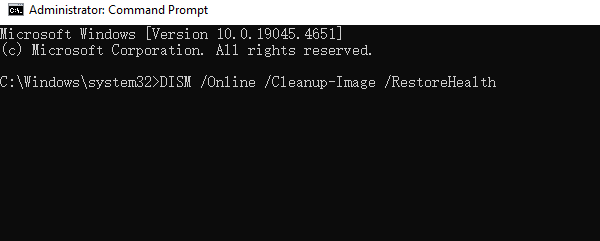
This command will scan and repair issues with the Windows system image. Restart your computer after the process is complete.
4. Check the Hard Drive
Press Win + S, type "Command Prompt", and right-click to select "Run as Administrator".
Enter the following command and press Enter: chkdsk C: /f /r
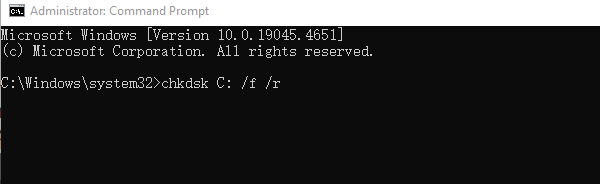
The system will prompt whether to check the disk during the next restart. Type "Y" and press Enter.
Restart your computer, and the system will automatically scan and repair the hard drive.
5. Run the Windows Memory Diagnostic Tool
Press Win + R, type "mdsched.exe", and press Enter.
Select "Restart now and check for problems".
The system will restart and automatically check for memory issues. Once the check is complete, diagnostic results will be displayed.
6. Uninstall Problematic Windows Updates
Press Win + I to open Settings and select "Windows Update".
Click "Update History".
Select "Uninstall Updates", locate recent updates from the list, and click "Uninstall".
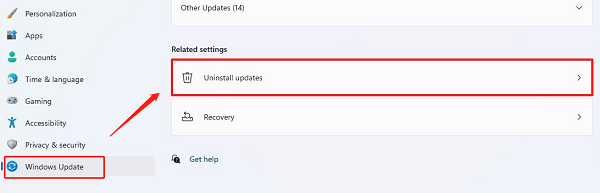
Restart your computer and check if the issue is resolved.
7. Update the Operating System
Press Win + I to open Settings and select "Windows Update".
Click "Check for Updates" to see if any updates are available.
If updates are found, download and install them, then restart your computer.
These methods can effectively resolve the win32kfull.sys blue screen error in Windows 11. If the problem continues, consult professional technical support for further assistance.
See also:
Fix Ethernet Connected but No Internet Access
Fix Windows 10 Keeps Disconnecting from Network




