






Forgetting your iPhone passcode can leave you locked out of your device, especially after repeated incorrect attempts trigger an "iPhone Unavailable" or "Security Lockout" message. Because Apple's security system does not allow the passcode to be bypassed directly, regaining access usually requires erasing and restoring the iPhone. You can use Apple's official recovery mode or a dedicated tool such as PcGoGo Screen Unlock to remove the screen lock and set up the device again. This guide explains both methods and shows how to unlock an iPhone safely when you have forgotten the passcode.
What Happens When You Enter the Wrong Passcode Too Many Times
When you enter an incorrect iPhone passcode multiple times, Apple automatically locks the device for security reasons. Eventually, the screen will display: iPhone Unavailable, Security Lockout, and a timer that increases with each attempt
Once the device locks itself completely, the only way to regain access is to erase and restore the device. Apple's official method requires putting your iPhone into recovery mode, but this process can be technical and time-consuming. Below is the full step-by-step guide
Using Apple's Recovery Mode
If you forgot your iPhone passcode, Apple's recommended solution is to restore the device using a Mac or Windows PC. This process will erase the device, allowing you to set it up again.
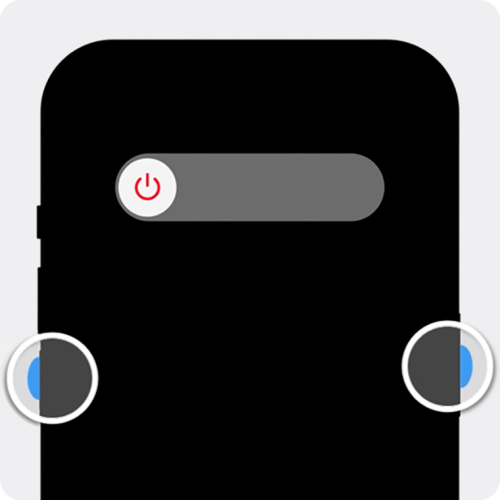
Step 1: Turn Off Your iPhone
Press and hold both the Side button and the Volume Down button
When the power-off slider appears, drag it to shut down your iPhone
Step 2: Put Your iPhone Into Recovery Mode
Connect your cable to your Windows PC
Connect the other end to your iPhone while quickly holding the Side button
Do not release the button when you see the Apple logo
Keep holding until you see an image of a computer and a cable
This means your iPhone is now in recovery mode.

Step 3: Restore Your iPhone Using Your Computer
Open iTunes select your iPhone under Locations
Select Trust if prompted
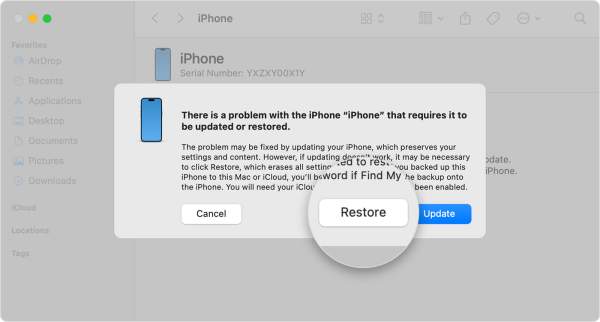
When you see the options Restore or Update, choose Restore
Your computer will download the software needed to restore the device
If the download takes more than 15 minutes, your iPhone may exit recovery mode
If this happens, turn off your device and repeat the steps to enter recovery mode again
The restore process will wipe the device and reinstall iOS.
Step 4: Set Up Your iPhone Again
When your iPhone restarts and shows the Hello screen:
Disconnect it from your computer
Go through the setup process on the device
Restore your data from iCloud or a backup if available
This method works, but it requires precise timing, button combinations, and a long restore process.
Using PcGoGo Screen Unlock
If you prefer a simpler and faster method, PcGoGo Screen Unlock offers a user-friendly solution that removes any type of iPhone screen lock—even without the password.
Step 1: Download and Install PcGoGo Screen Unlock
Visit the official PcGoGo Screen Unlock website and download the latest version of the software
Install the program on your Windows PC
Launch PcGoGo Screen Unlock to begin
Step 2: Connect Your iPhone to the Computer
Use a USB cable to connect your locked iPhone to your computer
Ensure your device is recognized
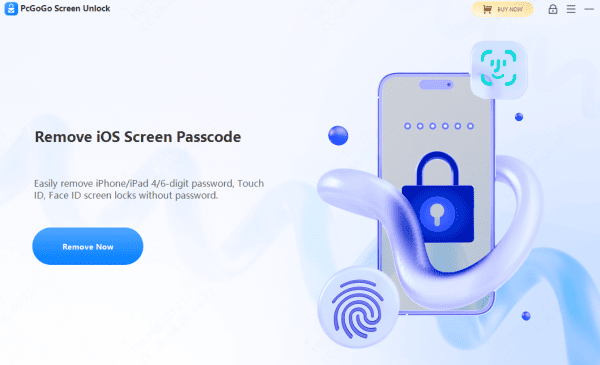
On the main screen, select Unlock Screen Passcode
Click Remove Now to proceed
Step 3: Download the Firmware Package
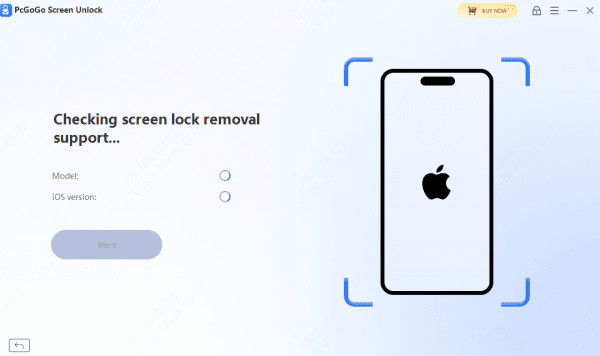
PcGoGo Screen Unlock will detect your device model and iOS version automatically
Download the latest firmware package needed to remove the screen lock
Wait until the download completes before continuing
Step 4: Begin the Unlocking Process
Once the firmware package is ready, click Start Removal
The software will begin removing the passcode, Face ID, or Touch ID
Do not disconnect your iPhone during the process
Wait a few minutes until the removal is complete
Step 5: Set Up Your iPhone After Unlocking
Your iPhone will restart with the lock removed
Follow the onscreen instructions to set up your device
If you have an iCloud or iTunes backup, you may restore your data during setup
If you forget your iPhone password, you can restore access either through Apple's recovery mode, which requires a full device reset, or by using PcGoGo Screen Unlock, a simple and efficient tool that quickly removes passcodes, Face ID, or Touch ID locks without technical hassle.




