






Dell touchpad not working on Windows 11? This guide covers 7 fixes — checking BIOS settings, enabling via Windows settings, updating drivers manually, using Driver Sentry, rolling back Windows, Dell SupportAssist, and Windows Update.
Preliminary Checks
Physical Check: Ensure that the touchpad is not physically damaged. If your laptop has sustained any drops or impacts, the touchpad may have been affected
Check if Touchpad is Enabled in BIOS/UEFI: Sometimes, the touchpad may be disabled in the system's BIOS or UEFI settings. You can access this by restarting your laptop and pressing the required key (usually F2, F12, or Esc, depending on your Dell model). Look for settings related to the touchpad and make sure it's enabled
Function Key Shortcut: Many Dell laptops have a function key (like F3 or F7) to toggle the touchpad on and off. Make sure the touchpad hasn't been accidentally disabled by pressing the appropriate key combination
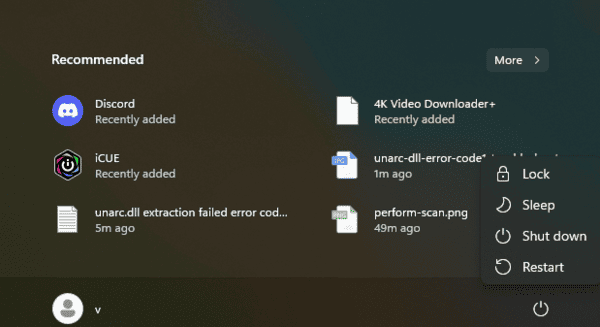
Reboot Your Dell Laptop
Sometimes, a simple restart can fix minor issues. Reboot your laptop to clear any temporary glitches that may be preventing the touchpad from working
This can resolve problems caused by system conflicts or frozen processes
Check Windows 11 Settings
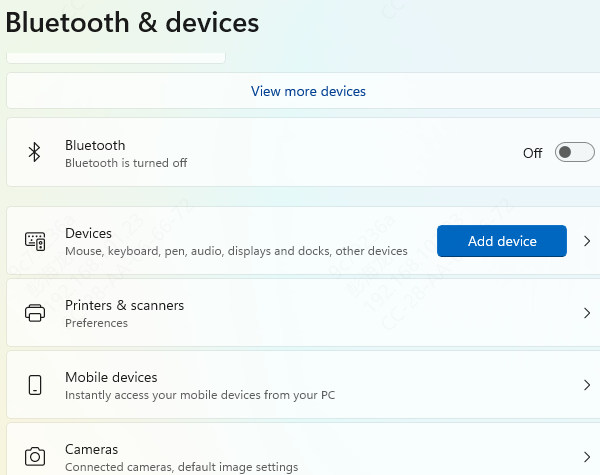
Ensure that the touchpad is properly enabled and configured in the Windows 11 settings
Go to Settings: Navigate to Settings > Devices > Touchpad
Enable the Touchpad: Make sure that the Touchpad option is toggled on. If it's off, turn it on and check if your touchpad starts working
Adjust Sensitivity and Gestures: While you're in the settings, you can also adjust the touchpad sensitivity, scrolling direction, and other gesture settings. Sometimes adjusting these can help resolve touchpad issues
Update or Reinstall the Touchpad Driver
Outdated or corrupted drivers are a common cause of touchpad issues. To resolve this:
Update the Driver
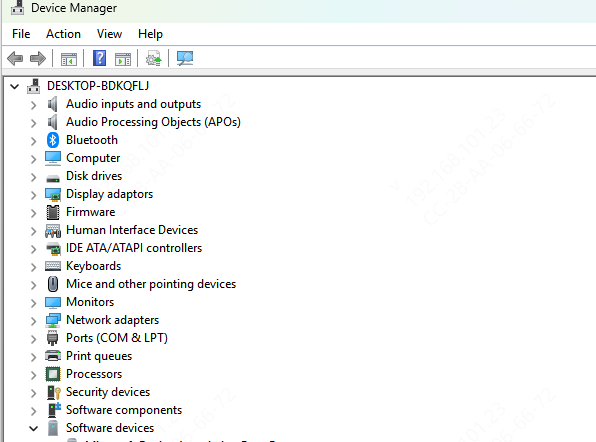
Open Device Manager (press Win + X and select Device Manager)
Expand the Mice and other pointing devices section
Right-click the touchpad driver (it may appear as "Synaptics," "ELAN," or "Windows Precision" depending on your model)
Select Update Driver and follow the on-screen instructions to search for and install any available updates
Reinstall the Driver
If updating doesn't work, you can try uninstalling and reinstalling the driver
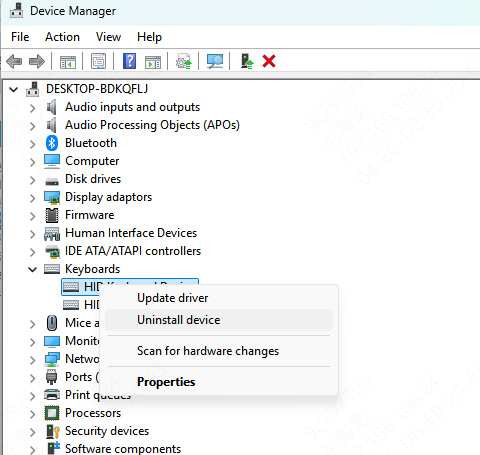
In Device Manager, right-click the touchpad driver and select Uninstall device
Restart your laptop, and Windows 11 will automatically reinstall the touchpad driver
Use Driver Sentry
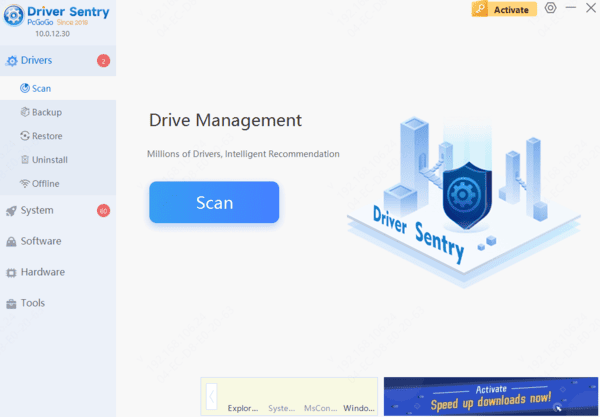
If updating drivers manually feels like a hassle, use Driver Sentry to automatically detect, download, and install the latest drivers for your Dell Inspiron, including touchpad drivers
Download & Install: Get the installer from the official site, run it, and follow the setup instructions
Scan System: Open Driver Sentry, go to Drivers → Scan, and click Scan to find outdated drivers
Update & Repair: Once the scan is done, select the touchpad and other relevant drivers, then click Repair Now to update
Roll Back to Previous System
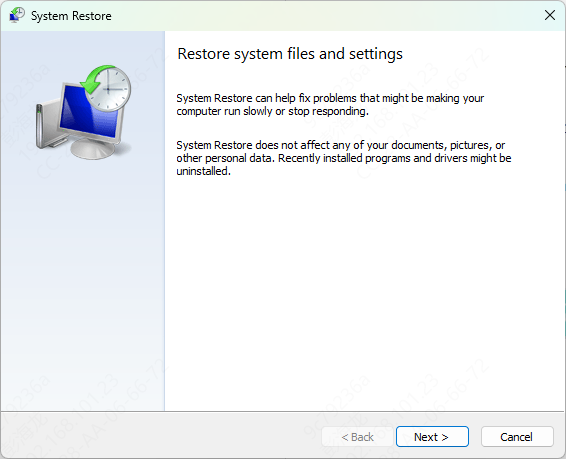
If your touchpad stopped working after a recent windows update, rolling back to a previous version may solve the issue:
Open windows restore
Follow the prompts to revert to the previous version
Use the Dell SupportAssist Tool
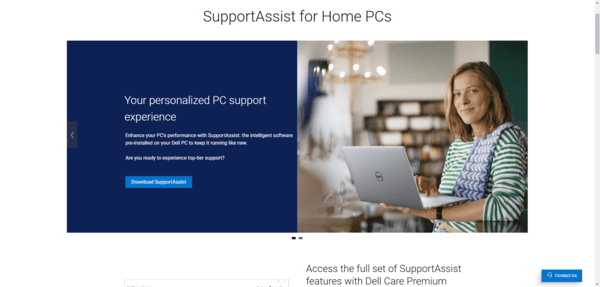
Dell's SupportAssist tool is designed to keep your system drivers up to date and resolve hardware issues
Launch Dell SupportAssist from your Start menu or from Dell's official website if it isn't installed
Run a scan for driver updates and hardware issues
The tool will identify any issues with your touchpad or drivers and attempt to resolve them automatically
Check for Windows 11 Updates
Sometimes, issues with touchpads are related to bugs or incompatibility with the current version of Windows 11. To ensure that your operating system is fully updated:
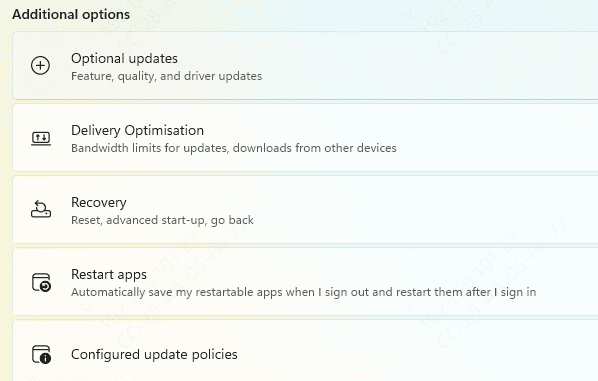
Open Settings > Windows Update
Check for and install any pending updates. Microsoft often releases fixes that can resolve compatibility issues
Conclusion
By following these troubleshooting steps, you should be able to fix your Dell touchpad issues on Windows 11. If the problem persists after performing all of these steps, it may be related to a hardware failure, in which case you should contact Dell support for further assistance.




