



Halo: Campaign Evolved reimagines the original Halo: Combat Evolved campaign with modern visuals, updated gameplay features, and Unreal Engine 5 technology. The game brings Master Chief's classic adventure to a new generation of players, including support for cooperative gameplay.
However, demanding graphics, driver compatibility issues, or software conflicts can sometimes prevent PC games from running smoothly. If Halo: Campaign Evolved crashes on your Windows PC, you may experience startup failures, sudden desktop returns, freezing, or black screens. This guide explains how to investigate potential Halo: Campaign Evolved crashing problems and choose the most appropriate troubleshooting steps.
Repair Windows Gaming Components
If Halo: Campaign Evolved is installed through the Xbox app or Microsoft Store, the Windows gaming environment may also deserve attention.
Start by checking for updates to Windows, the Xbox app, and Gaming Services.
Open Settings > Windows Update and install applicable updates.
Then open Microsoft Store, navigate to its update section, and check for available application updates.
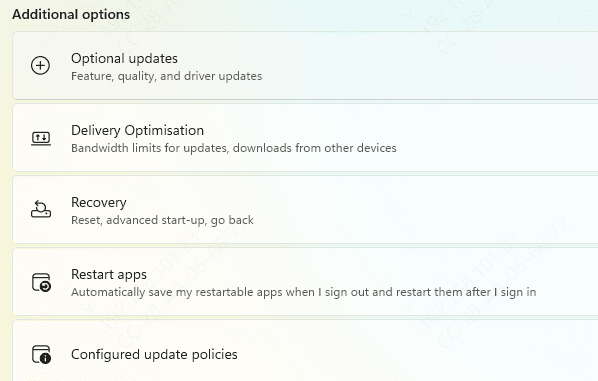
Use Repair when available before considering a reset, which may remove application data or settings.
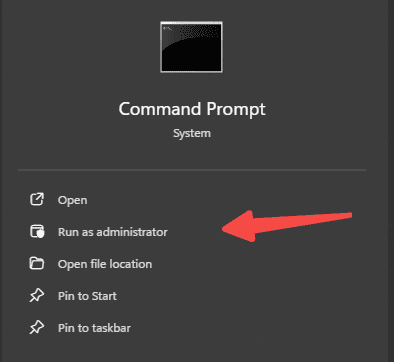
Open Command Prompt as administrator and run:
DISM /Online /Cleanup-Image /RestoreHealth
After the process finishes, enter:
sfc /scannow
Restart Windows when the scan completes.
Investigate Graphics Driver Problems
Halo: Campaign Evolved uses Unreal Engine 5, which can place significant demands on the graphics system.
Modern game engines rely on compatible graphics drivers to handle rendering, visual effects, and communication with the GPU.
A corrupted or incompatible driver may contribute to startup crashes, freezing, or unexpected display problems.
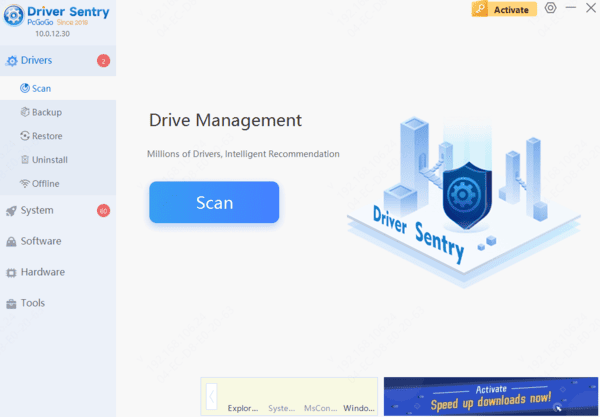
Check Drivers with Driver Sentry
Driver Sentry provides an additional way to identify supported outdated, missing, or problematic Windows device drivers.
To check your system:
Download Driver Sentry.
Install and launch the application.
Click Scan to check for driver issues.
Review the detected graphics driver information.
Install an appropriate compatible driver update if available.
Restart Windows and launch the game again.
This can help investigate driver-related problems, although updating drivers will not resolve crashes caused by unrelated game bugs.
Update the Graphics Driver Manually
You can also obtain a driver directly from the GPU manufacturer.
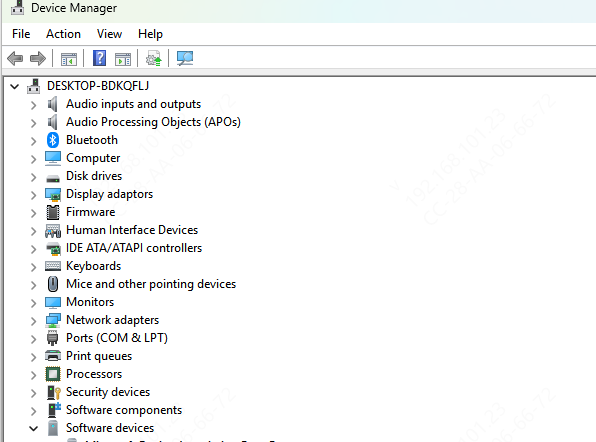
Open Device Manager, expand Display adapters, and identify your graphics card.
Visit the official NVIDIA, AMD, or Intel website and download a compatible driver for your GPU and Windows version.
Install the driver, restart your computer, and test the game.

Find Out Whether Background Software Is Interfering
Close Halo: Campaign Evolved.
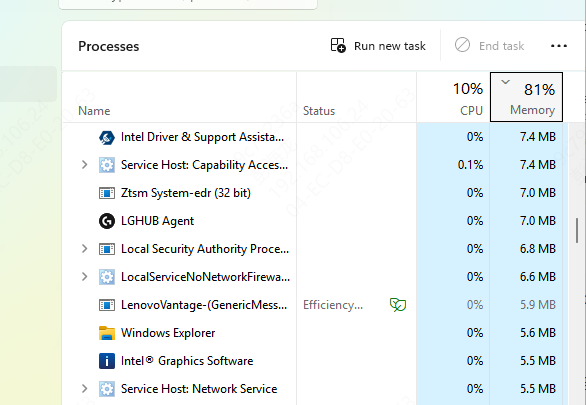
Press Ctrl + Shift + Esc to open Task Manager.
Close unnecessary background applications.
Temporarily disable nonessential overlays.
Restart the game.
Investigate Crashes at Specific Missions or Checkpoints
Try restarting the mission or loading an earlier checkpoint if the game allows it.
If the problem happens at exactly the same moment, check for official updates or known issues affecting that section.
Avoid deleting saved progress without first confirming that a backup or cloud save is available.
It is also useful to record the mission name, approximate checkpoint, and actions performed immediately before the crash.
Troubleshoot Cooperative Gameplay Crashes
First, confirm that all participants are using compatible, updated game versions.
Next, check whether the affected player can run the same mission in single-player mode.
If single-player works but cooperative sessions fail, investigate network stability, session-related errors, and official support notices.
Temporarily disable unnecessary overlays and recording applications.
You can also try joining a different session or changing the host, where supported.
Keep in mind that network disconnections and application crashes are not the same problem.
By investigating the problem systematically, you can narrow down the cause and improve your chances of enjoying a more stable Halo experience.