






If your game refuses to start and shows an error related to mhypbase.dll, you're definitely not alone. This issue usually appears as messages like "Failed to load mhypbase.dll" or causes the game to crash immediately on launch. While it may seem serious, the good news is that this problem is often easy to fix, and in most cases you won't need to reinstall Windows. In this guide, we'll walk you through step-by-step solutions to help you resolve the mhypbase.dll error and get your game running again.
Verify or Repair Game Files
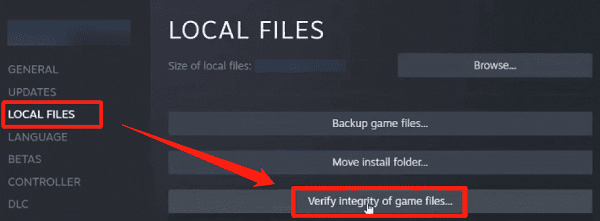
If the mhypbase.dll file is missing or corrupted, repairing game files can restore it.
Open your game launcher (Steam, Epic Games, or the game's official launcher)
Locate the game in your library
Choose Verify integrity of game files or Repair
The launcher will automatically re-download missing or damaged files.
Install the Latest Windows Updates
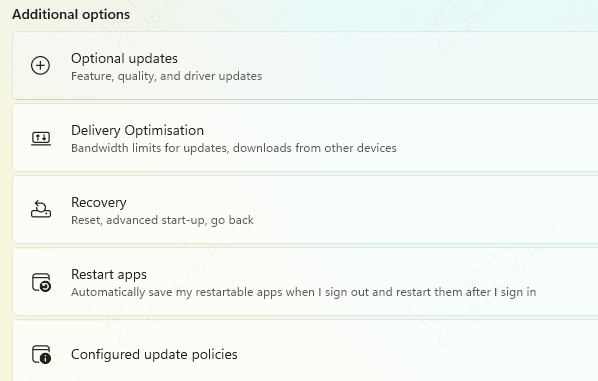
Windows updates often include important bug fixes, security patches, and system file repairs that directly affect DLL loading.
Press Win + I to open Settings
Go to Windows Update
Click Check for updates
Download and install all available updates
Restart your PC after the installation completes
Even optional updates can contain system stability improvements, so it's recommended to install them as well.
Repair or Reinstall Microsoft Visual C++ Redistributables
Most games depend on Microsoft Visual C++ Redistributable packages to run properly. If these packages are missing or corrupted, DLL-related errors like mhypbase.dll may appear.
Open Control Panel > Programs > Programs and Features
Look for Microsoft Visual C++ Redistributable entries
If they are already installed:
Right-click each version and choose Repair
If they are missing or repair fails:
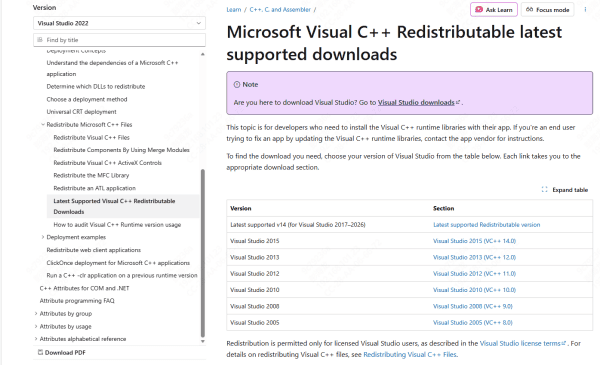
Download the latest official versions from Microsoft
Install both x86 and x64 versions
Installing multiple versions is normal and often necessary, as different games use different runtimes.
Use an PcGoGo DLL Fixer (Recommended)
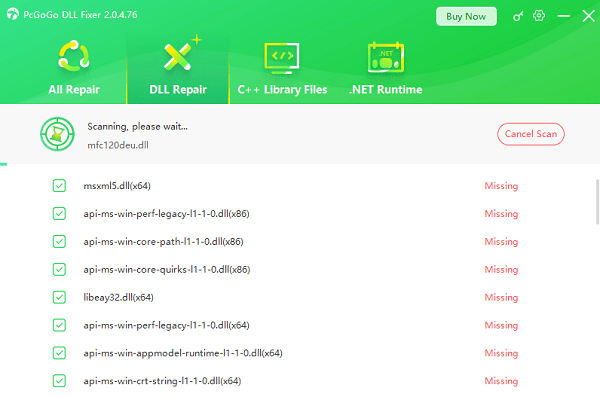
If manual troubleshooting feels complicated or the error keeps coming back, an automated tool can save time.
Scan your system for missing or corrupted DLL files
Automatically restore mhypbase.dll
Fix related system dependencies and registry issues
This option is especially useful when multiple DLL files are involved or when system corruption prevents manual fixes from working.
Update DirectX to the Latest Version
DirectX is essential for rendering graphics and handling game-related system calls. An outdated DirectX installation can prevent DLL files from loading correctly.
Press Win + R, type dxdiag, and press Enter
Check your DirectX version
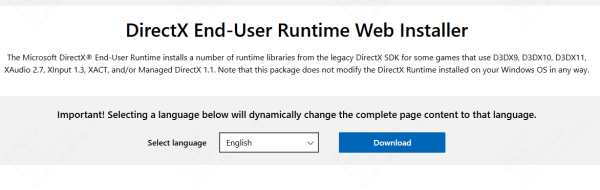
Download the DirectX End-User Runtime from Microsoft if needed
Install the update and restart your computer
Even on Windows 10 or 11, reinstalling DirectX can fix hidden compatibility issues.
Update Graphics Drivers (NVIDIA / AMD / Intel)
Your GPU driver plays a key role in how games interact with system libraries. Outdated or buggy drivers can trigger startup errors.
Recommended approach:
Visit the official website of your GPU manufacturer: NVIDIA, AMD, or Intel
Download the latest driver for your specific graphics card
Perform a clean installation if available
Restart your PC after installation
Avoid using third-party driver websites, as they may provide outdated or unsafe versions.

Check Antivirus or Windows Defender Quarantine
Security software sometimes mistakenly flags DLL files as threats.
Open your antivirus or Windows Defender
Check the Quarantine or Protection History section
Restore mhypbase.dll if it appears there
Add the game folder to the exclusion or whitelist
This prevents the file from being removed again.
Conclusion
The mhypbase.dll error may prevent your game from launching, but it's rarely a permanent problem. In most cases, verifying game files, checking antivirus settings, or updating system components will resolve the issue quickly. For persistent errors, automated repair tools offer a simple and reliable alternative. By following the steps above, you should be able to get back into the game without reinstalling Windows or losing data.




