
If your laptop headphone jack is not working, Windows may continue playing sound through the built-in speakers, fail to detect the headphones, or produce low, distorted, or one-sided audio. The problem may be caused by incorrect output settings, Realtek jack detection options, outdated or incompatible audio drivers, Windows configuration issues, or physical damage inside the audio port. This guide explains several practical ways to fix headphone jack problems.
Basic Checks First
Confirm the headphone plug is fully inserted. A partial insertion is more common than it sounds and causes no audio output or audio in only one ear. Push the plug in firmly until it seats completely
Test with a different pair of headphones. If the second pair works, the original headphones are faulty rather than the laptop jack. If neither pair works, the issue is on the laptop side
Right-click the speaker icon in the taskbar and open Volume mixer. Confirm the headphone output channel is not muted and the volume is not set to zero. Also check that no Bluetooth audio device is set as the default output and intercepting all audio before it reaches the jack
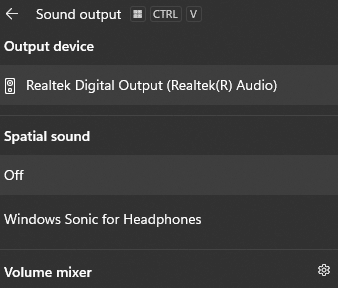
Fix 1: Set Headphones as the Default Playback Device
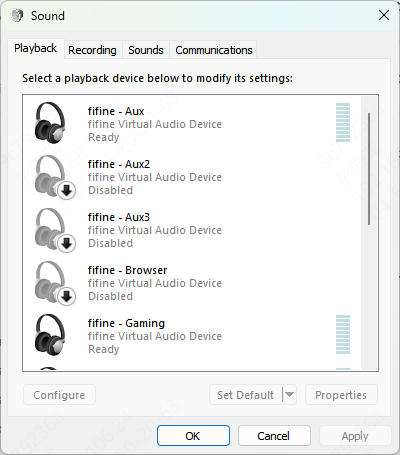
Right-click the speaker icon in the taskbar. On Windows 10, click Sounds and go to the Playback tab. On Windows 11, click Sound settings and go to the Output section
Look for a headphone entry in the device list. It may appear as Headphones, Speakers/Headphones, or the audio chip name such as Realtek High Definition Audio. Right-click the headphone entry and select Set as Default Device
Fix 2: Check Realtek Audio Manager Jack Detection Settings
Open Realtek HD Audio Manager. It is accessible from the system tray — look for a small speaker icon with an R — or through the Control Panel under Hardware and Sound
In the Realtek interface, look for a connector settings or jack panel. Confirm that "Disable front panel jack detection" is not checked. If it is checked, uncheck it and test the headphone jack
Fix 3: Run the Windows Troubleshooter
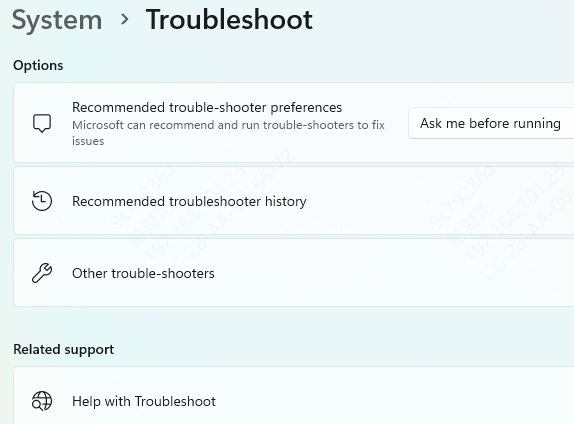
On Windows 10, right-click the speaker icon in the taskbar and select Troubleshoot sound problems. On Windows 11, go to Settings, then System, then Troubleshoot, then Other troubleshooters, and click Run next to Audio
Follow the prompts and apply any suggested fixes. The troubleshooter handles misconfigured playback devices, missing drivers, and output selection errors automatically. It is particularly effective when headphones appear in the device list but produce no sound
Fix 4: Update or Reinstall the Audio Driver
Open Device Manager by pressing Win + X. Expand Sound, video and game controllers. If the audio device shows a yellow exclamation mark, the driver has a problem.
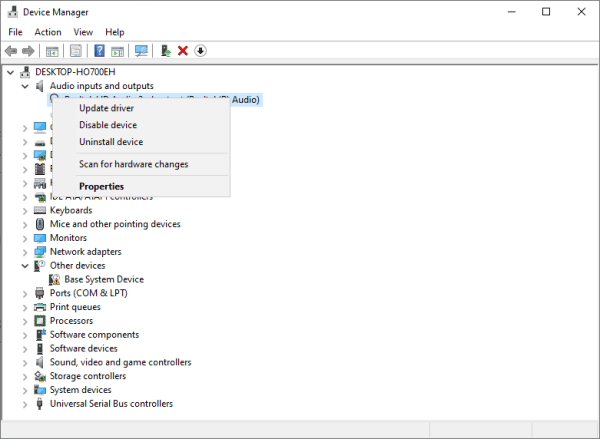
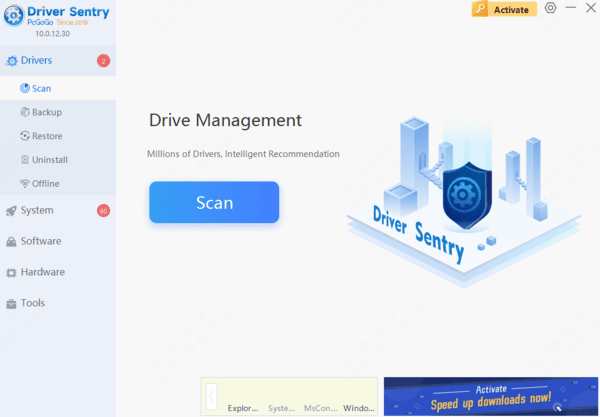
When a Windows Update replaced the working Realtek driver with an incompatible version, Driver Sentry identifies the audio chip by hardware ID and installs the correct matched driver automatically.
Fix 5: Configure Audio Output in Windows
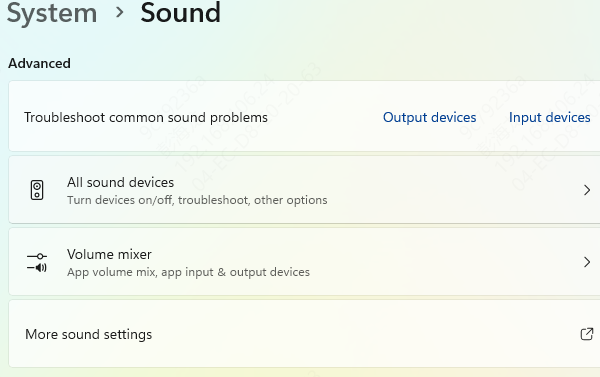
Windows 11 changed how audio devices are presented. Headphones and speakers may appear as a single combined Speakers/Headphones entry rather than as separate devices, which changes how the default device is managed
Go to Settings, then System, then Sound. In the Output section, if a combined Speakers/Headphones entry is shown, click the arrow next to it. Confirm the device shows as active and the output is routing correctly when headphones are plugged in
Fix 6: Check for Physical Jack Damage
Insert headphones and play audio. Gently rotate the plug while sound is playing and apply slight lateral pressure. If audio briefly appears when the plug is in a specific position, the internal contacts in the jack are worn or bent. This confirms hardware damage rather than a software issue
Clean the jack with a short burst of compressed air. Dust and lint accumulation prevents the plug from making proper contact and is a common cause of no audio or intermittent audio on laptops used in dusty environments
Fix 7: Update Windows
Pending Windows updates occasionally include audio subsystem fixes that restore headphone detection after a previous update broke it. Go to Settings, then Windows Update, and click Check for Updates
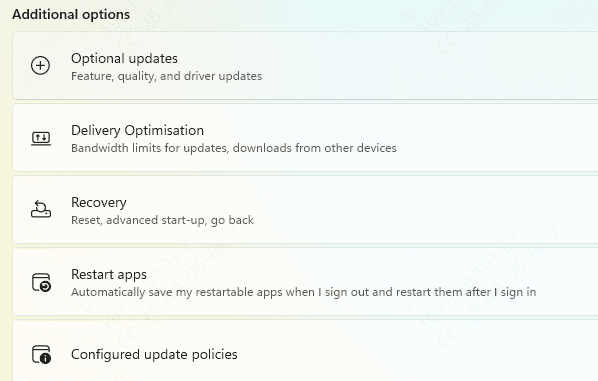
Install all available updates including any listed under Optional updates, which sometimes include audio driver components
Frequently Asked Questions
Why do my headphones work but the microphone does not?
The laptop may use a combined TRRS headset jack while the headphones have separate audio and microphone plugs. Use a compatible headset or a TRRS adapter designed for the laptop's connector standard.
Why are my headphones listed as Speakers/Headphones instead of separately?
Many Realtek audio systems use one combined playback endpoint for both outputs. The driver detects the inserted plug and switches internally, so a separate Headphones entry may not appear.
What if Realtek Audio Manager is missing?
Newer computers commonly use Realtek Audio Console instead. Install the laptop manufacturer's audio driver first, then check Microsoft Store or the manufacturer's support page for the companion console.
Conclusion
Headphone jack failures on laptops most commonly come from Windows routing audio to the wrong output device, Realtek's jack detection setting being disabled, or an audio driver corrupted by a Windows Update. Setting the correct default playback device and checking Realtek HD Audio Manager's detection settings resolve the majority of cases without any driver work. For driver-related failures, reinstalling from the laptop manufacturer's site or using Driver Sentry for automated repair covers both manual and automated paths. When audio briefly returns only when the plug is physically manipulated, the jack has physical damage that requires hardware repair rather than software fixes.