





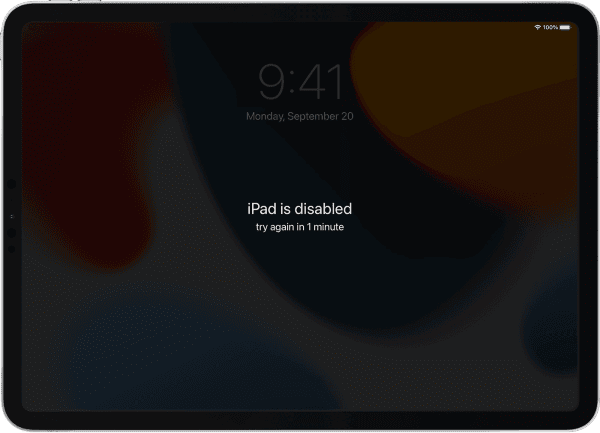
When an iPad shows the "iPad is Disabled" or "iPad Unavailable" message, it usually means the device has been locked after too many incorrect passcode attempts. While this can prevent access to your data and apps, the iPad can still be restored using the right unlocking method. This guide explains the causes of iPad lockouts and provides step-by-step solutions using Apple Recovery Mode and PcGoGo Screen Unlock to help you regain access quickly.
Why Does an iPad Become Disabled?
Apple uses strong security protections to prevent unauthorized access. Your iPad may become disabled for several reasons:
Entering the wrong passcode too many times in a row
Forgetting a recently changed passcode
Face ID or Touch ID failing multiple times
Children or accidental touches triggering repeated failed attempts
Once this happens, the iPad temporarily—or permanently—locks itself to protect your data
Apple Recovery Mode
Apple's official solution for a disabled iPad is Recovery Mode. This method restores the iPad to factory settings, removing the ipad passcode in the process.
Turn off your iPad
Disconnect it from the computer if connected
Power it off completely

Enter Recovery Mode
For iPads without a Home button:
Press and quickly release the Volume Up button, then Volume Down, then press and hold the Top button until the recovery screen appears
For iPads with a Home button:
Press and hold the Home button and the Top (or Side) button together until recovery mode appears

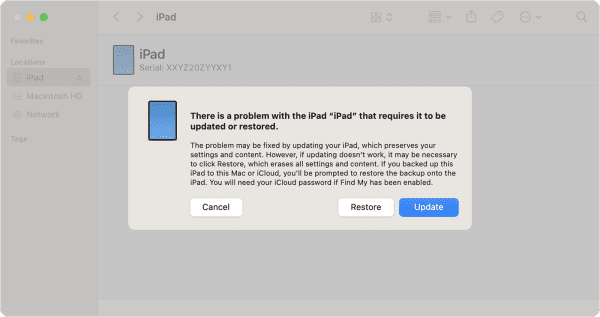
Connect iPad to a computer
Use Finder (macOS), iTunes (Windows/macOS), or Apple Devices app
Choose "Restore"
Your computer will download iPadOS and erase the device
Wait for the process to complete
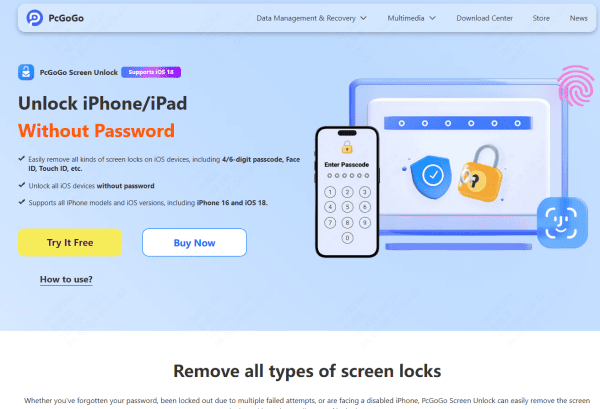
PcGoGo Screen Unlock Screen Unlock
If you prefer a faster, simpler, and more user-friendly option, PcGoGo Screen Unlock Screen Unlock is a great alternative.
Download PcGoGo Screen Unlock Screen Unlock
Download and install PcGoGo Screen Unlock Screen Unlock on your computer
Connect iPad
Connect your iPad using a USB cable
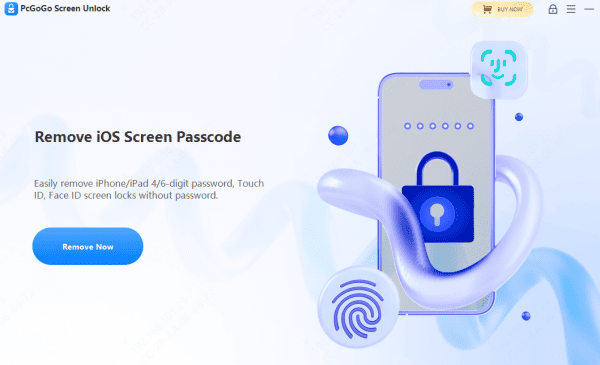
Select "Remove Now"
Download package
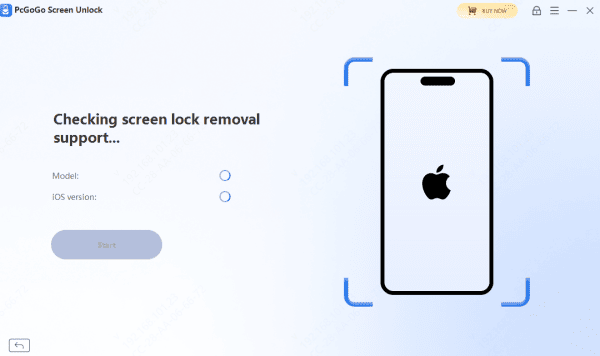
Download the required firmware package
Start Unlocking
Click Start Unlocking and wait a few minutes
Set up your iPad once the lock is removed
Apple Recovery Mode vs PcGoGo Screen Unlock Screen Unlock
Apple Recovery Mode is a free and official solution, but it can be slow and difficult for non-technical users
PcGoGo Screen Unlock Screen Unlock, on the other hand, offers a smoother and faster experience with fewer steps and a higher success rate—making it ideal for users who want a hassle-free solution
How to Avoid Getting Locked Out Again
Use a passcode you can easily remember
Enable Face ID or Touch ID properly
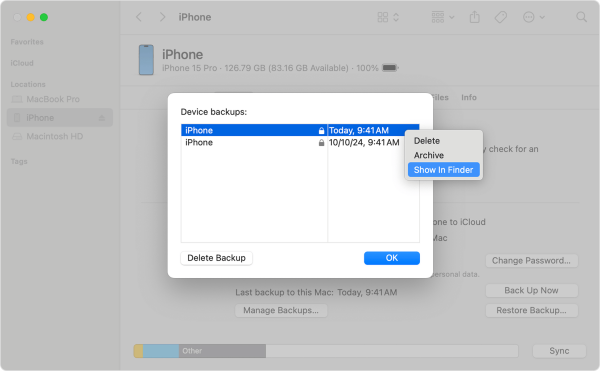
Back up your iPad regularly to iCloud or a computer
Store your Apple ID information safely
Conclusion
A disabled iPad doesn't mean the end of your device. Whether you choose Apple Recovery Mode or a more convenient solution like PcGoGo Screen Unlock Screen Unlock, you can unlock your iPad and get back to using it. If you want a quicker, less technical experience, PcGoGo Screen Unlock Screen Unlock is often the better choice.




