



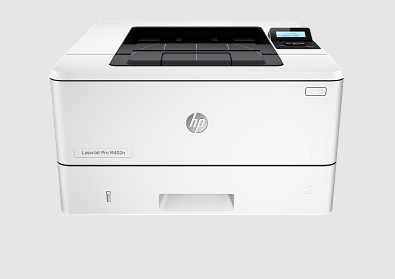
The HP LaserJet Pro M402n is a monochrome laser printer designed for reliable document printing in homes, offices, and business environments. With fast printing speeds and support for USB and Ethernet connections, it is a practical choice for everyday printing tasks.
However, installing a compatible printer driver is essential for establishing proper communication between the printer and your Windows computer.
Without the correct driver, you may encounter problems such as printer detection failures, unavailable drivers, stuck print jobs, or unexpected printing errors.
Whether you are setting up a new printer or troubleshooting an existing installation, this guide explains how to download, install, and update the HP LaserJet Pro M402n driver on Windows PCs.
Method 1: Download Driver from the Official Website
Visit the HP LaserJet Pro M402n Driver Download page.
Confirm that the selected printer model is HP LaserJet Pro M402n.
Select your Windows operating system and version.
Expand the available driver categories.
Locate a compatible printer driver package.
Click Download.
Open the downloaded installation file.
Follow the on-screen instructions to complete the installation.
Restart your computer if prompted.
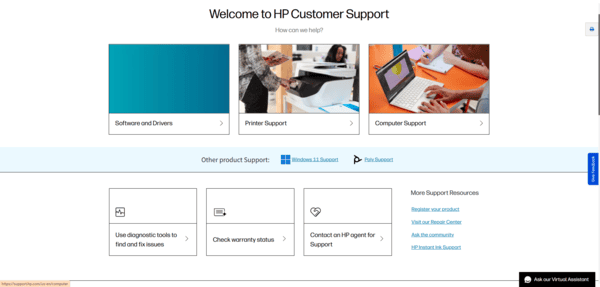
Print a test page to confirm that the printer works correctly.
Depending on your operating system, HP may provide different driver packages, including basic printer drivers, full-featuresoftware, and universal print drivers.
If a dedicated Windows 11 driver is unavailable, check whether a compatible HP Universal Print Driver or Windows-provided printer driver supports your printer.
Method 2: Check and Update Drivers with Driver Sentry
Printer communication problems are not always caused by the printer driver itself. Outdated USB controller, chipset, or network adapter drivers may also prevent Windows from detecting or communicating with connected printers.
Driver Sentry provides an additional way to investigate driver-related printing and connectivity problems without manually searching for every affected hardware driver.
Download and Update Drivers with Driver Sentry
Download Driver Sentry from the official website.
Install and launch the software.
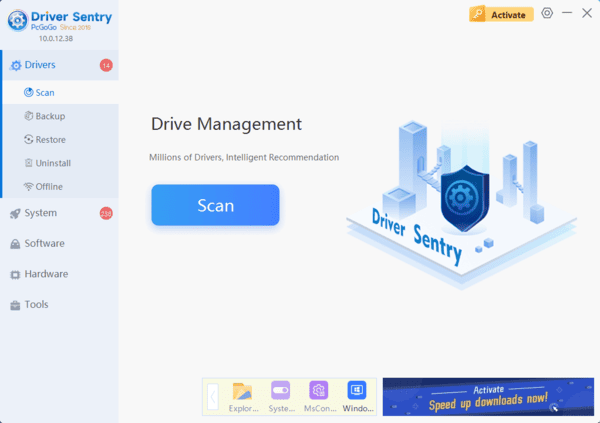
Click Scan to detect potential driver problems.
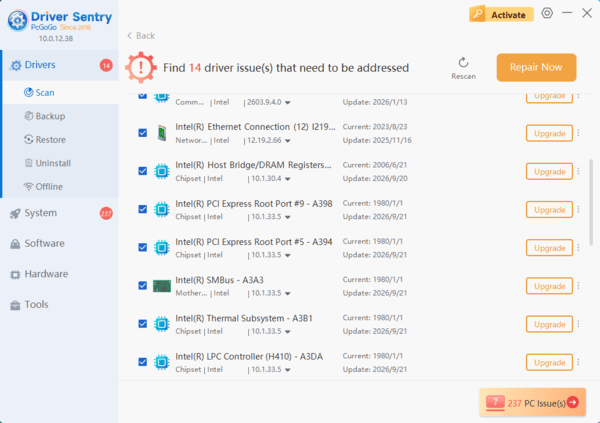
Review the available printer and related hardware driver results.
Install an appropriate compatible driver if available.
Restart your computer.
Reconnect your HP LaserJet Pro M402n printer.
Print a test page to check whether the problem has been resolved.
If the model-specific HP LaserJet Pro M402n driver is not available through Driver Sentry, download it directly from HP's official support website.
Method 3: Update HP LaserJet Pro M402n Driver Through Windows Update
Windows Update can automatically detect and install compatible drivers for various hardware devices, including supported printers.
This method is particularly useful when Windows recognizes your printer but reports that its driver is unavailable.
For Windows 11
Press Windows + I to open Settings.
Select Windows Update.
Click Check for updates.
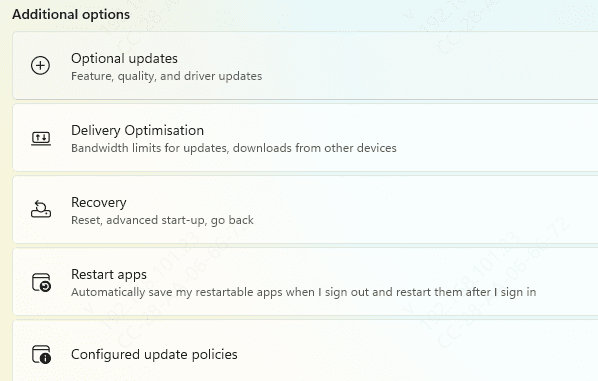
Open Advanced options.
Select Optional updates.
Expand Driver updates, if available.
Select an applicable HP printer driver.
Download and install the update.
For Windows 10
Open Windows Settings.
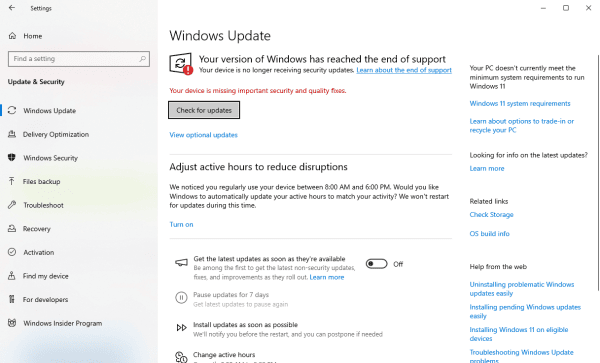
Navigate to Update & Security > Windows Update.
Click Check for updates.
Select View optional updates, if available.
Expand the driver updates section.
Install the appropriate printer driver.
Restart your computer.
Windows-provided printer drivers may support standard printing functions but might not include all the management features available through HP's dedicated software.
Frequently Asked Questions
Is HP LaserJet Pro M402n Compatible with Windows 11?
The printer can be used with Windows 11 when an appropriate compatible driver is available. Check HP's support website, supported HP Universal Print Drivers, or Windows-provided printer drivers.
How Do I Install HP LaserJet Pro M402n Without a CD?
Download the appropriate driver package from HP's official website and follow the installation instructions. A physical installation CD is not required.
Why Is My HP LaserJet Pro M402n Driver Unavailable?
This error may occur because of missing, incompatible, or damaged printer drivers. Installing a compatible HP driver or checking Windows Update may resolve the problem.
Conclusion
Downloading and installing the correct HP LaserJet Pro M402n driver is essential for reliable printing on Windows PCs.
You can obtain compatible drivers through HP's official website, Windows Update, or the built-in printer installation wizard. Driver Sentry also provides an additional way to check supported printer and related hardware driver issues.
If printing problems persist, verify your USB or Ethernet connection, check the printer port, restart the Print Spooler service, and reinstall the appropriate driver when necessary.