






Maintaining your HP printer regularly is the key to achieving consistent print quality and long-term reliability. Over time, issues like dust buildup, clogged printheads, outdated drivers, and incorrect settings can lead to common problems such as blurry prints, paper jams, slow performance, and connection errors. This guide covers essential HP printer maintenance tips, including cleaning methods, ink care, driver updates, network optimization, and troubleshooting steps to help keep your printer running smoothly and efficiently.
Why Regular HP Printer Maintenance Is Important
Maintain consistent print quality
Reduce paper jams
Prevent ink blockage
Improve connection stability
Extend hardware lifespan
Avoid unnecessary replacement costs
Clean Your HP Printer Regularly
Clean the Printer Exterior and Paper Area
Clean the Printhead
Clean Printer Rollers
Check Ink or Toner Levels Regularly
Store Spare Ink Cartridges Correctly
Keep cartridges sealed
Store in a cool, dry location
Avoid direct sunlight
Keep HP Printer Drivers Updated
Printer hardware requires software called drivers to communicate with Windows.
When HP printer drivers become outdated or corrupted, you may experience:
Printer not detected
Driver unavailable errors
Printing failures
Scanner problems
Connection issues
Keeping drivers updated is an important part of HP printer maintenance.
Update HP Printer Drivers Manually
You can download drivers from the HP support website.
Visit HP support.
Search your printer model.
Select your Windows version.
Download the latest driver package.
Install the software.
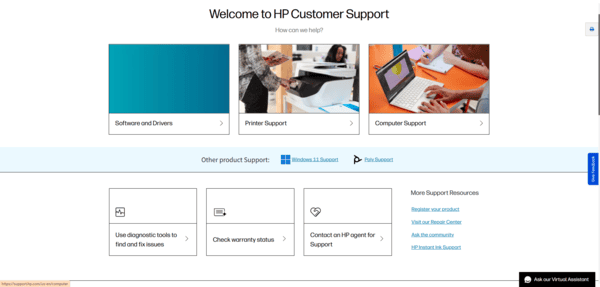
This method provides official drivers designed for your printer model.
Update HP Printer Drivers Through Windows
Windows also provides built-in driver update options.
Open Settings.
Select Windows Update.
Click Check for updates.
Install available updates.
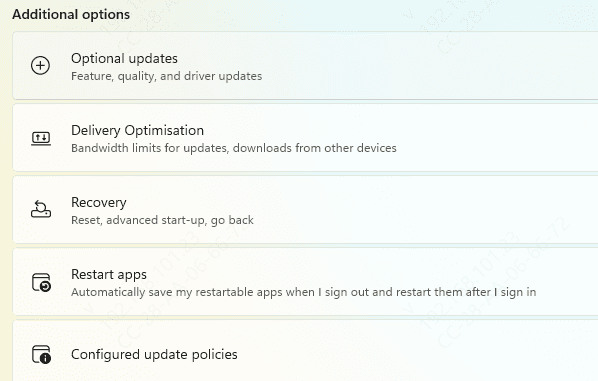
Windows may automatically install compatible printer drivers.
Using Device Manager
Press Windows + X.
Select Device Manager.
Find your HP printer.
Right-click the device.
Select Update Driver.
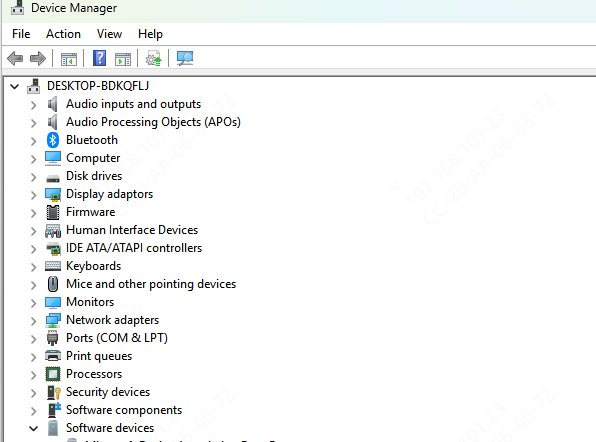
This method works well for basic driver updates.
Maintain HP Printer Drivers with Driver Sentry
Finding the correct printer driver manually can be difficult, especially after reinstalling Windows or connecting multiple devices.
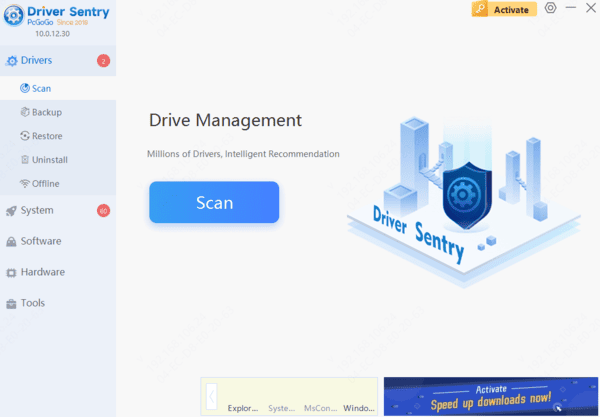
Driver Sentry provides a simpler way to manage driver problems.
It can help:
Detect missing HP printer drivers
Find outdated drivers
Repair corrupted drivers
Update related USB and system drivers
Backup drivers before changes
Frequently Asked Questions
How often should I clean my HP printer?
For normal home use, cleaning once a month is usually enough. Heavy-use printers may require more frequent maintenance.
Why is my HP printer printing faded pages?
Common causes include low ink levels, clogged printheads, incorrect settings, or outdated drivers.
Should I update HP printer drivers regularly?
Yes. Driver updates improve Windows compatibility and can fix printing problems.
How can I prevent HP printer paper jams?
Use good-quality paper, load it correctly, and keep printer rollers clean.
With proper maintenance, your HP printer can continue delivering high-quality prints while reducing errors and unnecessary repairs.




