
Looking to install or update ASUS drivers on Windows 10 or 11? This guide covers 5 methods — downloading from the ASUS support website, using Device Manager, automating updates with Driver Sentry, Windows Update, and the MyASUS app — to keep your ASUS laptop or desktop running smoothly with the latest drivers.
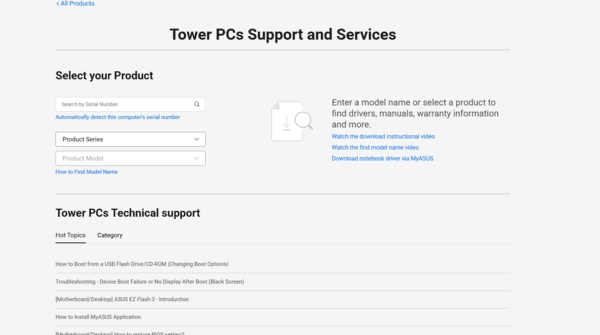
Installing Drivers from the ASUS Official Support Website
Step 1: Visit the ASUS Support Page
Step 2: Enter your ASUS model number in the search bar to find your device
Step 3: Choose your operating system (Windows 10 or 11) from the dropdown list
Step 4: Navigate to the Drivers & Tools section and download the relevant drivers (graphics, audio, network, chipset, etc.)
Step 5: Once the drivers are downloaded, run the setup files and follow the on-screen instructions to install each driver one by one
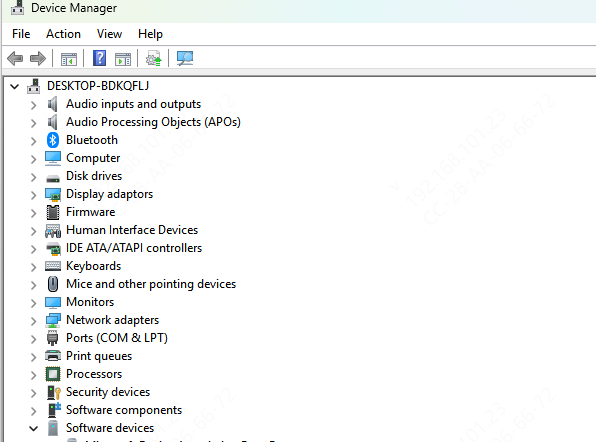
Installing Drivers Through Windows Device Manager
Step 1: Right-click the Start Menu and select Device Manager
Step 2: Find the device category you need (e.g., Display Adapters for graphics drivers)
Step 3: Right-click the device and select Update Driver
Step 4: Choose Search automatically for updated driver software or Browse my computer for driver software if you have downloaded the driver manually
Step 5: Follow the on-screen instructions to complete the installation
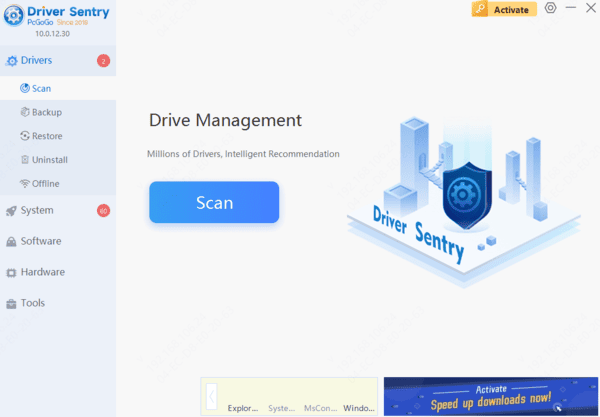
Driver Sentry to Install ASUS Drivers
If you prefer automated options for updating and installing drivers, you can use Driver Sentry:
Step 1: Download and install Driver Sentry
Step 2: Run a system scan for outdated or missing drivers
Step 3: The tool will automatically download and install the latest compatible drivers for your ASUS laptop or desktop
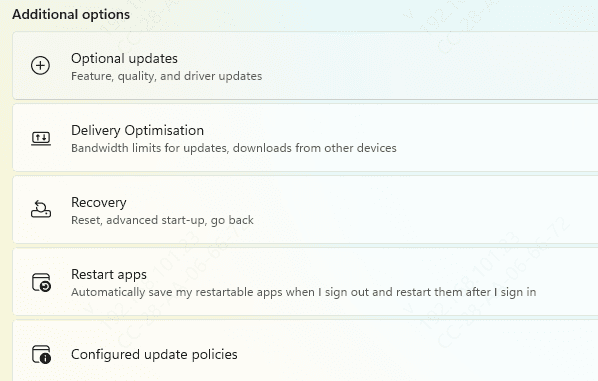
Using Windows Update for Driver Installation
Step 1: Open the Settings menu by pressing Windows + I
Step 2: Go to Update & Security > Windows Update
Step 3: Click Check for Updates. Windows will automatically search for the latest updates for your system, including drivers
Step 4: If any updates are available, they will be listed, and you can select Install Now to install them
Step 5: After installation, restart your laptop or desktop to apply the driver updates
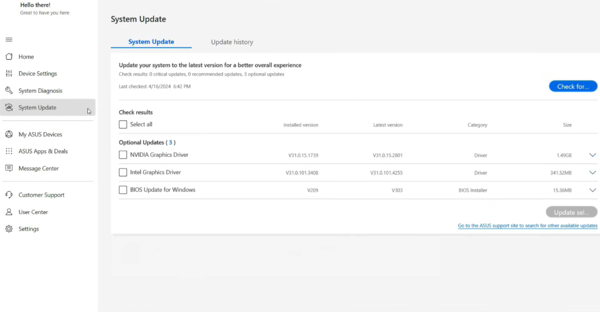
Using MyASUS for Driver Updates
Step 1: Open the MyASUS app, which is pre-installed on most ASUS laptops and desktops
Step 2: If you don't have it installed, you can download MyASUS from the Microsoft Store
Step 3: Launch the MyASUS app and navigate to the Customer Support section
Step 4: Click on Driver & Utility to view a list of available driver updates
Step 5: MyASUS will automatically check for any outdated drivers and prompt you to install the latest versions
Step 6: Select the drivers you wish to update and follow the prompts to install them
Conclusion
Installing and updating your ASUS drivers is a straightforward process that ensures your laptop or desktop is running efficiently. Whether you choose to manually download drivers from the ASUS website, use the ASUS Live Update Tool, or rely on Device Manager, keeping your drivers updated is essential for system performance. Regular driver maintenance helps avoid issues like slow performance, hardware malfunctions, and security risks. With the methods and tools outlined in this guide, you should be able to keep your ASUS device running smoothly and efficiently.