If your laptop suddenly has no sound, shows "No audio output device is installed," or fails to play audio through speakers or headphones, the problem may be caused by incorrect sound settings, stopped Windows Audio services, disabled playback devices, problematic Windows updates, or damaged audio drivers. This guide explains several practical ways to restore laptop audio, including checking volume and output settings, restarting audio services, running the Windows troubleshooter, reviewing Device Manager, updating drivers with Driver Sentry, and testing external speakers or headphones to identify possible hardware problems.
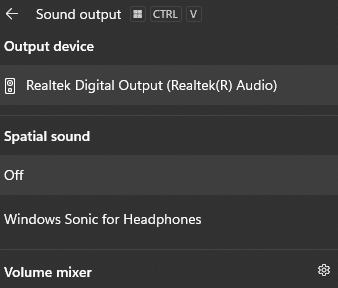
Solution 1: Check Volume and Audio Output Settings
Sometimes the issue is caused by simple configuration errors.
Click the speaker icon in the system tray.
Make sure the volume is not muted.
Click the arrow next to the volume slider.
Select the correct playback device, such as Speakers or Headphones.
Solution 2: Set the Correct Default Playback Device
Windows may switch audio output automatically after updates or device changes.
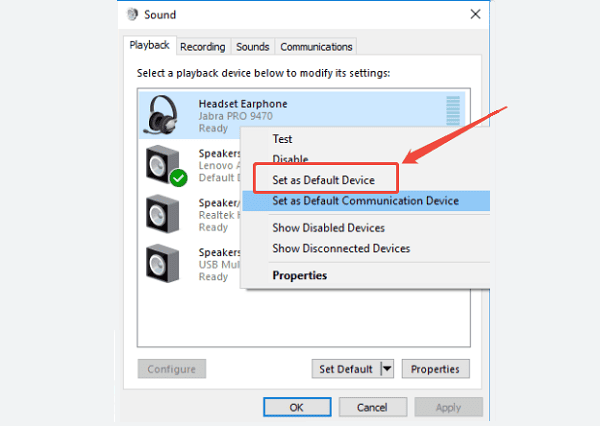
Right-click the speaker icon.
Select "Sounds", go to the Playback tab.
Right-click your active speaker or headphone device.
Choose "Set as Default Device".
Click OK.
Restart any apps that were using audio.
Solution 3: Restart Windows Audio Services
If audio services stop running, sound will not work even with correct drivers.
Press Windows + R, type "services.msc", and press Enter.
Locate "Windows Audio", right-click it and select "Restart".

Repeat the same for Windows Audio Endpoint Builder.
Close the window and test your audio again.
Solution 4: Run the Windows Audio Troubleshooter
Windows includes a built-in troubleshooter that can detect basic audio issues.
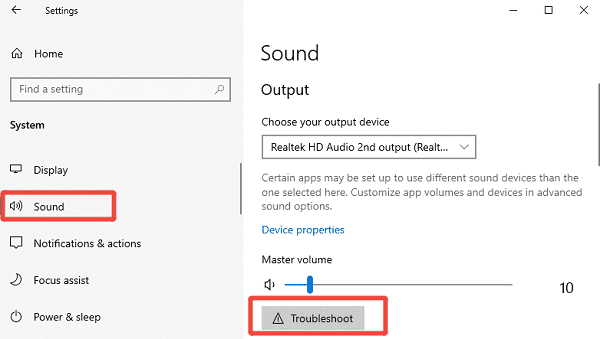
Open Settings
Go to System > Sound.
Click Troubleshoot under Output.
Follow the on-screen instructions.
This tool may automatically fix configuration problems.
Solution 5: Update or Roll Back Windows Updates
Some Windows updates can cause audio driver conflicts.
Check for Updates:
Open Settings > Update & Security.
Go to Windows Update.
Click "Check for updates".
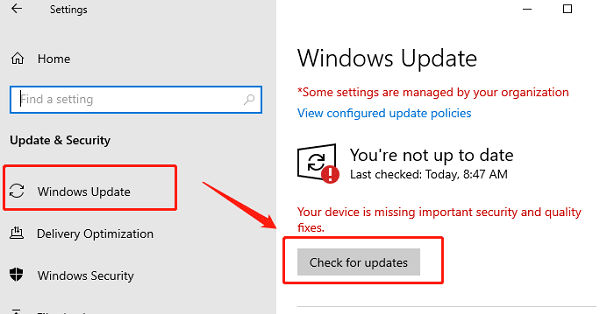
Install any pending updates.
Roll Back a Problematic Update:
Go to Windows Update > View update history.
Click Uninstall updates.
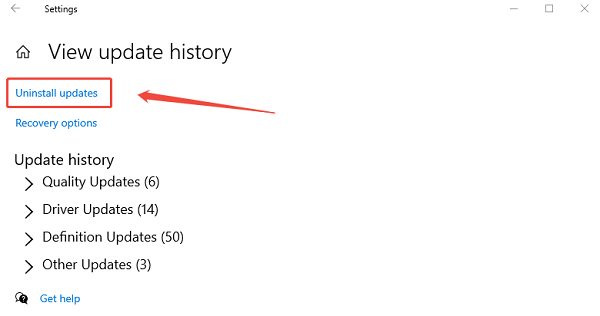
Remove the most recent update if audio stopped working afterward.
Restart your laptop after making changes.
Solution 6: Check Audio Driver
A disabled or malfunctioning device can prevent sound output.
Steps to Verify Audio Device Status:
Right-click Start and open Device Manager.
Expand "Sound, video and game controllers", check if the audio device has a warning icon.
Right-click the device and select "Enable" if available.
If errors appear, uninstall the device and restart.
Update Audio Drivers with Driver Sentry
Audio issues are most often caused by driver problems. Driver Sentry is designed to automatically detect audio devices such as Realtek, Intel, Conexant, or NVIDIA HD Audio and install the correct driver version for your system.
Download and Install:
Click the "Download" button to download the software package.
Ensure the installation is completed with administrator privileges.
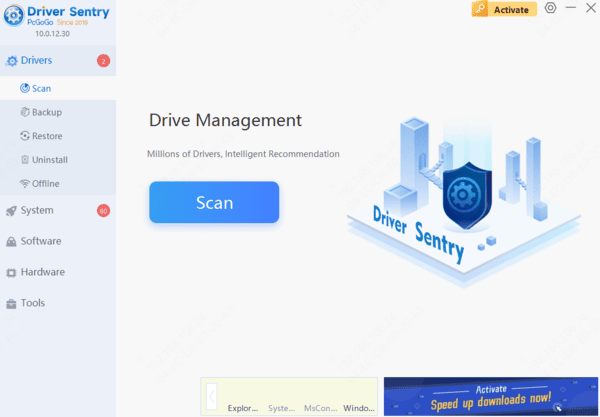
Run Scan:
Once opened, the program will automatically detect your system hardware, and you can also click the "Scan" button.
Driver Sentry scans your PC for missing, outdated, corrupted, or incompatible drivers, including audio devices.
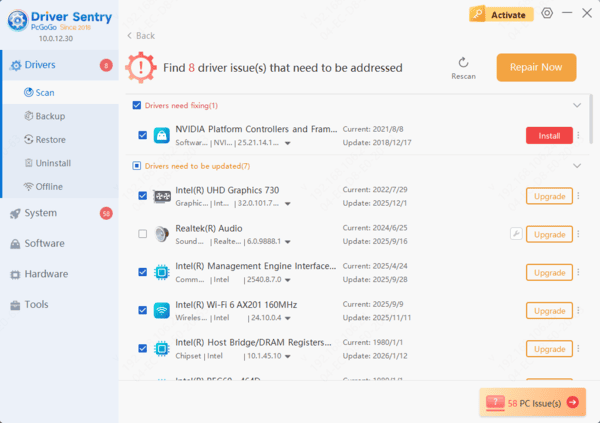
Execute Update:
This may appear as Realtek High Definition Audio, Intel Smart Sound Technology, or a manufacturer-specific driver in the driver list.
Click the "Upgrade" next to the audio driver item. Driver Sentry downloads the most stable and compatible driver for your exact system configuration.
Restart your computer:
Follow the on-screen instructions until the update finishes.
Reboot the system to apply the audio driver changes.
In many cases, sound will be restored immediately after reboot.
Solution 7: Test with Headphones or External Speakers
This helps determine whether the issue is software or hardware related.
Plug in headphones or external speakers.
If sound works, the built-in speakers may be faulty.
If no sound works on any device, the issue is likely driver or system-related.
Conclusion
When your laptop audio is not working, driver-related problems are the most common cause. Starting with Driver Sentry ensures your audio drivers are correctly installed and compatible with your system, saving time and avoiding manual errors. If sound issues persist, checking audio settings, restarting services, updating Windows, and testing hardware can help pinpoint and resolve the problem. Following these step-by-step solutions will restore audio functionality in most Windows laptops.