If your headphones are not working on your PC, the issue may be caused by hardware problems, incorrect settings, outdated drivers, or software conflicts. Problems such as no sound output, unrecognized devices, or intermittent audio can interrupt your listening experience. In this guide, we'll provide quick and effective solutions to troubleshoot headphone issues on Windows, restore audio functionality, and help your device work properly again.
Disable Audio Enhancements
Right-click the volume icon in the bottom-right corner of the taskbar and select "Sounds".
Go to the "Playback" tab, locate your headphone device, right-click it, and select "Properties".
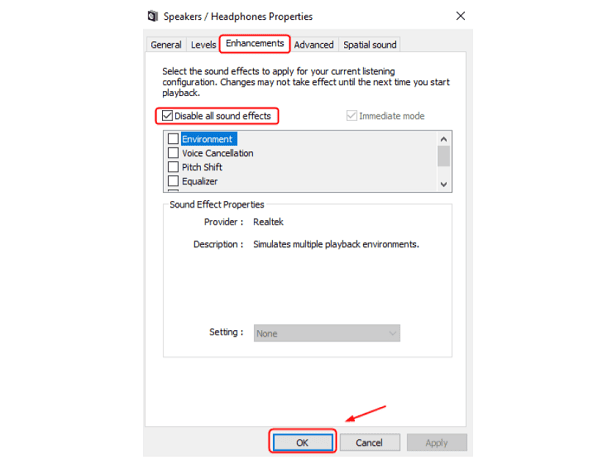
Navigate to the "Enhancements" tab, check the box for "Disable all sound effects", and click "OK".
Set Default Playback Device
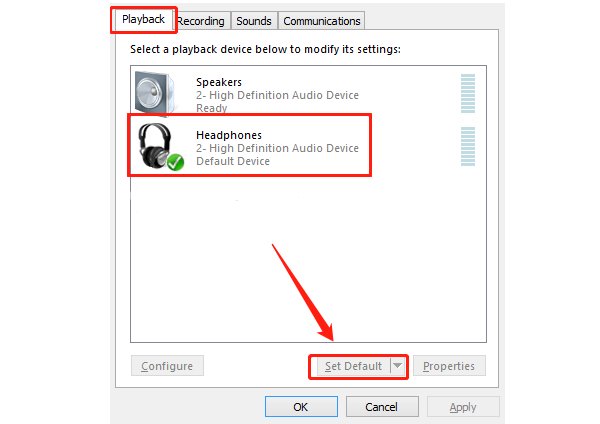
Open Control Panel and go to "Hardware and Sound" > "Sound".
Under the "Playback" tab, find your headphones, select "Set Default" at the bottom.
Click the "Test" button to check if sound is output through the headphones.
Check for Driver Updates
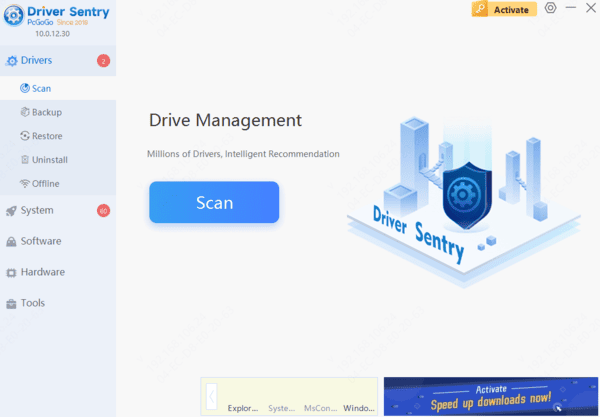
Outdated or corrupted audio drivers are a common cause of headphone issues. Updating the drivers is a crucial step in addressing this problem. Using tools like Driver Sentry can automate the process, saving time and avoiding incorrect driver installations.
Check Audio Settings
Adjust the volume:
Ensure that the system volume is not muted and is set to an appropriate level.
Verify that any physical volume control on the headphones is turned on.
Change the audio format:
In the Sound settings, locate your headphone device, right-click, and select "Properties".
Go to the "Advanced" tab, and try selecting a different audio format (e.g., 16-bit, 44100 Hz).
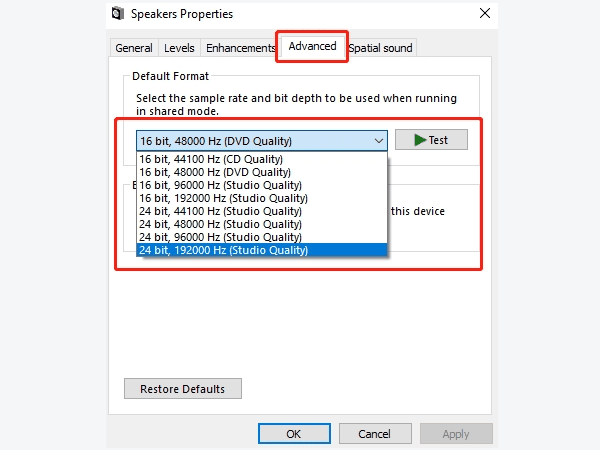
Click "Apply", then test the headphones again.
Run Audio Troubleshooter
Press Windows + I to open Settings.
Go to "Update & Security" > "Troubleshoot" > "Additional Troubleshooters".
Select "Playing Audio", then click "Run the Troubleshooter".
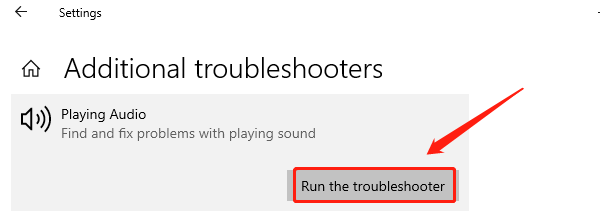
Follow the on-screen instructions as the system detects and resolves audio device issues.
Test the headphones to confirm the problem is fixed.
Check for Hardware Issues
Inspect headphone connection:
Ensure the headphone jack is securely connected to the PC's audio port (usually a green jack).
For USB or Bluetooth headphones, verify that the connection or pairing is functioning correctly.
Test the headphones:
Connect your headphones to another device (e.g., a phone or another PC) to confirm they are working.
If the headphones do not work on other devices, they may be damaged and need replacement.
Check the PC audio port:
Test the PC's audio port with another set of headphones.
If other headphones also fail, the issue may lie with the PC's audio port or sound card. In this case, consult a professional technician for repairs.