





The "local print spooler service is not running" error can prevent Windows from sending documents to your printer, leaving print jobs stuck or causing the printer to appear unavailable. This issue is commonly caused by stopped spooler services, corrupted print queue files, outdated or incompatible printer drivers, or software conflicts. This guide explains several practical ways to restore printing, including restarting the Print Spooler, clearing stuck jobs, updating printer drivers, and using PcGoGo Driver Sentry to repair driver-related problems automatically.
What Is the Local Print Spooler Service?
The Print Spooler is a crucial Windows component that manages all print jobs sent from your computer to the printer. When functioning, it queues print requests, processes them, and ensures smooth communication with your printer drivers.
When the local print spooler service is not running, printing is disrupted. This usually happens because of corrupt print spooler files, outdated printer drivers, or conflicts with other software.
Common Causes of the Local Print Spooler Service Not Running
Corrupt Spooler Files: Damaged spooler data can stop the service from running.
Outdated Printer Drivers: Incompatible or outdated drivers lead to spooler crashes.
Conflicting Software: Security programs or third-party utilities may block spooler operations.
Large Print Queues: Excessive pending print jobs can overload the spooler.
Windows Update Issues: Sometimes updates disrupt spooler services unexpectedly.
Method 1: Restart the Print Spooler Service Manually
Press Windows + R and type services.msc, then press Enter.
Scroll down and find Print Spooler.
Right-click it and choose Restart.
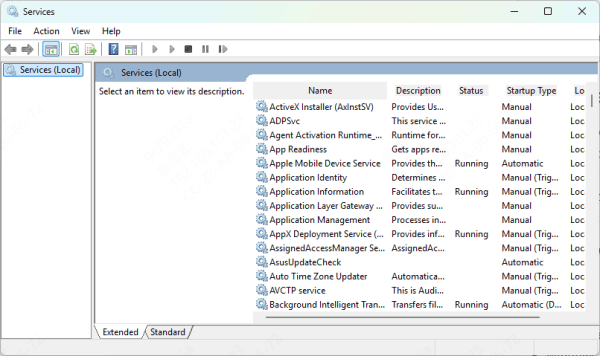
If the option is unavailable, choose Start.
Try printing again to see if the error is resolved.
Restarting often works, but if the error reappears, deeper troubleshooting is required.
Method 2: Clear the Print Spooler Files
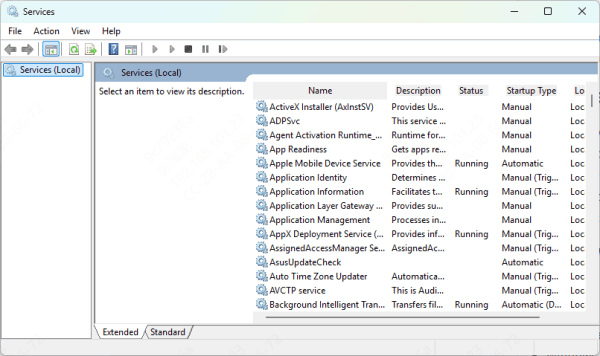
Open Services again with services.msc.
Stop the Print Spooler service.
Navigate to: C:\Windows\System32\spool\PRINTERS
Delete all files inside the PRINTERS folder.
Restart the Print Spooler service.
This clears any stuck jobs and removes corrupt spooler files.
Method 3: Update or Reinstall Printer Drivers
Since outdated or incompatible drivers often trigger the "the local print spooler service is not running" error, updating them is essential.
Steps to Update Drivers Manually
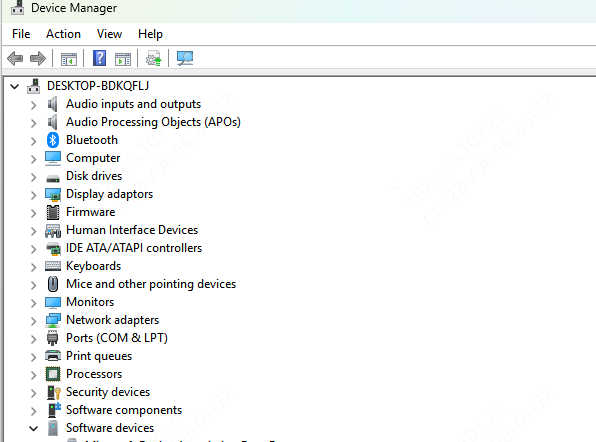
Open Device Manager using Windows + X > Device Manager.
Expand Printers.
Right-click your printer and select Update Driver.
Choose Search automatically for drivers.
Use PcGoGo Driver Sentry
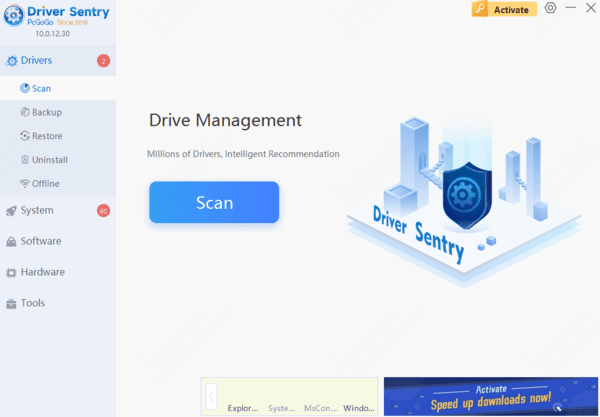
Manual driver updates can be time-consuming and risky, especially if you accidentally install the wrong version. That's where PcGoGo Driver Sentry comes in.
PcGoGo Driver Sentry is a powerful tool that automatically scans, detects, and updates outdated or corrupt drivers. By ensuring your printer drivers are always up to date, it prevents spooler crashes and keeps your printing system stable.
Key Features of PcGoGo Driver Sentry:
Automatic Driver Updates: Instantly installs the latest drivers.
Error Repair: Fixes driver-related errors causing spooler failures.
Compatibility Assurance: Ensures every driver matches your hardware and OS.
One-Click Maintenance: Simplifies troubleshooting with automated scans.
Conclusion
The "local print spooler service is not running" error can stop you from completing essential print tasks, but it is entirely fixable. From restarting the spooler and clearing files to updating drivers, several solutions exist. For the most reliable fix, we recommend PcGoGo Driver Sentry, which ensures your printer drivers remain updated and spooler errors are eliminated permanently.
By following these methods, you can restore seamless printing and prevent the same issue from reoccurring.




