






The MSVCP120.dll file is an essential component of the Microsoft Visual C++ Redistributable for Visual Studio 2013. Many applications, especially games and C++-based software, rely on this DLL to run properly. When this file is missing or corrupted, you may see errors such as "MSVCP120.dll is missing," "The program can't start because MSVCP120.dll is missing," or "Error loading MSVCP120.dll." These issues can prevent programs from launching, cause crashes, or lead to unexpected behavior. In this guide, we'll show you how to fix the MSVCP120.dll missing error and restore your system to normal operation.
Method 1: Reinstall Microsoft Visual C++ 2013 Redistributable Package
Since MSVCP120.dll is part of the Microsoft Visual C++ Redistributable for Visual Studio 2013, reinstalling the package will likely fix the issue.
Visit the official Microsoft website to download the Microsoft Visual C++ 2013 Redistributable package
Download the version that matches your system architecture:
x86 (32-bit) for 32-bit systems.
x64 (64-bit) for 64-bit systems.
Run the installer and follow the on-screen instructions
Restart your computer to complete the installation
After installing or reinstalling the package, try running the affected program again to see if the error is resolved

Method 2: Update Windows
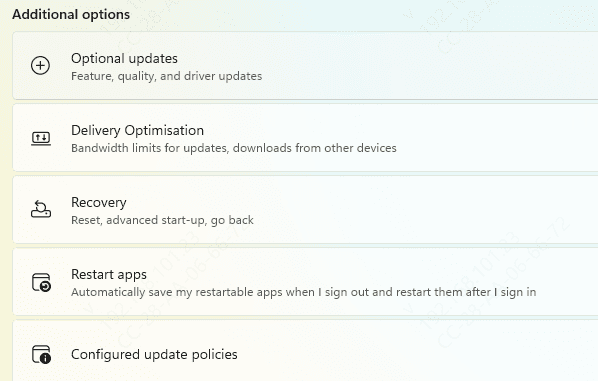
Windows updates often contain crucial updates for system components, including DLL files like MSVCP120.dll.
Go to Settings → Update & Security → Windows Update
Click Check for updates
If any updates are available, click Install now
Restart your PC after the updates are installed
Updating Windows can replace missing or corrupted system files, including the MSVCP120.dll file.
Method 3: Run System File Checker (SFC)
The System File Checker (SFC) tool can automatically scan and repair corrupted or missing system files, which may fix the MSVCP120.dll missing error.
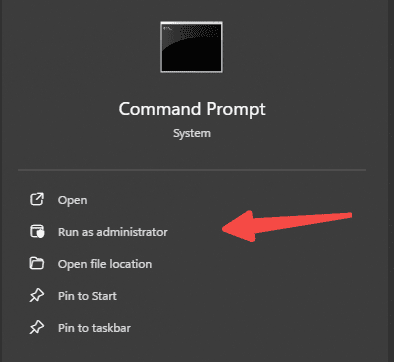
Press Windows + S, type cmd, right-click Command Prompt, and select Run as administrator
Type the following command and press Enter:
sfc /scannow
Wait for the scan to complete (this may take several minutes)
Restart your computer
After running the SFC tool, check if the error persists.
Method 4: Repair with DISM
The Deployment Imaging Service and Management (DISM) tool can repair deeper system issues, especially those that the SFC tool cannot fix.
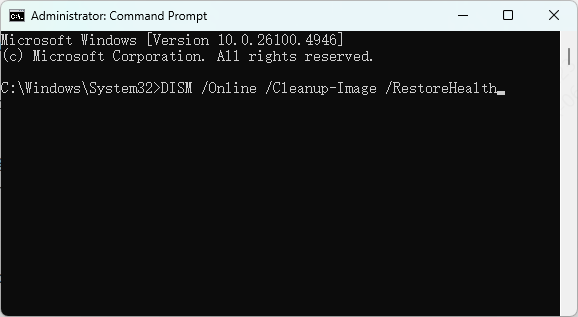
Open Command Prompt as Administrator again
Enter the following commands one by one:
DISM /Online /Cleanup-Image /CheckHealth
DISM /Online /Cleanup-Image /ScanHealth
DISM /Online /Cleanup-Image /RestoreHealth
Once all the commands have been executed, restart your PC
DISM will repair the system image, which may restore the missing MSVCP120.dll file.
Method 5: Use an Automated DLL Repair Tool
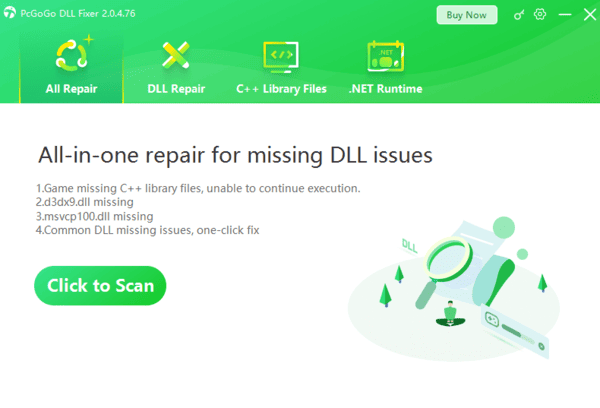
If the manual methods don't resolve the issue, using an automated repair tool like PcGoGo DLL Fixer can be an easy solution. These tools can automatically fix missing or corrupted DLL files, including MSVCP120.dll.
Download and install PcGoGo DLL Fixer
Open the tool and click Scan to detect any missing or corrupted DLL files on your system
Once the scan is complete, click Repair Now to restore the correct version of MSVCP120.dll
Restart your computer and try running the application again
This method is beginner-friendly and eliminates the need for manual intervention.
Common Causes of MSVCP120.dll Missing Error
Corrupted or Missing MSVCP120.dll File: This is the most common reason, where the DLL file itself has either been accidentally deleted, moved, or corrupted
Incomplete or Damaged Installation of Microsoft Visual C++ Redistributable: The MSVCP120.dll file is included in the Microsoft Visual C++ Redistributable for Visual Studio 2013 package. If this package is not properly installed, the DLL may be missing
System File Corruption: Corrupt Windows files can cause issues with the DLL
Malware Infections: Some viruses or malware can damage system files, including MSVCP120.dll
Compatibility Issues: Some applications or games might not be fully compatible with certain versions of the DLL
Conclusion
The MSVCP120.dll missing error can be frustrating, but it is usually easy to fix with the right approach. Whether you choose to reinstall the Visual C++ redistributable, run system scans, or use automated repair tools, following these steps will help you restore the missing DLL and get your programs or games running again.




