






The msvcp100.dll file is an essential dynamic link library (DLL) that is part of the Microsoft Visual C++ 2010 Redistributable Package. It provides important runtime components required by many applications and games, especially those developed using C++. When msvcp100.dll is missing or corrupted, you may encounter errors such as "msvcp100.dll not found", "The program can't start because msvcp100.dll is missing", or "Error loading msvcp100.dll". These issues can prevent software from launching properly.
What is msvcp100.dll?
The msvcp100.dll file is part of the Microsoft Visual C++ 2010 Redistributable Package, a set of runtime components required by applications that are developed using Visual Studio 2010
These components allow programs to run correctly on your system by providing access to standard libraries needed for running C++ programs
If msvcp100.dll is missing, corrupted, or incompatible with other components, the affected program will fail to start or experience runtime errors
Reinstall Microsoft Visual C++ 2010 Redistributable
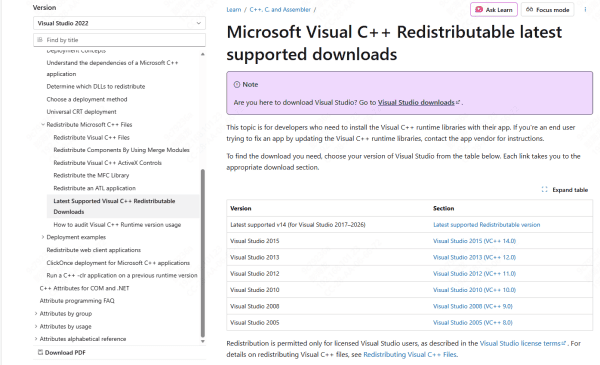
Resolving the msvcp100.dll not found error is to reinstall the Microsoft Visual C++ 2010 Redistributable Package, as this will restore the necessary libraries, including msvcp100.dll
Visit the official Microsoft website and download the Microsoft Visual C++ 2010 Redistributable Package (both x86 and x64 versions)
Run the installer and follow the on-screen instructions
Restart your computer to complete the installation
After installation, try launching the affected program to check if the error is resolved
Perform a System File Checker (SFC) Scan
The System File Checker (SFC) tool is a built-in Windows utility that scans and repairs corrupted or missing system files, including DLLs
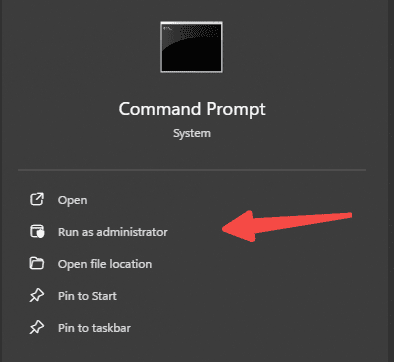
Press Windows + X and select Command Prompt (Admin)
Type the command sfc /scannow and press Enter
Wait for the scan to complete. If any issues are found, SFC will automatically repair them
Restart your computer after the process finishes
Use the DISM Tool to Repair System Image
If SFC doesn't resolve the issue, the DISM (Deployment Imaging Service and Management) tool can repair deeper system corruption
Open Command Prompt (Admin)
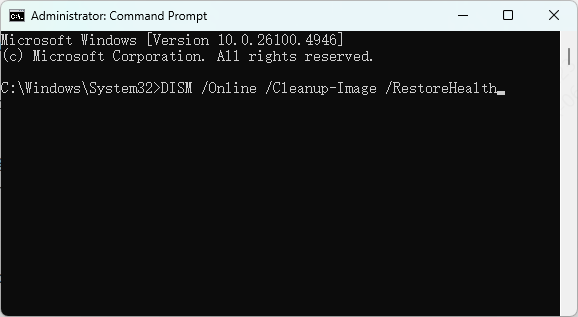
Run the following commands, one at a time:
DISM /Online /Cleanup-Image /CheckHealth
DISM /Online /Cleanup-Image /ScanHealth
DISM /Online /Cleanup-Image /RestoreHealth
After the process completes, restart your computer
Using PcGoGo DLL Fixer
If manual solutions feel too complicated or time-consuming, using an automated repair tool like PcGoGo DLL Fixer can simplify the process and restore missing or corrupted DLL files quickly.
Download and Install PcGoGo DLL Fixer
Start by downloading and installing PcGoGo DLL Fixer from its official website
Run a Full System Scan
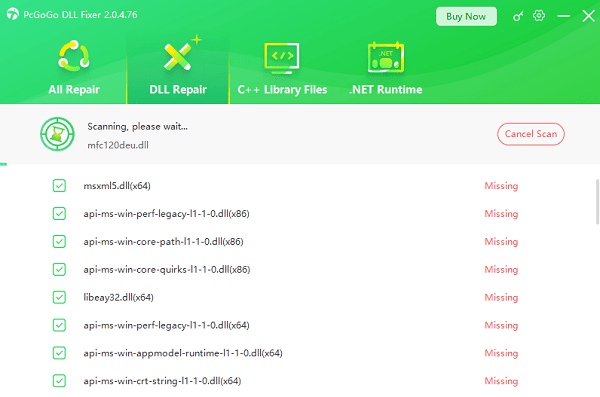
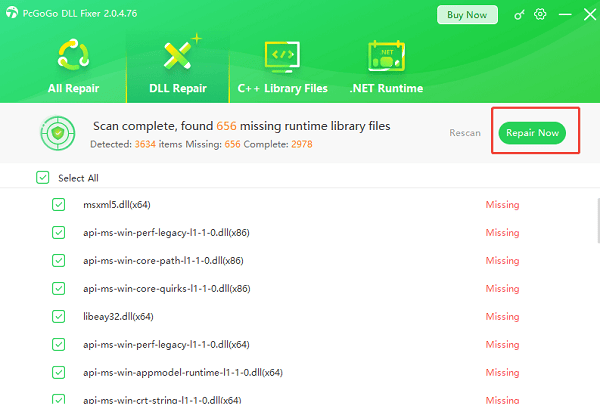
Launch the program and click the "Scan" button to detect any issues with msvcp100.dll and other potentially missing or corrupted system files
Repair the Detected DLLs Automatically
Once the scan is complete, click "Repair Now" to automatically fix the issues and restore msvcp100.dll to its correct version
Restart Your PC
After the repair is done, restart your computer to apply the changes
Reinstall the Affected Program
If the error only appears when trying to run a specific program, the installation files of that program may be damaged.
Reinstalling the program can restore all necessary files, including msvcp100.dll
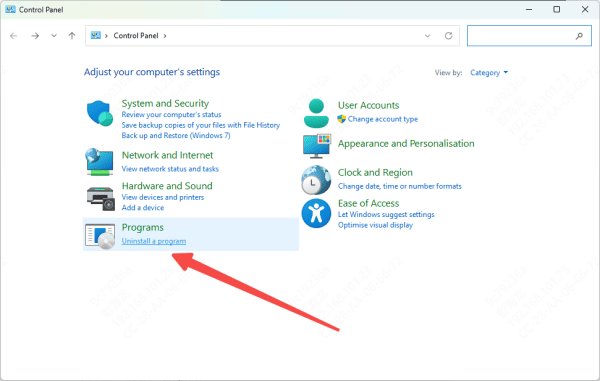
Open Control Panel → Programs and Features
Uninstall the program that is showing the msvcp100.dll error
Restart your computer
Reinstall the program using the official installer from the developer's website
After reinstalling, check if the program works without the error.
Update Your Windows Operating System
Keeping Windows up to date ensures that all system files, including essential runtime libraries like msvcp100.dll, are current.
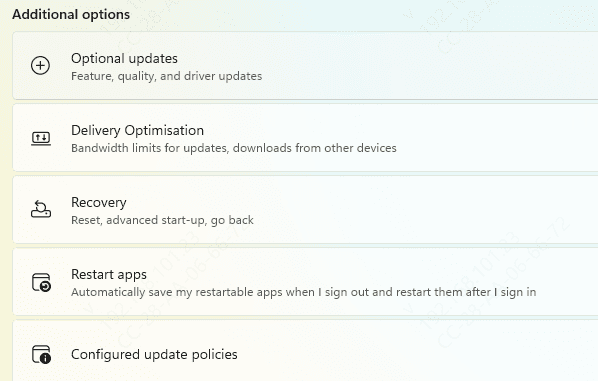
Go to Settings → Update & Security → Windows Update
Click Check for Updates and install any available updates
Restart your computer after the updates are installed
Run Malware and Virus Scans
Malware infections can corrupt or delete important system files, including DLLs. Running a malware scan will help ensure your system is clean and free from threats
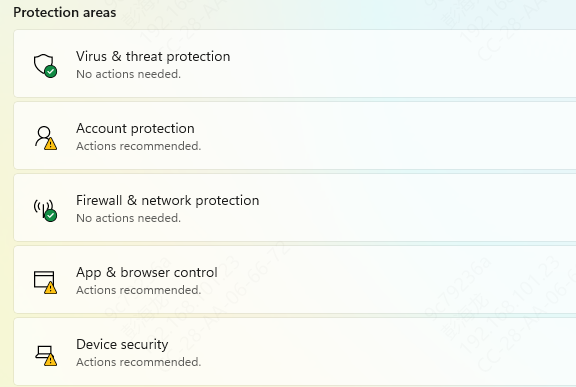
Open Windows Security
Go to Virus & threat protection
Run a Full Scan and remove any detected threats
Afterward, run SFC again to ensure that all system files are intact
Common Causes of the msvcp100.dll Missing Error
Missing or Corrupted File: The file might have been accidentally deleted, corrupted, or altered
Outdated or Incomplete Visual C++ Redistributable Installations: A faulty installation of the Visual C++ Redistributable package can lead to missing or damaged DLL files
Malware Infection: Malicious software may damage or delete system files, including msvcp100.dll
Faulty or Incomplete Software Installations: Programs that rely on msvcp100.dll may fail to install correctly
System Registry Issues: Errors or misconfigurations in the Windows registry can prevent proper DLL file registration
Conclusion
The msvcp100.dll missing error is a common problem that can be easily fixed by following the methods outlined in this guide. Reinstalling the necessary libraries, running system tools like SFC and DISM, or manually downloading and replacing the DLL file are effective solutions. Keeping your system and programs updated and free from malware will help prevent similar errors in the future. By methodically troubleshooting, you can resolve the issue and get your software running smoothly again.




