
If you've ever tried to launch a program or game on Windows and were greeted with the error msvcp120.dll is missing, you know how frustrating it can be. This issue can prevent your software from running, sometimes causing crashes, startup failures, or unexpected freezes. The good news is that this problem is usually easy to fix without reinstalling your entire operating system. This guide covers multiple solutions, ranging from simple steps for beginners to more advanced troubleshooting techniques.
Causes of msvcp120.dll Errors
Missing or corrupted msvcp120.dll file – the file may have been accidentally deleted or damaged
Microsoft Visual C++ 2013 Redistributable not installed or outdated – many apps require this package to function correctly
Corrupted program or game installation – incomplete installations can trigger DLL errors
Malware or virus infections – malicious software can delete or corrupt system DLLs
Conflicts with antivirus or system optimization tools – sometimes security software mistakenly quarantines DLL files
Check the Recycle Bin and Antivirus
Open the Recycle Bin and search for msvcp120.dll. If you accidentally deleted it, restore it
Check your antivirus quarantine to ensure the DLL hasn't been blocked
If found in quarantine, restore the file and mark it as safe
Pro Tip: Some antivirus programs flag system DLLs as threats erroneously. Adding exceptions for your trusted software can prevent future errors
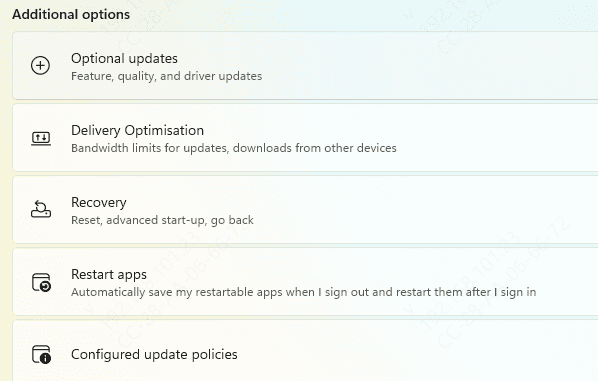
Install or Repair Microsoft Visual C++ 2013 Redistributable
Visit the official Microsoft website to download the Visual C++ 2013 Redistributable (both x86 and x64 versions)
If it's already installed, select Repair during setup
If not installed, run the installer to add the package
Restart your computer and try running the program again
Tip: Even on a 64-bit system, some programs require the 32-bit (x86) version of the Redistributable, so installing both is recommended
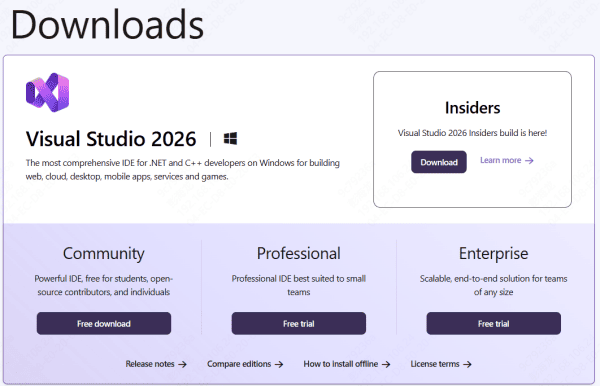
Reinstall the Program or Game
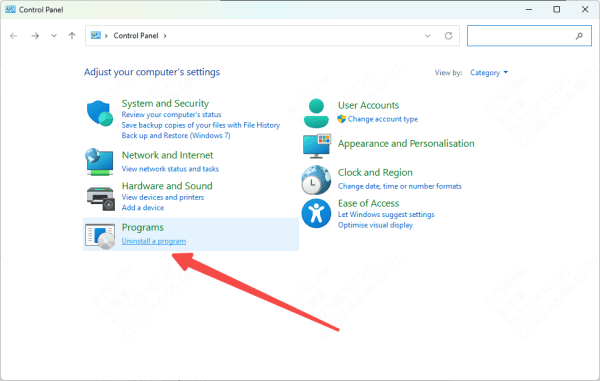
Uninstall the affected program via Control Panel → Programs and Features
Delete any leftover folders in Program Files or AppData to remove corrupted files
Download the latest version from an official or trusted source
Install as Administrator and launch the program to see if the error is resolved
Tip: Always run installations as Administrator to ensure system files like DLLs are registered correctly
Run System File Checker (SFC)
Open Command Prompt as Administrator
Type the following command and press Enter:
sfc /scannow
Wait for the scan to complete. Windows will automatically repair corrupted system files, including missing DLLs
Restart your PC and test the program again
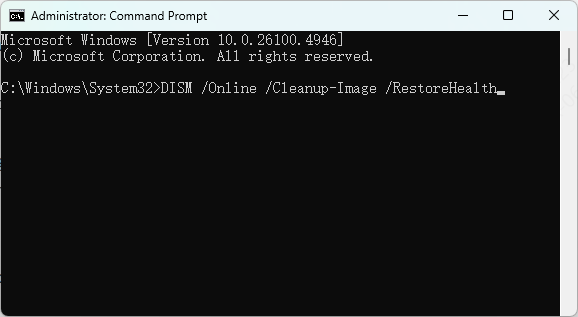
Advanced Tip: If SFC cannot repair all files, run DISM commands to restore the system image:
DISM /Online /Cleanup-Image /RestoreHealth
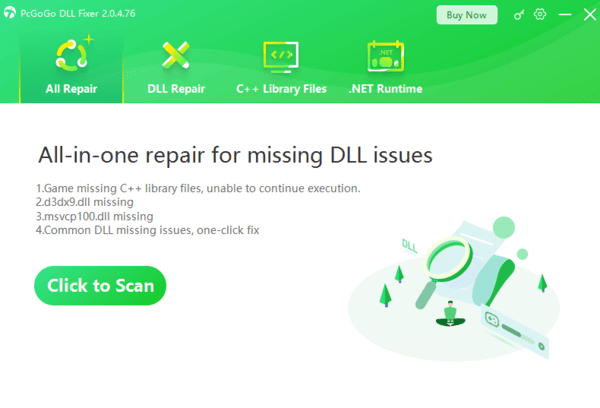
Use PcGoGo DLL Fixer
If manual methods feel complex or time-consuming, automated tools can help:
Download PcGoGo DLL Fixer
Run a full system scan to detect missing or corrupted DLLs
Click Repair Now to automatically restore msvcp120.dll and other affected files
Restart your computer and check if the program runs successfully
Tip: Automated tools are useful when multiple programs are affected or if system files have been heavily modified
Update Windows and Drivers
Keeping your system updated prevents DLL errors:
Open Settings → Update & Security → Windows Update and install all pending updates
Update essential drivers, including graphics, chipset, and storage controllers
Restart your PC and test the program
Pro Tip: Outdated drivers or missing system updates can prevent DLLs from loading properly, even if the file exists
Prevent Future msvcp120.dll Errors
To avoid encountering this error again:
Keep Microsoft Visual C++ Redistributables updated
Avoid manually deleting DLLs from system folders
Scan your PC regularly for malware and viruses
Download software only from trusted sources
Create system restore points before installing new applications
Conclusion
The "msvcp120.dll is missing" error is a common but solvable problem. It usually stems from missing or corrupted Visual C++ Redistributables, damaged program files, or malware interference. By following these steps—checking antivirus, repairing or reinstalling Redistributables, running SFC, updating drivers, and reinstalling affected programs—you can restore system stability and get your software running smoothly again.