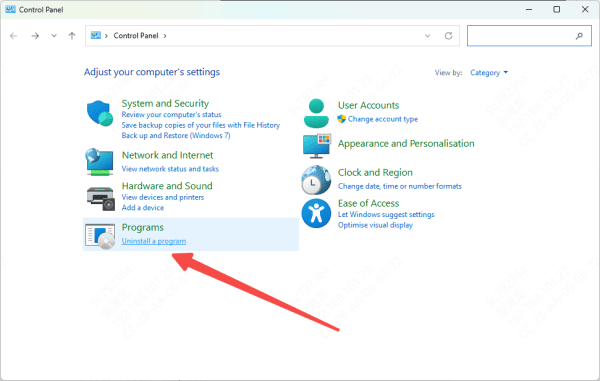
The "unarc.dll returned an error code" issue is usually fixable without reinstalling Windows. In most cases, the problem is caused by corrupted installation files, missing runtime components, unstable RAM, or disk read errors. To resolve it effectively, you should start with file integrity checks and basic system troubleshooting, then move on to repairing runtime libraries and checking hardware stability if needed. This article provides a low-risk step-by-step sequence to help you complete the installation successfully and prevent repeated extraction crashes.
Why unarc.dll Errors Happen
Corrupted or incomplete installation files: Downloads may be interrupted or damaged
Insufficient RAM or virtual memory: Large games or software may require more temporary memory than your system provides
Conflicts with antivirus/security software: Security programs may block or quarantine the DLL
High-core CPU extraction issues: Some installers may fail on systems with many cores or hyper-threading enabled
Corrupted system files or outdated Windows components: Missing or damaged Windows files can prevent DLLs from functioning properly
Quick Checks Before Fixing
Ensure the installer is complete and downloaded from a trusted source
Confirm your system meets minimum RAM, CPU, and storage requirements
Close all unnecessary programs to free up system resources before installation
Increase Virtual Memory / Pagefile
Press Win + I to open Settings → System → About → Advanced system settings
Under Performance, click Settings → Advanced → Virtual memory → Change
Uncheck Automatically manage paging file size
Select your system drive (usually C:) and choose Custom size:
Initial size = 1.5 × your RAM
Maximum size = 3 × your RAM (or more if you have low RAM)
Click Set → OK, then restart your PC
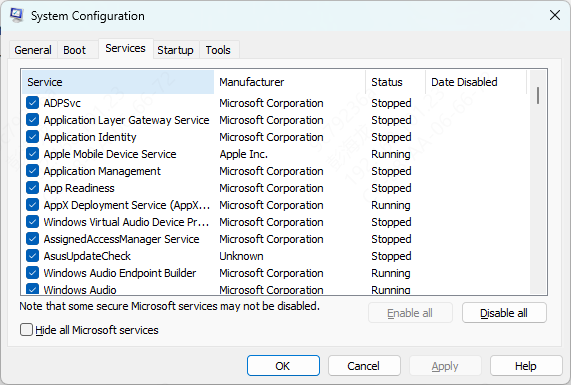
Limit CPU Cores During Installation
Installers may fail on high-core CPUs or hyper-threaded systems. Temporarily limiting cores can help:
Press Win + R, type msconfig, and press Enter
Go to the Boot tab → Advanced options
Check Number of processors → set to 8–12 cores (or lower if your CPU has more than 16 cores)
Click Apply → OK, then restart your PC
After installation, revert the setting by unchecking Number of processors or setting it to the maximum
Optional: If errors persist, temporarily disable hyper-threading in BIOS
Repair System Files
Corrupted Windows system files can trigger DLL errors. To repair:
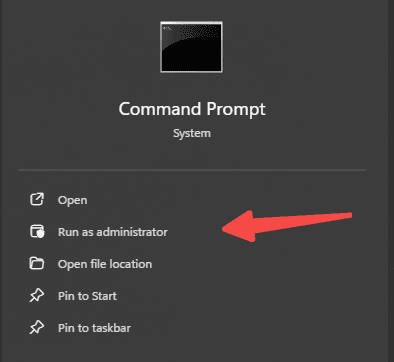
Open Command Prompt as Administrator
Run the System File Checker:
sfc /scannow
Wait for the scan to complete and follow any prompts.
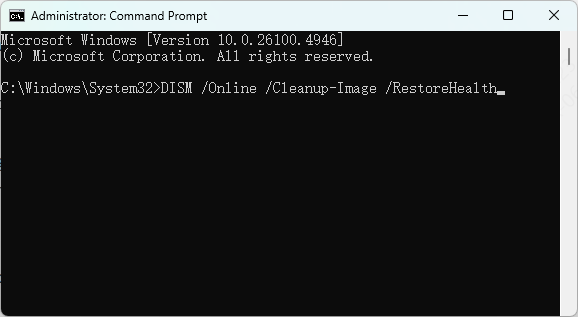
For deeper repairs, use DISM
DISM /Online /Cleanup-Image /CheckHealth
DISM /Online /Cleanup-Image /ScanHealth
DISM /Online /Cleanup-Image /RestoreHealth
Restart your PC and try the installation again
Temporarily Disable Antivirus / Firewall
Antivirus programs may block unarc.dll during installation:
Temporarily disable your antivirus and firewall
Run the installer as Administrator
After installation, re-enable your security software
Use an Automated DLL Repair Tool
If manual methods are too complex or the error persists:
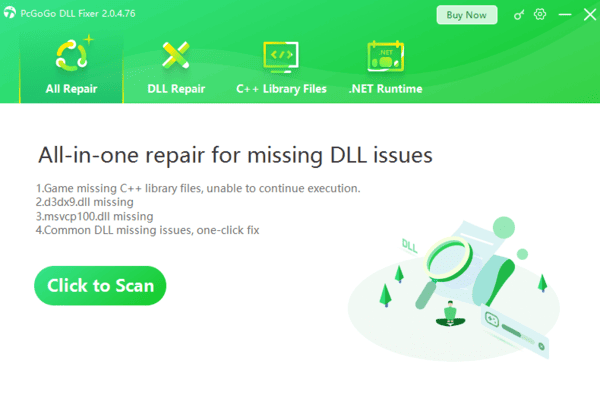
Download and install a trusted tool like PcGoGo DLL Fixer
Open the software and run a full system scan
Detect and repair missing or corrupted DLL files, including unarc.dll
Restart your computer and retry the installation
Reinstall the Software/Game
If the error continues:
Completely uninstall the problematic software
Delete any leftover folders from previous installations
Download the latest official installer
Install as Administrator and verify functionality