No Man's Sky offers a massive universe filled with procedurally generated planets, space exploration, alien creatures, and multiplayer adventures. However, some PC players experience frustrating performance problems, including sudden FPS drops, screen stuttering, freezing, and network lag.
These issues may become more noticeable when entering new planets, exploring complex environments, visiting space stations, or joining multiplayer sessions. Outdated graphics drivers, demanding visual settings, insufficient system resources, and unstable internet connections are among the possible causes.
If No Man's Sky keeps stuttering or lagging on your PC, there are several practical ways to improve performance. This guide explains how to fix No Man's Sky stuttering, reduce FPS drops, and enjoy smoother gameplay on Windows 10 and Windows 11.
Optimize No Man's Sky Graphics Settings
Shadow Quality: Lowering shadow detail can reduce GPU workload.
Planet Quality: Reducing this setting may help improve performance during planetary exploration.
Terrain Tessellation: Lower settings can reduce the complexity of rendered terrain.
Volumetric Effects: Reducing volumetric quality may improve performance during storms and other visually demanding scenes.
Reflection Quality: Lowering reflections can reduce rendering demands in space stations and other reflective environments.
Texture Quality: If your GPU has limited video memory, choose a texture setting appropriate for its capacity.
Enable Supported Upscaling
No Man's Sky supports NVIDIA DLSS on compatible RTX graphics cards, including newer DLSS features on supported hardware.
If your game version and GPU offer compatible upscaling options, enabling one may help increase FPS.
Open the graphics settings, locate the available upscaling option, and start with Quality mode.
If additional performance is needed, try Balanced mode and compare image quality.
The available options depend on your hardware and the installed game version.
Reduce Stuttering During Planetary Exploration
Reduce planet quality and terrain detail.
Lower foliage-related settings where available.
Check system RAM and GPU memory usage.
Close unnecessary background applications.
Move the game to an SSD if storage performance is contributing to loading delays.
Maintain sufficient free storage space.
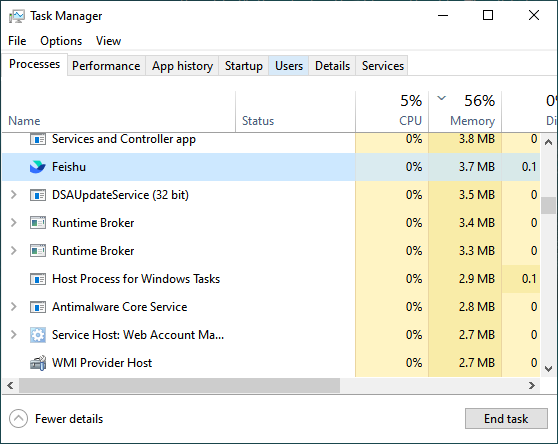
You can monitor resource usage through Task Manager.
Update Graphics Drivers
Graphics drivers play an important role in rendering performance and compatibility.
An outdated or incompatible driver may contribute to No Man's Sky FPS drops, stuttering, graphical glitches, or unexpected crashes.
Hello Games recommends keeping graphics drivers updated when troubleshooting poor frame rates.
There are two ways to check for compatible updates.
Option 1: Update Graphics Drivers Manually
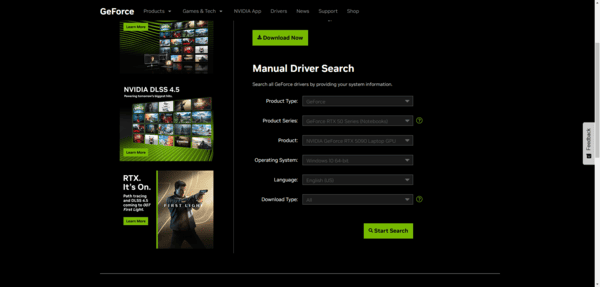
You can download graphics drivers directly from NVIDIA, AMD, or Intel.
Step 1: Right-click the Start button and select Device Manager.
Step 2: Expand Display adapters to identify your graphics card.
Step 3: Visit the official NVIDIA, AMD, or Intel driver download website.
Step 4: Search for your graphics card model.
Step 5: Download a compatible driver for your Windows version.
Step 6: Install the driver and restart your computer if required.
Option 2: Check Drivers with Driver Sentry
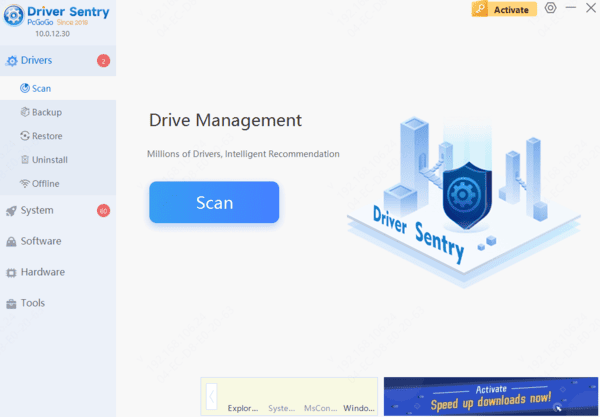
If you prefer an alternative way to check for supported driver issues, Driver Sentry can help review your Windows system.
Driver Sentry scans for certain missing, outdated, or problematic drivers and displays available update or repair recommendations.
Download Driver Sentry.
Install and launch the software.
Run a driver scan.
Review the detected driver issues and available updates.
Install an appropriate compatible graphics driver update if available.
Restart Windows if necessary.
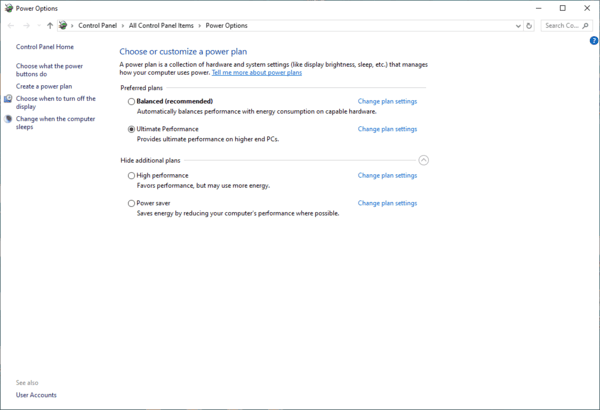
Select an Appropriate Power Mode
Press Windows + I to open Settings.
Navigate to System > Power & battery, or the corresponding power settings on your Windows version.
Select an appropriate performance-oriented power mode if available.
Connect your laptop to external power when gaming.
Restart No Man's Sky and compare performance.
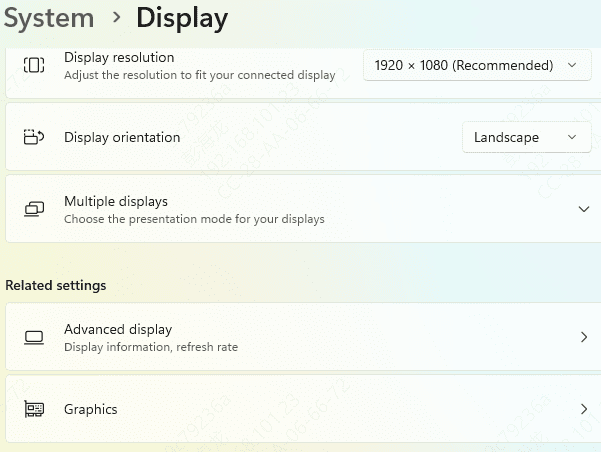
Use the Dedicated GPU
Open Windows Settings.
Navigate to System > Display > Graphics.
Locate No Man's Sky or add its executable.
Open the graphics preference options.
Select High performance when appropriate.
Save the changes and restart the game.
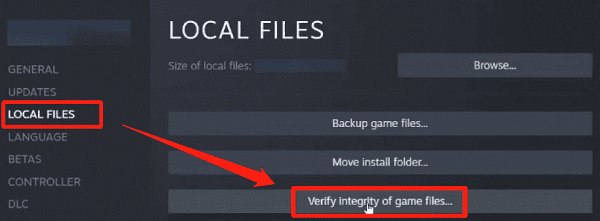
Verify Game Files and Check for Updates
Open Steam.
Go to Library.
Right-click No Man's Sky.
Select Properties.
Open Installed Files.
Click Verify integrity of game files.
Wait for the process to finish.
By identifying the cause and applying the appropriate solutions, you can reduce No Man's Sky stuttering and enjoy smoother gameplay on Windows 10 and Windows 11.