






Keeping your AMD Ryzen chipset drivers up-to-date is essential for ensuring system stability, optimal performance, and smooth communication between your CPU, motherboard, and peripheral devices. Outdated drivers can cause system crashes, hardware malfunctions, and performance drops. This guide will walk you through everything you need to know about updating AMD Ryzen chipset drivers, including checking your current driver, updating methods, troubleshooting, and optimizing your system afterward.
How to Check Your Current AMD Ryzen Chipset Driver Version
Before updating, it's important to know which driver version you're currently using.
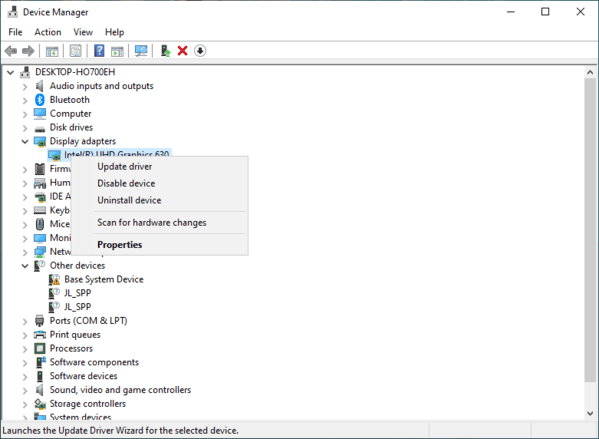
Using Device Manager
Press Windows + X and select Device Manager
Expand the System Devices section
Find entries like "AMD Ryzen Chipset" or "AMD SMBus"
Right-click → Properties → Driver tab to see the version
Using AMD Ryzen Master or System Information
Open AMD Ryzen Master (if installed) or Windows System Information
Navigate to Software Environment → System Drivers
Note the installed version for comparison after updating
Using Driver Sentry
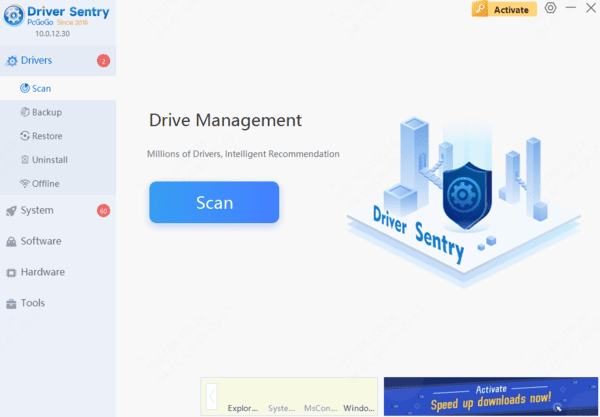
Driver Sentry can simplify the process by automatically scanning your system, detecting outdated or missing drivers, and installing the correct version.
Benefits include
One-click automatic updates
Driver backup before installation
Repair corrupted drivers
Reduce risk of installing the wrong driver
How to use Driver Sentry
Install Driver Sentry
Launch the program and click Scan
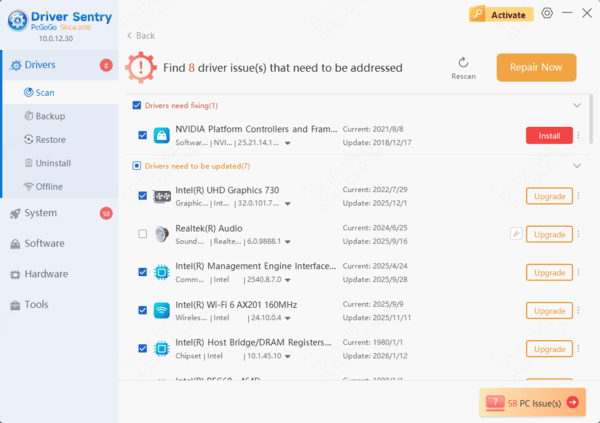
Check the results for outdated chipset drivers
Click Update to download and install the latest AMD driver
Restart your PC to finalize changes
This approach is especially helpful for users who want a fast, safe, and hassle-free update experience
Update via AMD Software
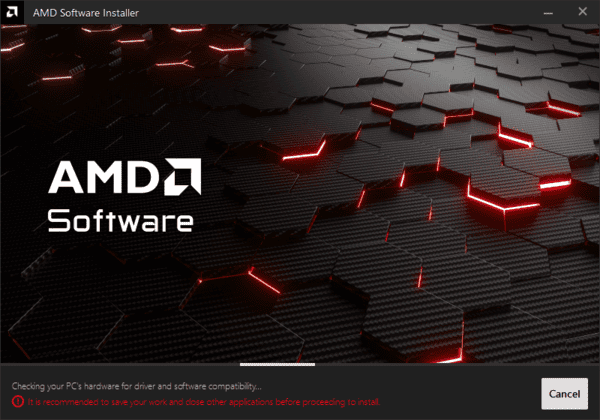
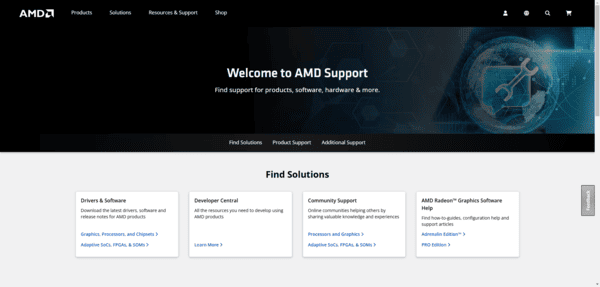
AMD provides an Auto-Detect and Install Tool for Windows that can automatically detect your hardware and install the latest chipset drivers:
Go to the AMD Drivers & Support page
Download the Auto-Detect and Install Tool for Windows
Run the tool and follow the on-screen instructions
Restart your system to apply changes
Manual Update from AMD Website
If you prefer manual control:
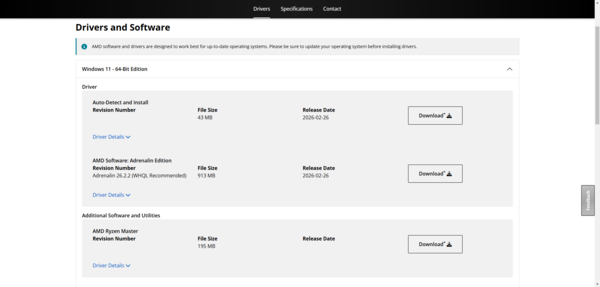
Visit the AMD Ryzen Chipset Drivers page
Select your chipset series and motherboard type
Download the latest driver package
Run the installer and follow the instructions
Restart your computer after installation
Manual updates give you more control but require you to verify compatibility carefully
Troubleshooting Driver Update Issues
Sometimes updates don't go smoothly. Here's how to fix common problems:
Common Problems
Installation errors
System instability after update
Missing or unrecognized devices
Fixes and Workarounds
Uninstall Previous Drivers: Use Device Manager → Uninstall Device for AMD chipset entries before installing a new version
Safe Mode Installation: Boot Windows in Safe Mode to avoid conflicts with other software
System Restore: Create a restore point before updating so you can roll back if needed
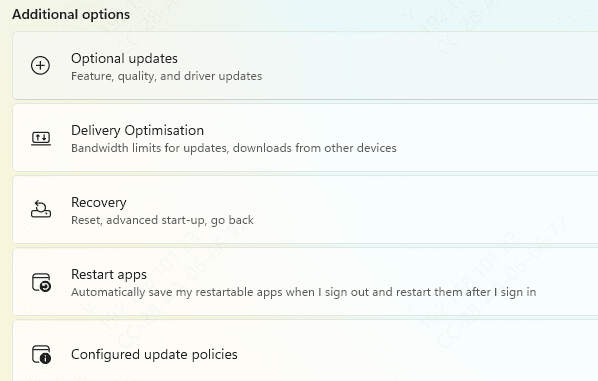
Check for Windows Updates: Some chipset drivers require the latest Windows updates to install correctly
By following these steps, you can avoid the most common pitfalls during driver updates
Optimizing System Performance After Update
Updating your chipset drivers is just the start. Optimizing your system afterward ensures the best performance:
Update BIOS: Check your motherboard manufacturer's website for BIOS updates, which can improve CPU and memory compatibility
Stress Testing: Use tools like Cinebench or Prime95 to verify system stability
Update Related Drivers: Ensure GPU, audio, network, and peripheral drivers are up-to-date for overall system harmony
Regular Maintenance: Repeat driver scans periodically to maintain performance and prevent issues
Conclusion
Updating AMD Ryzen chipset drivers is crucial for maintaining system stability, improving performance, and avoiding hardware conflicts. Whether you choose the AMD Auto-Detect tool, manual installation, or a third-party tool like Driver Sentry, keeping your drivers current is a simple way to prevent headaches and ensure your PC runs at its best. Regular driver updates, combined with proper system optimization, can significantly enhance your computing experience, from gaming and productivity to multimedia tasks. Take a few minutes today to check your chipset drivers—you'll thank yourself later.




