No sound on a Windows computer can be frustrating, especially when the volume appears normal but speakers or headphones remain completely silent. This issue is usually caused by incorrect audio settings, disabled playback devices, stopped Windows audio services, or outdated and corrupted audio drivers. This guide covers the most effective ways to troubleshoot and fix no sound problems, from quick checks to driver repair and system-level solutions.
Quick Checks First
Check whether the physical volume is muted. External speakers have their own volume knob or mute button that operates independently of Windows. Keyboards with media keys often have a dedicated mute button that can be pressed accidentally. Confirm the hardware volume is up
Check the system volume by clicking the speaker icon in the taskbar. If the slider is at zero or the speaker icon has a red circle with a line through it, click the icon and unmute or raise the volume

Fix 1: Check the Default Playback Device
Windows sends audio to one designated default device. If that device is wrong — for example, a monitor's HDMI audio output that isn't connected — no sound will come from your actual speakers or headphones.
Right-click the speaker icon in the taskbar and select Sounds
Go to the Playback tab. Look for which device has a green checkmark — this is the current default. If it's not the device you want to use, right-click the correct device and select Set as Default Device
If your speakers or headphones don't appear in the list at all, right-click anywhere in the empty space in the Playback tab and check Show Disabled Devices and Show Disconnected Devices. If the device appears after enabling these options, right-click it and select Enable. Then set it as default
Fix 2: Check the Volume Mixer for Muted Applications
Windows controls audio output per application. A specific application can be muted in the Volume Mixer without affecting system sounds or other applications.
Right-click the speaker icon and select Open Volume Mixer
Check the slider for each listed application. If any application shows a muted speaker icon below its slider or the slider is at zero, unmute it and raise the volume
Also confirm the Device volume at the top of the mixer is not at zero
Fix 3: Restart Windows Audio Services
Two Windows services are required for all audio output: Windows Audio and Windows Audio Endpoint Builder. If either service stops running — which can happen after a system update or an improper shutdown — no audio output is possible regardless of driver or device status.
Press Win + R, type services.msc, and press Enter. Scroll down to Windows Audio
If the Status column shows Stopped, right-click and select Start. If it shows Running but audio is still absent, right-click and select Restart. Set the Startup type to Automatic if it isn't already
Repeat the same steps for Windows Audio Endpoint Builder. Restart the PC and test audio

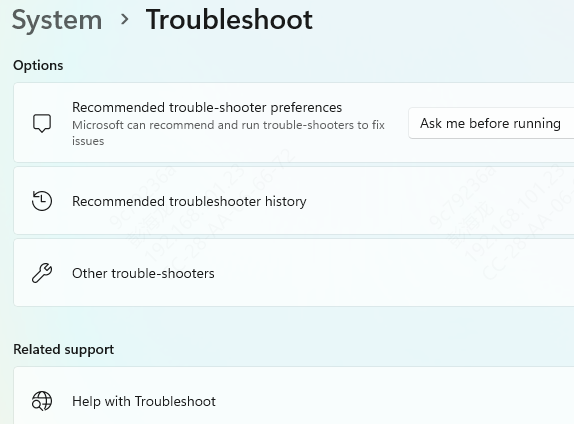
Fix 4: Run the Windows Troubleshooter
Windows includes a built-in audio troubleshooter that can automatically detect and fix certain common audio problems
Apply any fixes the troubleshooter suggests and restart. If it reports no issues found but audio is still not working, proceed with the fixes below
Fix 5: Update or Reinstall the Audio Driver
The audio driver is the most common root cause of no sound on Windows, particularly after Windows feature updates that replace working OEM audio drivers with a generic Microsoft High Definition Audio Device driver. The generic driver sometimes works for basic output but often produces no sound at all on certain hardware.
Open Device Manager by pressing Win + X and selecting it. Expand Sound, video and game controllers
Right-click the audio device and select Update driver. Choose Search automatically for drivers. If Windows finds a compatible driver, install it and restart

For a more reliable fix, use Driver Sentry to automatically identify and install the correct audio driver
Driver Sentry identifies your exact audio chip — Realtek, IDT, Conexant, or others — and installs the OEM-matched driver rather than the generic fallback that Windows Update provides

Fix 6: Disable Audio Enhancements
Windows and audio software apply enhancement effects to audio output. In some cases these enhancements cause complete audio failure rather than just degraded quality.
Right-click the speaker icon and select Sounds. Go to the Playback tab. Right-click the default playback device and select Properties
Click the Enhancements tab, check Disable all enhancements, and click Apply. Also go to the Spatial sound tab and set it to Off. Test audio after applying both changes
Fix 7: Check Hardware Connections on Desktop PCs
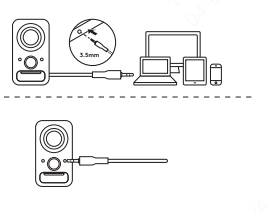
For desktop computers, confirm the speaker or headphone cable is plugged into the correct audio jack. The output jack for speakers and headphones is the green port. The pink port is for microphone input only.
Front panel audio jacks on desktop cases connect to the motherboard through an internal header cable that can become loose. Try plugging into the rear panel audio jacks instead — these connect directly to the onboard audio chip and are more reliable
For monitors with built-in speakers connected via HDMI or DisplayPort, the monitor's audio must be selected as the default device in the Playback tab of Windows Sound settings
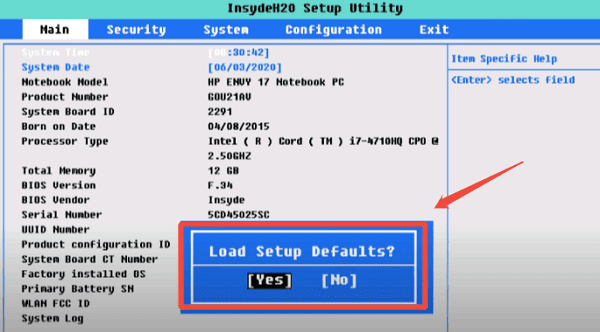
Fix 9: Check BIOS Audio Settings
On desktop PCs, onboard audio can be disabled in the system BIOS. When this happens, no audio device appears in Device Manager and no Windows-level fix can restore audio.
Restart the PC and enter the BIOS by pressing Del or F2 during boot. Navigate to the Advanced or Onboard Devices section
Find a setting labeled HD Audio, Onboard Audio, or Azalia Audio and confirm it is set to Enabled. Save settings and exit
Conclusion
Wrong default playback device, stopped Windows Audio services, and a corrupted audio driver account for the vast majority of no-sound cases on Windows. Fix 1, Fix 3, and Fix 5 resolve the problem for most users. When the audio driver is missing or has been replaced by a generic version, Driver Sentry scans all system drivers, identifies the exact audio hardware, and installs the correct matched driver with a single click.