Audio cutting out randomly can be extremely annoying, especially when you are watching videos, playing games, attending online meetings, or listening to music. This problem can happen with headphones, speakers, or built-in laptop audio and is usually caused by unstable connections, incorrect audio settings, outdated drivers, or hardware problems. In many cases, the issue can be fixed without replacing any equipment. This guide explains the most common reasons why your audio keeps cutting out and provides effective solutions, including checking connections, updating audio drivers, and adjusting Windows sound settings to restore stable audio performance.
Step 1: The Essential Troubleshooting Checklist
Before you reinstall a driver, try these simple checks first. They can often solve the problem in a few minutes without any further steps.
Check Physical Connections: Ensure that all cables (USB, HDMI, 3.5mm jack) are securely plugged into your PC and your speakers or headphones. If possible, try a different cable or port to rule out a faulty connection.
Restart Your Device: A simple restart can often clear temporary software glitches. Unplug your audio device, restart your PC, and then plug the device back in.
Step 2: Check Audio Driver
If the preliminary checks fail, the problem is most likely a driver issue. An outdated or corrupted audio driver is a leading cause of intermittent sound, static, and other audio problems.
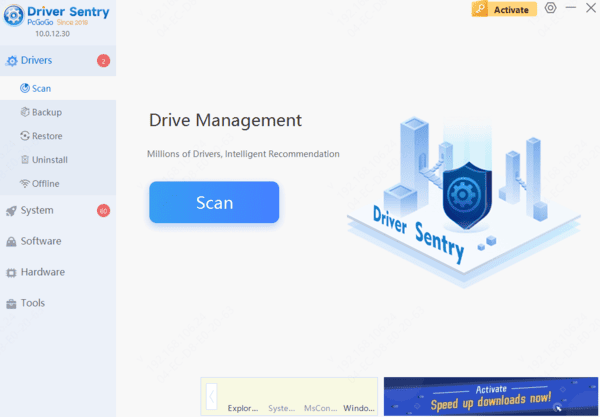
Using Driver Sentry is the safest and most efficient solution. It automatically detects and installs the correct drivers, eliminating the risk of downloading the wrong file.
Step 3: Disable Audio Enhancements
Sometimes, audio enhancements like bass boost or virtual surround sound can cause conflicts.
Right-click the speaker icon in your taskbar and select "Sound settings".
Click on "More sound settings".
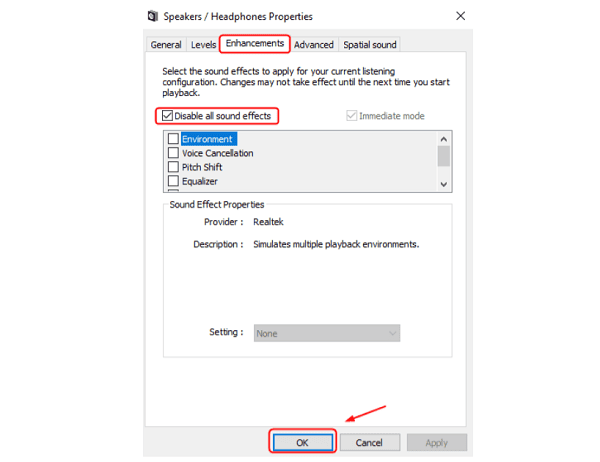
In the new window, select your audio device, click "Properties", and go to the "Enhancements" tab.
Check the box for "Disable all sound effects" and click "OK".
Step 4: Check Device Manager
Open Device Manager by pressing Win + X and selecting it from the menu.
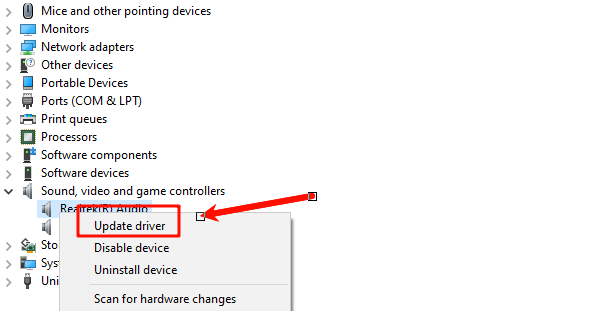
Find the "Sound, video and game controllers" category and expand it.
Right-click on your audio device (e.g., Realtek High Definition Audio, NVIDIA High Definition Audio).
Select "Update driver".
Choose "Search automatically for drivers". Windows will then search online for a newer driver and install it if one is found.
Q&A
Q: The problem is still happening after the driver update. What could be wrong?
A: The issue may be with the hardware itself. Try your headphones or speakers on another device to see if they work correctly. If not, the hardware may be faulty.
Q: What is the difference between a sound card and an audio driver?
A: A sound card is the physical hardware component inside your computer that processes audio. The audio driver is the software that allows your operating system to communicate with that sound card.
Q: Why is manual driver installation considered risky?
A: Manually downloading drivers from unofficial websites can be dangerous. The files can be outdated, incompatible, or, most dangerously, infected with malware. Always use official manufacturer sites or reputable, verified tools.
Conclusion
A cutting-out audio issue is a common problem, but with the right steps, you can fix it quickly. While manual methods are effective, using Driver Sentry is the safest and most efficient solution.
It simplifies the entire process and ensures your audio drivers are working flawlessly, giving you back a smooth and uninterrupted sound experience.