Some Windows users may encounter the "No Audio Output Device is Installed" error, preventing normal sound playback. This article will introduce several effective methods to help you quickly resolve this issue and restore normal audio output.
1. Check Physical Connections
Reconnect the Audio Device:
For wired headphones/speakers: Try unplugging and reinserting the audio jack or USB port.
For Bluetooth devices: Ensure the device is properly connected. Try disconnecting and re-pairing it.
Try a Different Port:
If using a USB sound card, switch to a different USB port to rule out port malfunctions.
If using a 3.5mm audio jack, ensure the plug is securely inserted. Try connecting to another device to check if the port is working.
Check Audio Device Power:
For external speakers, make sure they are powered on and the volume switch is adjusted correctly.
2. Update Audio Drivers
A corrupted or outdated driver may cause the "No Audio Output Device is Installed" error on Windows. Checking for and updating your drivers is an effective solution. It is recommended to use Driver Sentry to automatically detect and update drivers, saving time and avoiding the risk of downloading or installing incorrect drivers.
Click the download button to get the latest version of Driver Sentry, install and open the software, then click "Scan".
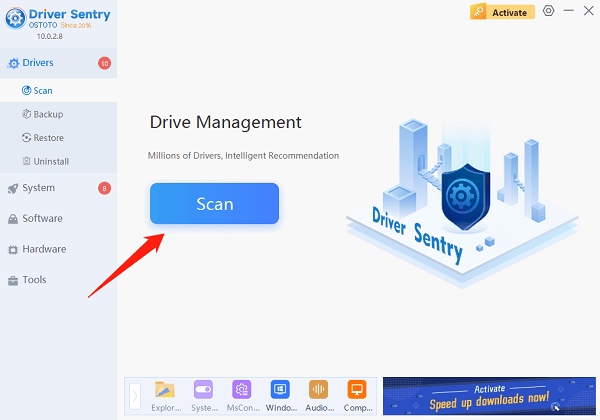
After scanning, the software will display a list of drivers that need installation or updates. Find the audio driver and click "Upgrade".
After updating, it is recommended to restart your computer to ensure the new driver takes effect.
3. Check if the Audio Device is Disabled
Right-click the "Start" button and select "Device Manager".
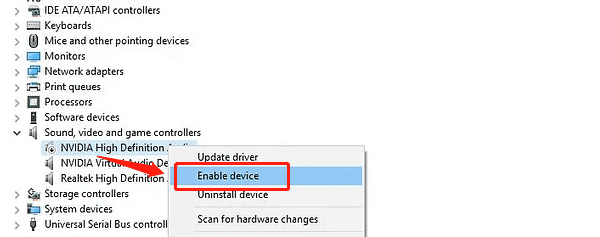
In Device Manager, expand "Sound, video, and game controllers".
Check if any audio device (e.g., NVIDIA High Definition Audio) has a downward arrow, indicating that it is disabled.
If the audio device is disabled, right-click the device and select "Enable device".
Restart your computer and check if the audio is restored.
4. Check Windows Audio Services
Press Win + R, type "services.msc", and press Enter.
In the Services window, scroll down and find "Windows Audio".
Ensure the service status is "Running". If not, right-click Windows Audio and select "Start".
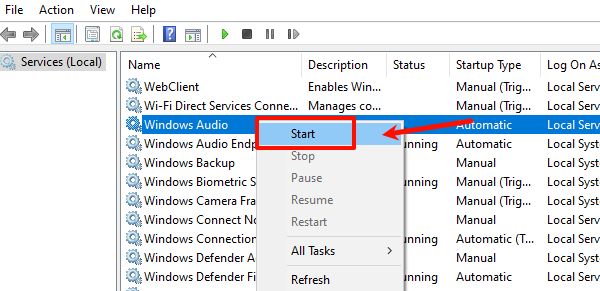
Also, check "Windows Audio Endpoint Builder". If it is not running, right-click it and select "Start".
Right-click the service and select "Restart", then check if the audio is restored.
5. Reset Audio Settings
Press Win + I to open "Settings".
Select System, then click "Sound".
Scroll down to the bottom and click "Advanced sound options".
Under "App volume and device preferences", click "Reset" to restore audio settings to default.
Restart your computer and check if the issue is resolved.
6. Run the Audio Troubleshooter
Press Win + I to open "Settings".
Select "Update & Security", then click "Troubleshoot" > "Additional troubleshooters".
Find "Playing Audio" and click "Run the troubleshooter".
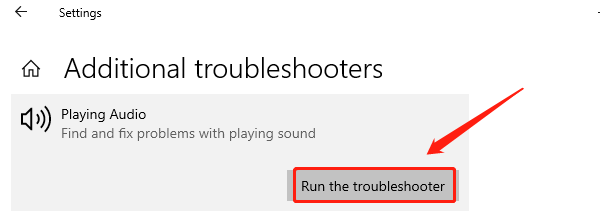
Windows will scan and automatically fix potential audio issues. Follow the on-screen instructions, then check if the audio is restored.
By following these methods, you should be able to successfully fix the "No Audio Output Device is Installed" error on Windows. If the problem persists, consider seeking further assistance from a professional technician.
See also:
6 Ways to Fix Wireless Headphones Connected but No Sound
Fix Printer Offline Issue on Windows 10