Bluetooth audio lag can disrupt audio-video sync, affecting your experience. This article offers solutions to quickly fix the issue and restore smooth performance.
1. Update Bluetooth Drivers
Outdated or corrupted drivers are one of the main causes of Bluetooth audio lag. Using Driver Sentry can help you detect and update drivers automatically, saving time and avoiding potential errors during installation.
Download and install the latest version of Driver Sentry, then open the software and click "Scan".
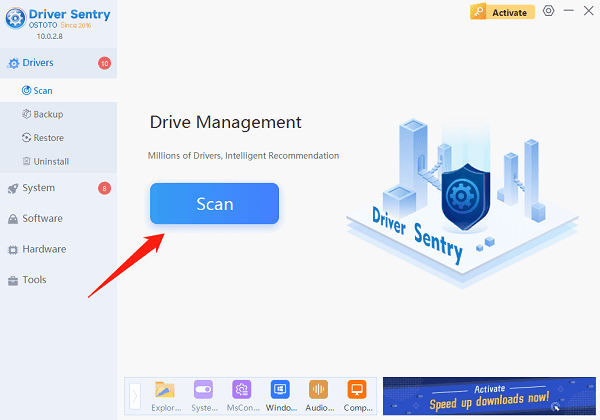
The scan results will show any missing or outdated drivers. Locate the Bluetooth audio driver and click "Upgrade".
Restart your computer after updating to ensure the new driver works correctly.
2. Reconnect the Bluetooth Audio Device
Press Windows + I to open Settings, then click "Devices".
Under "Bluetooth & other devices", scroll down to the list of paired devices.
Select your audio device and click "Remove device".
Restart the Bluetooth mode on your audio device.
Go back to "Bluetooth & other devices", click "Add Bluetooth or other device" > "Bluetooth".
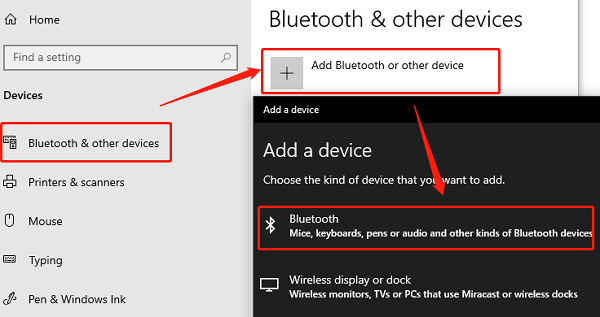
Select your device and complete the pairing process.
After pairing, test the audio to see if the lag has improved.
3. Restart Windows Audio Services
Press Windows + R, type "services.msc", and press Enter.
Locate "Windows Audio" and "Bluetooth Support Service" in the list.
Right-click each service and select "Restart".
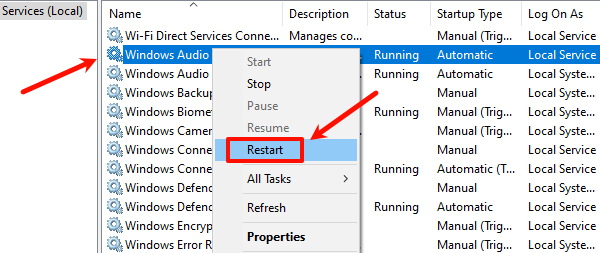
If the service is not running, right-click and select "Start".
After restarting the services, play audio and check if the lag is resolved.
4. Run Windows Troubleshooters
Press Windows + I to open Settings.
Navigate to "Update & Security" > "Troubleshoot".
Click "Additional troubleshooters" and run the troubleshooters for both "Bluetooth" and "Playing Audio".
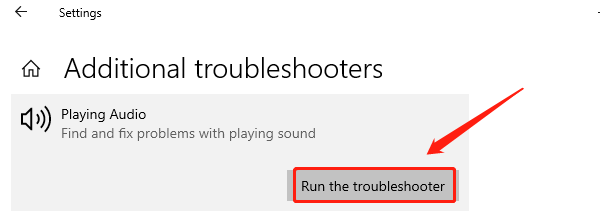
Follow the on-screen instructions to complete the fixes. Test the Bluetooth audio for lag after troubleshooting.
5. Update the Operating System
Press Windows + I, then go to "Settings" > "Update & Security".
Select "Windows Update" and click "Check for updates".
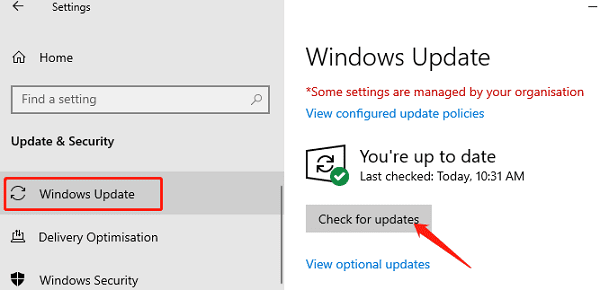
If updates are available, click "Download and install".
Restart your computer after the update to apply changes.
Reconnect your Bluetooth device and test for audio lag.
6. Check for Hardware Issues
Consider using an external USB Bluetooth adapter to improve stability and performance.
Ensure the adapter supports the latest Bluetooth version, such as Bluetooth 5.0.
Connect the Bluetooth audio device to another computer or smartphone to see if the lag persists.
If the lag occurs only on a specific PC, the issue may be related to the computer's hardware.
If the Bluetooth audio device itself is faulty, contact the manufacturer for repair or replacement.
Following these steps should help resolve Bluetooth audio lag on your Windows PC. If the issue continues, contact technical support for assistance.
See also:
How to Fix WiFi Not Connecting to the Internet
6 Methods to Fix Wireless Network Adapter Disabled