
 OpenClaw Install






Keeping your NVIDIA 5070 Ti graphics card drivers up-to-date is crucial for optimal system performance, stability, and compatibility with the latest games and professional applications. Outdated or corrupted drivers can lead to frequent crashes, reduced frame rates, graphical glitches, or missing NVIDIA Control Panel features. Regular updates ensure your GPU performs at its best while preventing potential conflicts with new software and Windows updates. This guide provides practical, step-by-step methods to update your drivers efficiently and safely, including both manual and automated approaches.
Backup and Prepare Your System
Proper preparation ensures a smooth installation and reduces the risk of errors. Follow these steps:
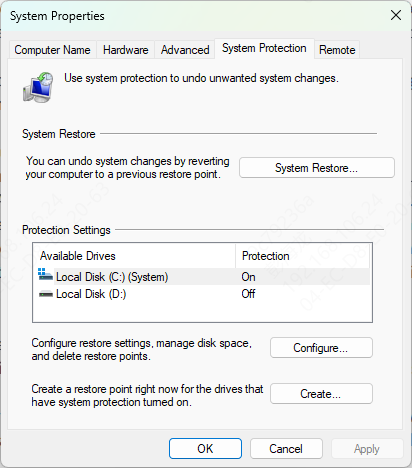
Create a system restore point: Open Windows → search "Create a restore point" → click "Create" → name your restore point → save This allows you to roll back changes if anything goes wrong
Close unnecessary applications: Shutting down background programs prevents conflicts during installation
Check disk space: Ensure at least 2–3 GB of free space for smooth installation
Manual Download and Installation from NVIDIA
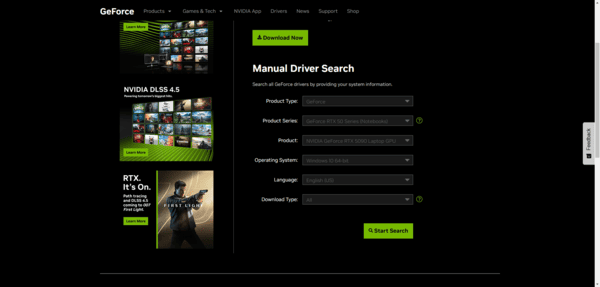
Go to the official NVIDIA website → Drivers section
Select your GPU model (NVIDIA 5070 Ti), operating system, and driver type (Game Ready or Studio Driver)
Download the driver installer
Run the installer → choose Custom Installation → select Perform Clean Installation to remove previous driver files and reset settings
Follow on-screen prompts and restart your computer once installation is complete
Update Using NVIDIA GeForce Experience
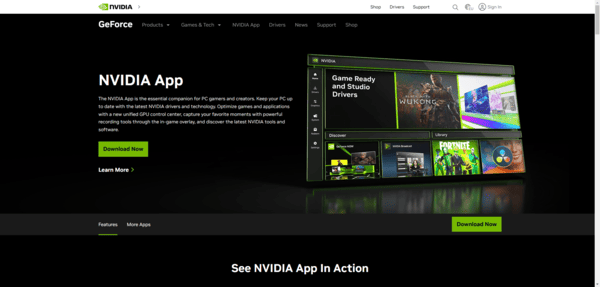
Install GeForce Experience from NVIDIA's website
Open the program → it will automatically detect your GPU
Click Update if a newer driver version is available
Enable automatic notifications to ensure you always get the latest updates without manual checks
Update via Windows Device Manager
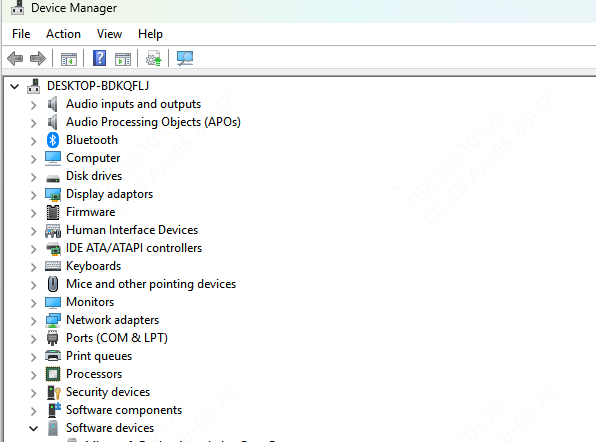
Open Device Manager → expand Display Adapters → right-click NVIDIA 5070 Ti
Select Update driver → choose Search automatically for drivers
If Windows cannot find the latest driver, select Browse my computer for drivers and point to the driver file downloaded from NVIDIA.
Follow prompts and restart your system
Device Manager provides a reliable fallback method for driver updates and can resolve installation issues that other methods sometimes cannot
One-Click Driver Management with Driver Sentry
For a fast and professional solution, Driver Sentry is highly recommended:
Download and install Driver Sentry from the official website
Open the software → click Scan to detect outdated, missing, or corrupted drivers
Select Repair/Update All or choose specific NVIDIA 5070 Ti drivers
Driver Sentry automatically creates backups and restore points before applying updates
Once completed, restart your computer to finalize changes
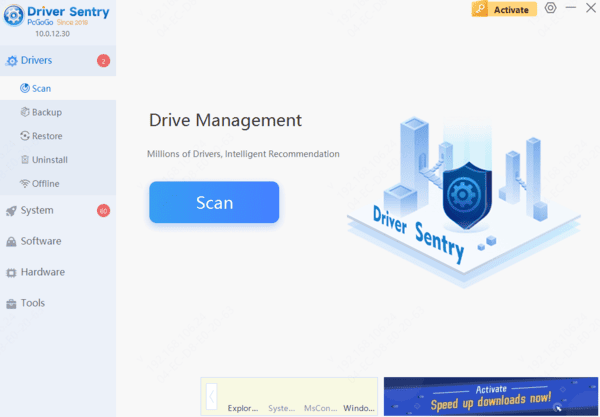
Driver Sentry eliminates guesswork, prevents driver conflicts, and ensures that your GPU runs optimally. Even non-technical users can update drivers safely, saving time and avoiding frustration.
Troubleshoot Common Update Failures
Sometimes driver updates fail despite following the steps above. Common solutions include:
Remove old drivers using Control Panel or Display Driver Uninstaller (DDU) in Safe Mode
Temporarily disable antivirus or firewall software that might block the installation
Roll back to a previous driver version if the new update causes instability
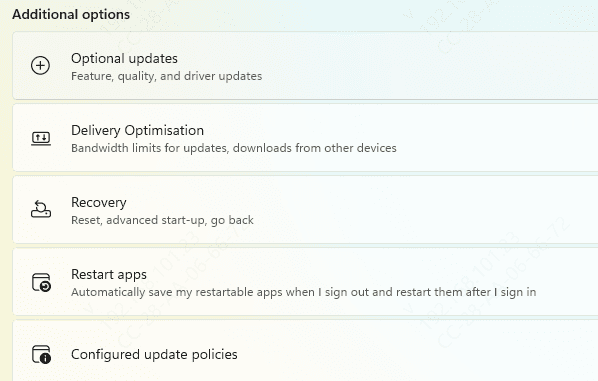
Check Windows Update for conflicting driver updates
Maintain Up-to-Date Drivers for Long-Term Stability
Schedule monthly driver scans or automatic updates using GeForce Experience or Driver Sentry
Avoid beta or unofficial drivers unless testing specific features
Keep GPU BIOS, Windows, and other system software updated
Test GPU performance after updates to confirm stability
Consistent maintenance prevents future driver problems, ensures peak GPU performance, and prolongs the life of your system
Conclusion
Keeping NVIDIA 5070 Ti drivers updated is essential for system stability, smooth gameplay, and professional application performance. By identifying issues, preparing your system, performing step-by-step installations via NVIDIA, GeForce Experience, or Device Manager, and leveraging tools like Driver Sentry, you can maintain a reliable, high-performing GPU. Regular updates, troubleshooting, and professional tools make driver management straightforward, ensuring your NVIDIA 5070 Ti consistently delivers the best possible performance.
