






In Windows systems, drivers are crucial for connecting hardware to the operating system, ensuring devices work properly. This article will cover the best ways to restore drivers on Windows to keep your devices running smoothly.
Method 1: Restore Drivers Using Driver Sentry
Driver Sentry is not only a Windows driver download utility but also a driver recovery tool. It provides you with all available driver backups for restoration and intelligently recommends the most suitable previous version of the driver.
1). Click the download button to get the latest version of Driver Sentry. After installation, open the software and click the "Restore" button on the left side.
2). Driver Sentry provides all previous versions of drivers for you to choose from. You can click the triangle symbol and then select one from the list. The best-matching version is the default one. Choose the driver and version you want to restore, and click "Restore Now".
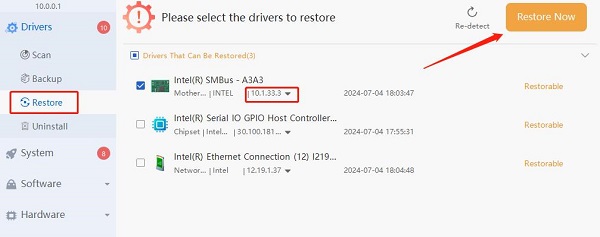
3). Once the restoration process is complete, restart your computer to apply all changes.
Method 2: Restore Drivers Using Device Manager
Right-click the "Start" menu and select "Device Manager" to open it.
Find the hardware device causing the issue from the list of devices.
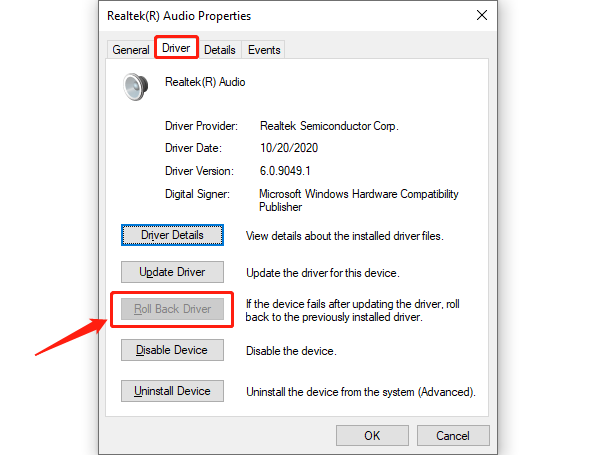
Right-click the device name and select "Properties". Under the "Driver" tab, click the "Roll Back Driver" button. If the button is grayed out, it means there is no previous driver version to restore.
Method 3: Restore Drivers Using System Restore Points
Manually create a system restore point before making any major changes or updating drivers.
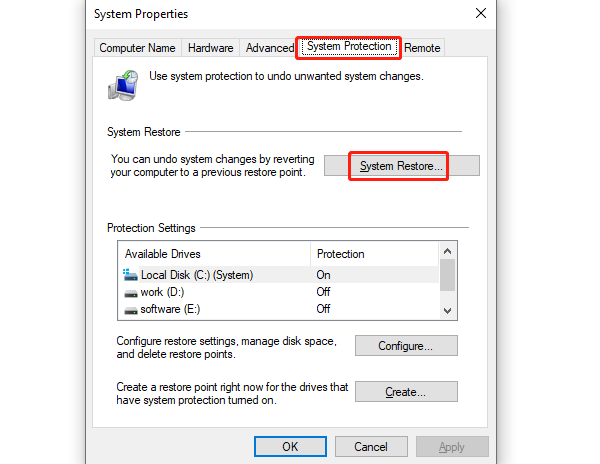
Enter "Create a restore point" in the search bar. Under the "System Protection" tab, click "System Restore".
Select a restore point that was created before the driver update, and then click "Next".
Follow the on-screen instructions to complete the system restore. This will revert all drivers and system settings to the selected restore point.
System Restore will not affect your personal files but may remove applications and drivers installed after the restore point was created.
Method 4: Manually Download and Install Drivers from the Manufacturer's Website
Identify the model and brand of the device for which you need to restore the driver.
Go to the manufacturer's official website.
In the support or download section, find the driver for the corresponding device, select the version compatible with your current computer's operating system, and download it to your computer.
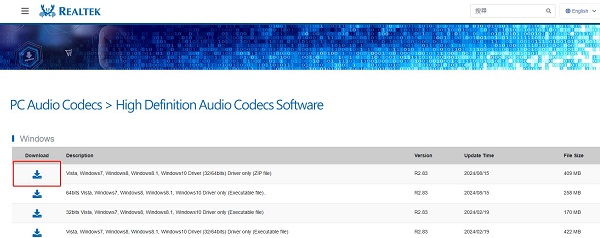
Double-click the downloaded driver file and follow the on-screen instructions to install it.
Method 5: Restore Drivers Using Windows Recovery Mode
In some severe cases, such as when the system cannot start normally, you may need to use Windows Recovery Mode to restore drivers.
To enter Recovery Mode, restart your computer and press the F8 key (or the corresponding key) during startup.
Select "Safe Mode" to enter the system, and then use Device Manager or Driver Sentry to fix driver issues.
The best way to restore drivers on Windows depends on your situation and the issue's severity. For advanced features and compatibility, Driver Sentry is a good choice. Always back up your system and drivers to ensure quick recovery if problems occur.
See also:
8 Common Solutions for No Internet Connection
How to Download and Install Wireless Network Card Drivers




