






Accidentally deleted files from your Kingston SSD? This guide covers how to recover lost data on Windows using the Recycle Bin, File History, cloud backup, and PcGoGo Data Recovery — plus tips to prevent future data loss and recover deleted files from Kingston SSD drives safely and effectively.
Method 1: Check Windows Built-in Recovery Options
Before using professional data recovery tool, it's worth checking Windows' native recovery features.
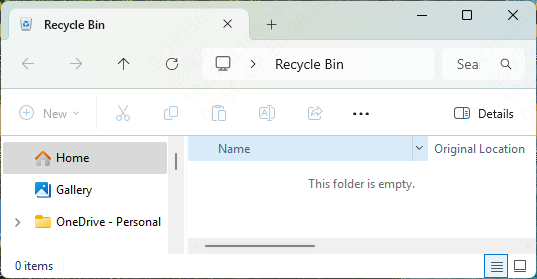
Restore from Recycle Bin
If files were deleted normally (not with Shift + Delete)
Open the Recycle Bin and restore them to their original location
Use File History or Previous Versions
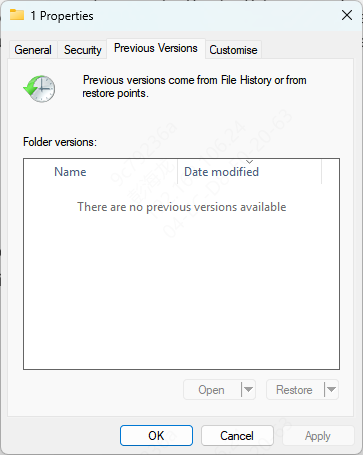
Right-click the folder where the files were stored
Select Restore previous versions
Choose an available backup version and restore
This only works if File History was enabled before data loss
Cloud Backup Recovery
If your files were synced with OneDrive, Google Drive, or another cloud service, check the cloud recycle bin
Method 2: Save Deleted Files Using PcGoGo Data Recovery
Step 1: Download and Install PcGoGo Data Recovery
Download PcGoGo Data Recovery from the official website
Important: Install it on a different drive than the Kingston SSD to avoid overwriting lost data
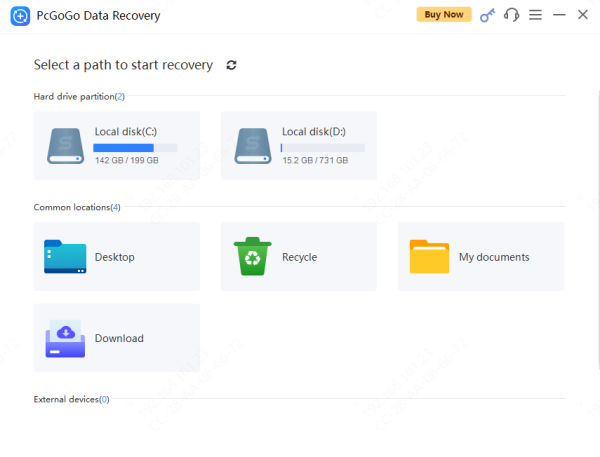
Step 2: Select the Kingston SSD
Launch the software and select your Kingston SSD from the list of available drives
Step 3: Scan the SSD for Deleted Files
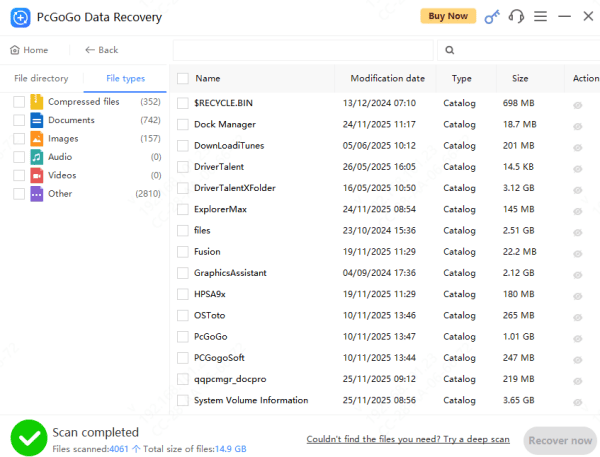
Click Scan to begin searching for deleted and lost files
The software will perform scan
Once scanning completes, preview files such as documents, photos, and videos to verify their integrity
Step 4: Recover and Save Files Safely
Select the files you want to restore and save them to another drive or external storage device—never back to the original SSD
Tips to Prevent Data Loss on Kingston SSD Drives
Enable File History or regular backups on Windows
Use cloud storage for important files
Avoid sudden power shutdowns
Safely eject external SSDs
Keep Windows and SSD firmware updated
Monitor SSD health periodically
Conclusion
Losing files from a Kingston SSD drive can be stressful, but it doesn't have to be permanent. By acting quickly, avoiding risky actions, and using the right recovery method, you can often save deleted files from Kingston SSD drives on Windows successfully.




