






Lost data from a USB 3.0 external hard drive? This guide covers practical recovery methods — checking the Recycle Bin, restoring from File History or Previous Versions, and using PcGoGo Data Recovery to scan and retrieve deleted or corrupted files — plus tips to prevent future data loss on external drives.
Check the Recycle Bin
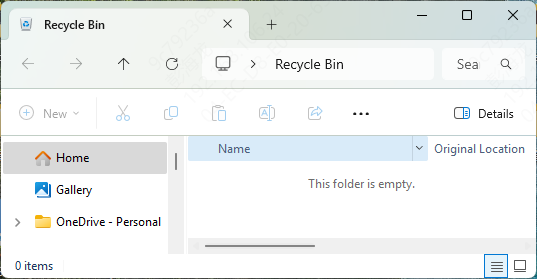
Accidental deletion is often the culprit
Check your computer's Recycle Bin to see if the deleted files are still there
File History or Previous Versions
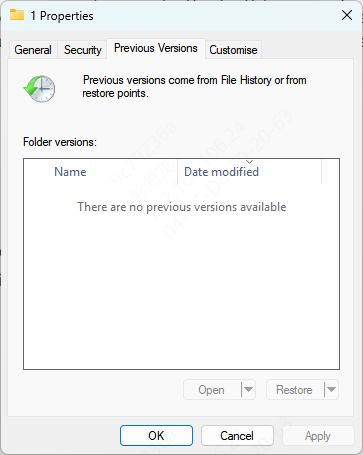
If you're using Windows, right-click on the folder where the file was stored and select "Restore previous versions" to recover files from earlier backups or versions
Recover Data Using Data Recovery Software
If the above methods don't work, a specialized data recovery software is often the next best solution. Here's how you can use PcGoGo Data Recovery to retrieve lost data from your USB 3.0 external hard drive:
Step 1: Download and Install PcGoGo Data Recovery
Go to the PcGoGo Data Recovery website and download the latest version of the software
Install it on a different drive (not the drive you're trying to recover from) to prevent overwriting any lost data Follow the installation prompts to complete the setup
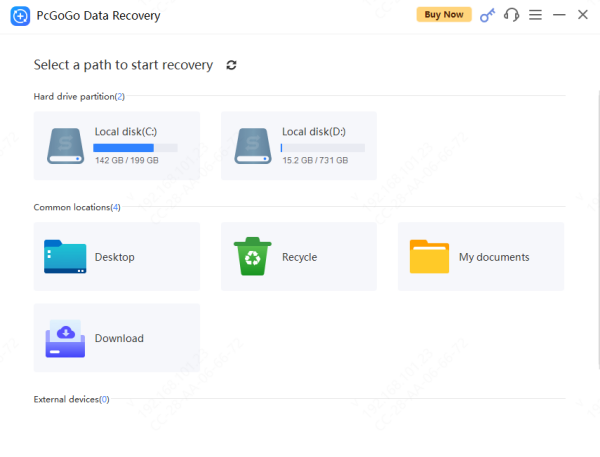
Step 2: Select the USB 3.0 External Hard Drive
Open PcGoGo Data Recovery
Choose your USB 3.0 external hard drive from the list of available drives. Make sure that the external drive is properly connected to your computer
Step 3: Start the Scan
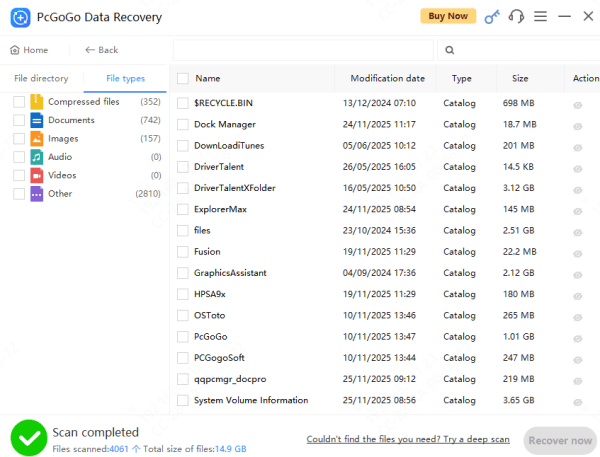
Click on the Scan button. PcGoGo Data Recovery will scan the drive for lost files
It can perform a Quick Scan for recently deleted files or a Deep Scan for more complex data loss scenarios, such as file system corruption or long-term data loss
Step 4: Preview Recovered Files
Once the scan completes, you will see a list of recoverable files
Preview the files to confirm their integrity
This ensures you only recover the files you need, saving time and space
Step 5: Recover and Save Files
Select the files you wish to recover
Save them to another drive or external storage device
Preventing Future Data Loss
To avoid data loss in the future, follow these preventive measures:
Regular Backups: Back up your data regularly using cloud services or external hard drives. This will ensure you always have a copy of your files
Eject Your USB Drive Safely: Always use the "Eject" or "Safely Remove Hardware" option when removing your USB drive to prevent corruption
Use Encryption and Password Protection: Encrypt your USB drive for added security, especially for sensitive files. This reduces the chance of unauthorized access in case of theft or accidental deletion
Install Reliable Antivirus Software: Keep your system and USB drives secure by using up-to-date antivirus software to prevent malware and ransomware attacks that can lead to data corruption
Conclusion
Data loss on USB 3.0 external hard drives is common, but with the right approach, it's often recoverable. Whether through built-in tools like Windows File Recovery or specialized software like PcGoGo Data Recovery, you can retrieve lost files safely and efficiently. By following the recovery steps and applying preventive measures, you can minimize the risk of data loss in the future and ensure that your files are always protected.




