






Losing important files from a WD My Passport external drive can happen unexpectedly, whether due to accidental deletion, formatting mistakes, file system corruption, or device errors. However, deleted data is not always permanently erased immediately. In many situations, the original files remain recoverable until new data overwrites the storage space. This guide explains how to recover lost files from a WD My Passport drive using Windows built-in recovery options and professional recovery software like PcGoGo Data Recovery. It also covers important precautions to improve recovery success and prevent future data loss.
Precautions to Take Before Recovery
Before attempting to recover files, follow these steps to avoid further data loss:
Stop Using the Drive: Avoid adding new files or installing programs on the affected WD drive
Avoid Recovery Software Installation on the Same Drive: Always use a separate drive to install any recovery program
Inspect for Physical Damage: If the drive makes clicking or grinding noises, refrain from DIY recovery and consider professional help
Prepare Alternative Storage: Have another external drive or partition ready for storing recovered files
Using Windows Built-in Features
Windows provides several built-in options to recover lost files. These methods are simple and effective for recently deleted files or files backed up automatically.
Recycle Bin
When you delete a file from your WD My Passport drive, it often goes to the Recycle Bin unless you used Shift + Delete
Open the Recycle Bin on your Windows desktop
Look for your missing files—Windows allows you to sort by name, deletion date, or file type to locate them quickly
Right-click the file(s) you want to recover and select Restore
The files will be returned to their original location on your WD My Passport drive

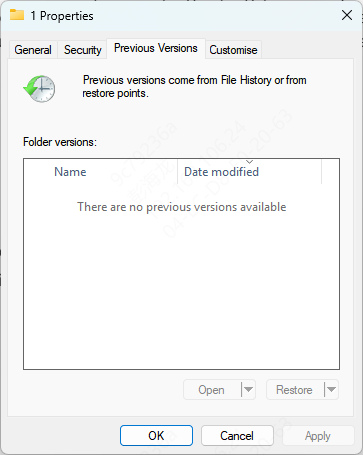
File History / Previous Versions
Windows has a File History feature that can automatically back up files on drives if enabled
To check for previous versions:
Right-click on the folder where the missing file was originally located
Select Restore previous versions from the context menu
A list of available backup snapshots will appear, including the date and time they were saved
Select the version you need and click Restore
This is particularly useful if you regularly back up your drive or enable automatic Windows backups
Windows File Recovery Tool
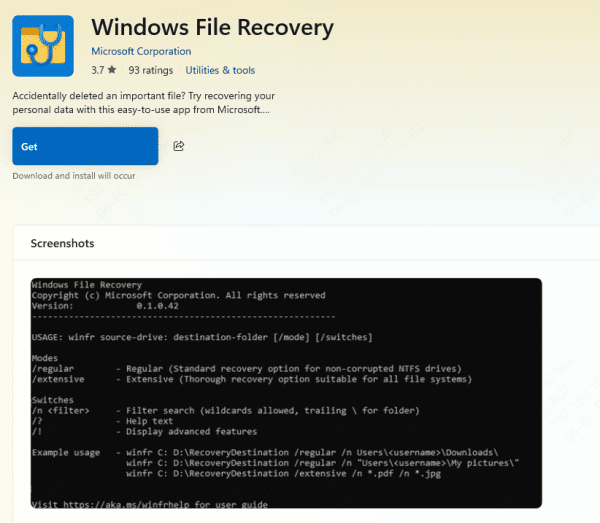
Install Windows File Recovery from the Microsoft Store
Open the tool and choose the appropriate mode: Default for recently deleted files or Segment / Signature for formatted or corrupted drives
Specify the source drive (your WD My Passport) and the destination drive where recovered files will be saved
This tool is powerful for recovering multiple types of files, but it requires following command syntax carefully
Using PcGoGo Data Recovery
PcGoGo Data Recovery is a user-friendly software designed to help you recover lost or deleted files from your WD My Passport drive, even if you don't have technical expertise. Here's a step-by-step guide on how to use it effectively:
Step 1: Download and Install
Download the latest version of PcGoGo Data Recovery from the official website
Install the software on a different drive, not the WD My Passport drive
Step 2: Connect and Select the Drive
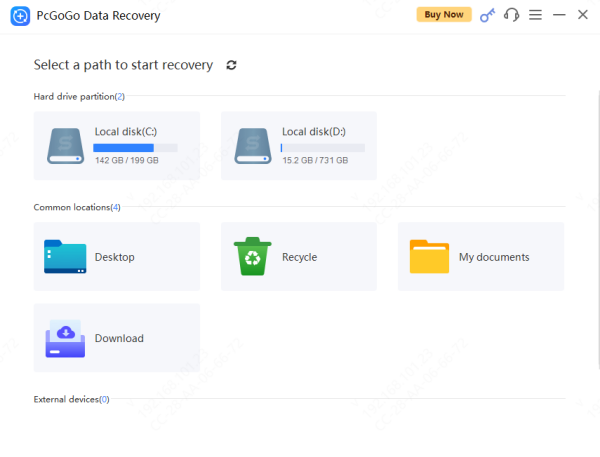
Open the program and select the WD My Passport drive from the list
Ensure the device is properly recognized by your computer
Step 3: Scan for Lost Files
Choose Quick Scan to locate recently deleted files or Deep Scan for formatted or corrupted drives
Let the software analyze the drive for recoverable data
Step 4: Preview Files
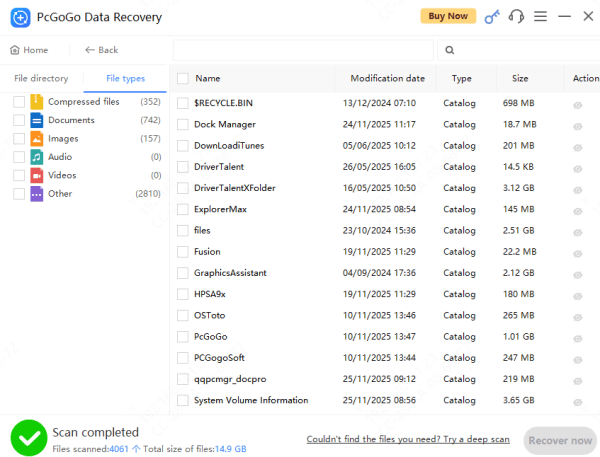
Preview documents, photos, videos, and other file types to confirm they are intact before recovery
This prevents wasting time restoring unnecessary files
Step 5: Recover and Save Files
Select the files you want to recover
Save them to a safe location on a different drive or external storage
Never save recovered files back to the original WD drive to avoid overwriting other lost data
Tips to Prevent Future Data Loss
Regular Backups: Keep an updated backup on another drive or cloud service
Enable File History: Use Windows File History for automatic backups of important folders
Use Antivirus Protection: Protect your drive from viruses and malware
Safely Disconnect Drives: Always eject your external drive properly and avoid sudden shutdowns
Monitor Drive Health: Use WD Dashboard or similar tools to check the health and status of your drive regularly
Common Reasons Your WD My Passport Data May Be Lost
Accidental Deletion: Files deleted unintentionally while organizing the drive
Formatting Errors: Reformatting the drive without a backup erases all contents
Corrupted File System: Power interruptions, malware attacks, or bad sectors may corrupt the drive
Virus or Malware Infection: Malicious programs can delete, encrypt, or damage files
Physical Damage: Drops, impacts, or exposure to extreme conditions can harm the drive
Conclusion
While losing files from a WD My Passport drive can be alarming, it is often possible to recover them using proper techniques. By leveraging Windows tools, WD's backup software, or third-party solutions like PcGoGo Data Recovery, you can retrieve important files quickly and safely. Regular backups and careful drive management are essential to protect your data and minimize the risk of future loss.




