






Recovering lost files from a WD hard drive can be challenging, especially after accidental deletion, formatting, or drive corruption. However, many data loss situations can be resolved with the right recovery methods. This guide explains how to safely recover data from WD HDDs and SSDs using Windows built-in tools and PcGoGo Data Recovery, while also covering common recovery problems and prevention tips to protect your files in the future.
Precautions Before You Start Recovery
Stop Using the Drive Immediately: The first and most crucial step is to stop using the affected drive to avoid overwriting any lost data. Do not add new files or install recovery software on the same drive
Check for Physical Damage: If you hear clicking or grinding sounds from the drive, it may indicate physical damage. In such cases, it is advisable to seek professional data recovery services
Backup Accessible Files: If your WD drive is still partially accessible, back up any important files before proceeding with recovery
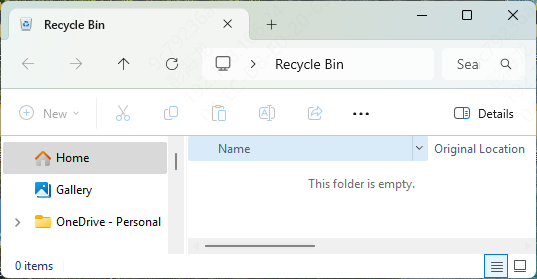
Step 1: Check the Recycle Bin
If you've accidentally deleted files, they might still be in the Recycle Bin
Open the Recycle Bin, locate the files, and right-click to restore them
Step 2: Use Windows File History
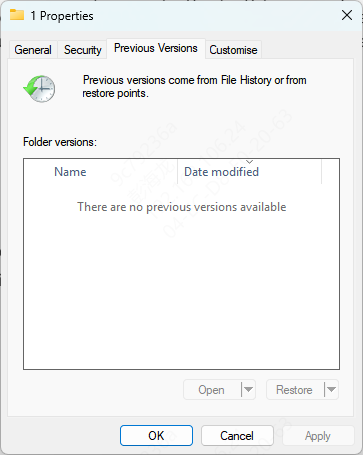
Windows provides a built-in File History feature that automatically backs up files
To restore files, right-click on the folder where the file was stored, select "Restore previous versions," and choose the version you want to recover
Step 3: Use Windows File Recovery Tool
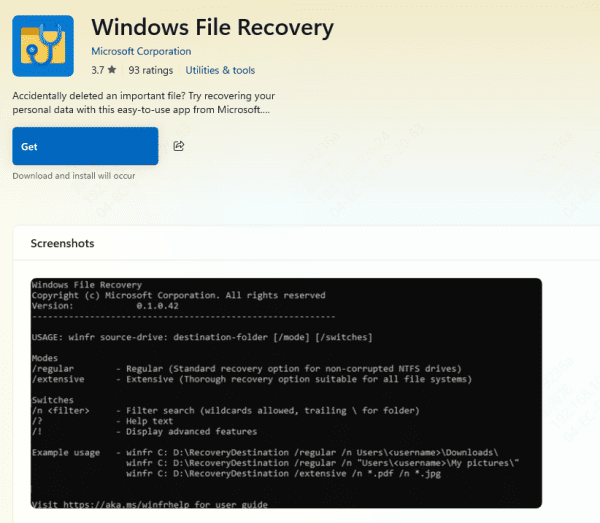
If the above methods don't work, you can try Microsoft's Windows File Recovery Tool, which is available from the Microsoft Store
This tool allows you to recover files from drives that are not showing up properly in Windows
Step 4: Using PcGoGo Data Recovery
PcGoGo Data Recovery is a powerful tool for recovering lost data from WD hard drives. Here's how to use it:
Download and Install PcGoGo Data Recovery
Download the latest version of PcGoGo Data Recovery from the official website
Install the software on a different drive (not the affected WD drive) to avoid overwriting lost data
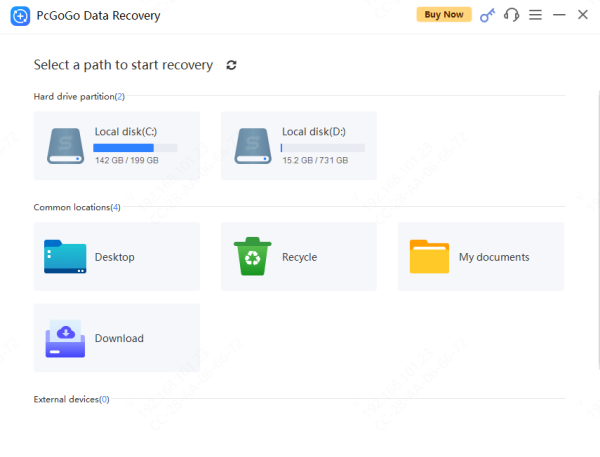
Launch the Software and Select Your WD Drive
Open PcGoGo Data Recovery and select the WD hard drive from the list of available drives
Ensure that the drive is properly connected and recognized by the software
Scan the WD Drive for Lost Files
Click the Scan button to start the recovery process
You can choose between Quick Scan (for recently deleted files) and Deep Scan (for recovering data from corrupted or formatted drives)
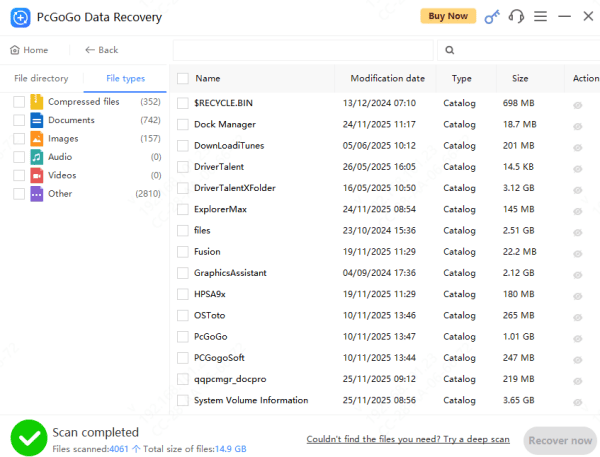
Preview Recoverable Files
After the scan completes, you can preview the files that can be recovered
This will help you identify which files are intact and which need recovery
Recover and Save Your Files
Select the files you want to recover, then choose a safe location (another drive or external storage) to store them
Important: Do not save the recovered files back to the same WD drive to prevent overwriting remaining lost data
Tips to Prevent Future Data Loss
Regular Backups: Use external hard drives or cloud services to back up important data regularly
Enable Windows File History: Keep your files backed up automatically by enabling File History in Windows
Use Reliable Antivirus Software: Protect your drive from malware and viruses by using a reputable antivirus program
Avoid Improper Shutdowns: Always eject external drives safely, and avoid abrupt shutdowns to minimize the risk of corruption
Monitor Your Drive Health: Regularly check your WD drive's health using WD Dashboard or similar utilities to monitor for any potential issues
Losing data from your WD hard drive doesn't have to be the end of the road. By using the right tools, such as PcGoGo Data Recovery, you can often recover lost files and restore your valuable data. Always remember to back up your data regularly and take precautions to protect your drives from potential issues. In case of severe damage, don't hesitate to seek professional recovery services for further assistance




