






Portable hard drives are essential for storing and backing up important data, including personal files, work documents, photos, and videos. They are widely used due to their ease of portability and large storage capacity. However, data loss can occur due to various reasons such as accidental deletion, formatting errors, system crashes, or even hardware failures. The good news is that deleted files are often recoverable, as long as you act promptly and use the right recovery tools. In this guide, we'll show you how to recover deleted files from portable hard drives, step by step, and provide some tips to avoid data loss in the future.
What Happens When Files Are Deleted from a Portable Hard Drive?
When files are deleted from a portable hard drive, they are not immediately removed from the storage. Instead, the operating system marks the space as "available" for new data. This means that the deleted files can often still be recovered, as long as the space hasn't been overwritten with new data
TRIM Command and SSDs: If your portable hard drive is an SSD, it may use the TRIM command. This command is designed to improve performance but can also make file recovery more difficult. TRIM marks deleted files for immediate erasure, reducing the chance of recovery. If you're using an SSD, it's even more important to stop using the drive immediately after data loss
File Overwriting: The main risk in file recovery is overwriting. If new files are written to the drive after data deletion, it can overwrite the space that previously contained the deleted files, making recovery difficult or impossible
Use Windows Native Data Recovery Tools
Recycle Bin: If the files were deleted recently, the first place to check is the Recycle Bin. If they are there, simply restore them
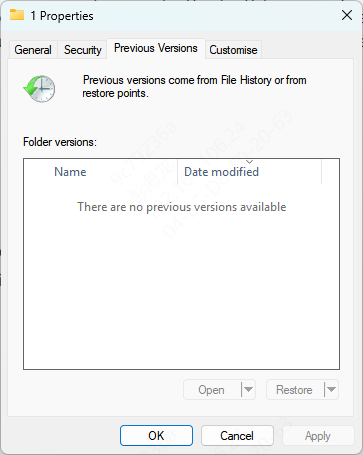
File History or Previous Versions: Windows has built-in tools like File History or Previous Versions that allow you to restore earlier versions of files or folders. Right-click on the folder containing the lost file and select "Restore previous versions"
Command Prompt (For Advanced Users): You can use the chkdsk tool from the Command Prompt to check and recover minor errors or corrupt files
Recover Deleted Files Using PcGoGo Data Recovery
PcGoGo Data Recovery is a reliable, user-friendly tool that simplifies the process of recovering deleted files from portable hard drives. It supports a wide variety of file types, such as documents, photos, videos, and more. Here's how you can use it:
Step 1: Download and Install PcGoGo Data Recovery
Go to the official PcGoGo Data Recovery website and download the latest version of the software
Install it on a different drive to prevent overwriting any lost data from the portable hard drive you want to recover from
Step 2: Select the Portable Hard Drive for Scanning
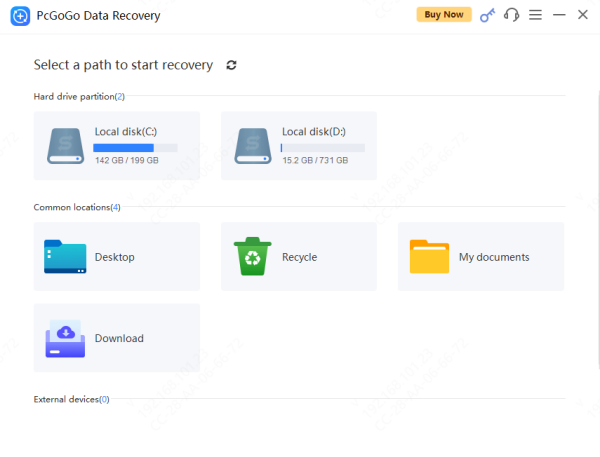
Open the software and select the portable hard drive where the files were lost. This could be a USB drive, external HDD, or SSD
If you're recovering from an external device, ensure it is properly connected to your computer
Step 3: Scan for Deleted Files
Click the Scan button to initiate the scanning process
Step 4: Preview and Select Files
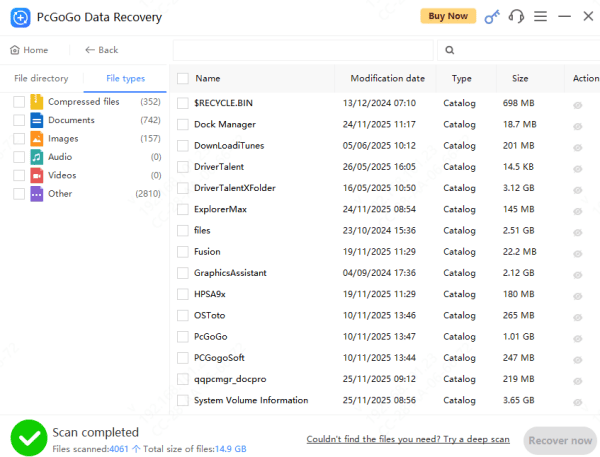
After the scan completes, PcGoGo Data Recovery will show you a list of recoverable files
You can preview the files (photos, documents, videos) to ensure they are intact and select the ones you need to recover
Step 5: Recover and Save Files
Select the files you want to recover and click on the Recover button
Choose a different drive (not the original drive) to save the recovered files to prevent overwriting
How to Protect Your Portable Hard Drive from Data Loss in the Future
Backup Regularly: Use cloud storage services or external hard drives to back up important data regularly. Enable automatic backups using Windows File History or third-party backup tools
Monitor Disk Health: Keep an eye on your portable hard drive's health by using software tools that monitor its status, such as CHKDSK or SMART
Safely Eject the Drive: Always eject your portable hard drive properly before disconnecting it from your computer to avoid file corruption

Conclusion
Data loss can happen at any time, but with the right tools and quick action, you can often recover deleted files from portable hard drives. By using PcGoGo Data Recovery, you can safely retrieve lost documents, photos, and videos without the need for professional services. Remember to stop using the drive immediately after data loss and try recovery methods as soon as possible. Regular backups and drive maintenance will help prevent future data loss and ensure your important files are always safe.




