






Losing data from a Lenovo hard drive can happen due to accidental deletion, formatting, system crashes, malware, or hardware issues. Fortunately, many lost files can still be recovered if you act quickly and use the right recovery methods. This guide explains how to recover data from Lenovo HDDs and SSDs using Windows tools, Lenovo recovery options, and professional recovery software to restore important files safely.
Common Causes of Data Loss on Lenovo Hard Drives
Accidental deletion or formatting of partitions
System crashes, blue screens, or boot failures
Logical damage (bad sectors, corrupted file system)
Virus/malware infections
Failed Windows updates or partition table corruption
Physical damage (dropped laptop, clicking sounds)
Precautions Before Starting Recovery
Stop using the drive immediately to avoid overwriting data
If you hear unusual noises (clicking/grinding), power off and seek professional help—do not attempt DIY
Work on a healthy secondary drive or external storage for recovered files
Consider creating a bootable USB if the system won't start
Method 1: Use Built-in Windows Tools
Start with simple checks:
Check Recycle Bin for deleted files
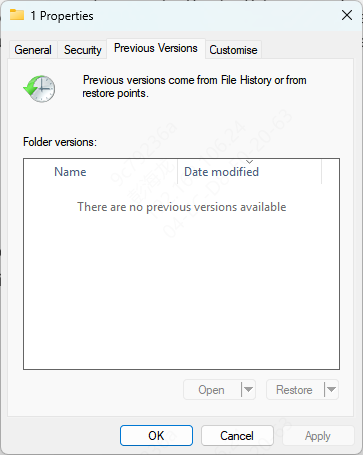
Use File History or Previous Versions: Right-click folder > Restore previous versions
Method 2: Recover from Lenovo OneKey Recovery Partition (If Available)
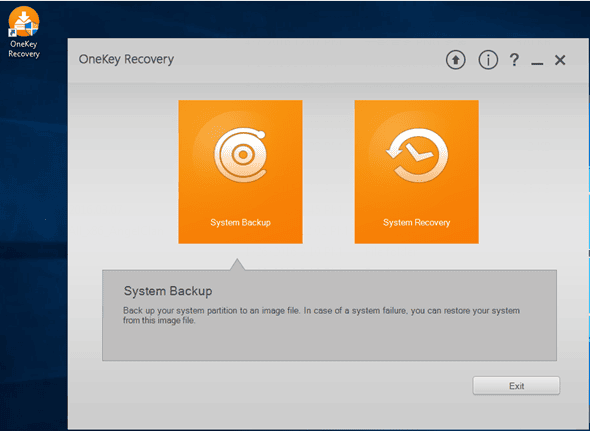
Many Lenovo laptops come with a hidden OneKey Recovery partition
Power off the laptop
Press the Novo button (small button next to power, often with a curved arrow) or F11/F12 during boot
Select System Recovery or Backup Recovery
Follow prompts to restore from a previous backup
This only works if you created backups beforehand and the partition is intact.
Method 3:Use PcGoGo Data Recovery
PcGoGo Data Recovery makes it easy to restore lost or deleted files on Windows, even if you have no technical experience. Follow the steps below to recover your data safely and efficiently.
Step 1: Download and Install PcGoGo Data Recovery
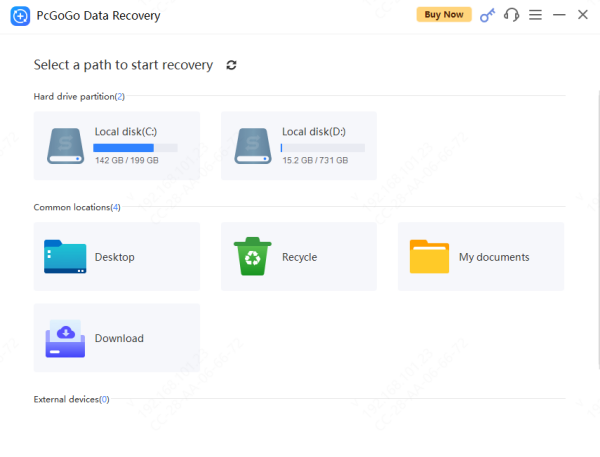
Step 2: Select the Drive to Scan
Step 3: Scan for Lost Files
Step 4: Preview Files Before Recovery
Step 5: Recover and Save Your Files
Method 4: Remove Hard Drive and Connect to Another PC
For dead laptops:
Power off and remove the hard drive (check iFixit guides for your model)
Use a SATA-to-USB adapter or enclosure
Connect to a working PC
Run recovery software as in Method 3
This often works for unbootable systems
Prevention Tips to Avoid Future Data Loss
Regularly back up to external drives or cloud
Use Lenovo Vantage to monitor drive health (SMART status)
Enable File History in Windows
Install reliable antivirus and avoid sudden power-offs
Conclusion
Data loss on a Lenovo hard drive can be alarming, but it doesn't always mean your files are gone for good. In many cases—especially when the issue is caused by accidental deletion, formatting, or logical errors—data can be successfully recovered by acting quickly and choosing the right method. Whether you start with built-in Windows tools, Lenovo's OneKey Recovery, or a professional solution like PcGoGo Data Recovery, following proper recovery steps can greatly improve your chances of success. By stopping drive usage immediately, recovering files to a safe location, and adopting good backup habits going forward, you can not only restore your lost data but also reduce the risk of future data loss on your Lenovo device.




