






Windows data loss can happen without warning, whether a file is accidentally deleted, a drive becomes corrupted, or a system crash makes important data inaccessible. In these situations, acting quickly and avoiding further use of the affected drive can improve the chance of recovery. PcGoGo Data Recovery provides a simple way to scan hard drives, SSDs, USB drives, and SD cards, preview recoverable files, and restore selected data to another safe location. This guide explains how to use the program step by step, what features it offers, and how to reduce the risk of overwriting lost files during the recovery process.
Key Features of PcGoGo Data Recovery
Efficient Repair Algorithms: PcGoGo Data Recovery uses advanced algorithms to quickly detect and fix data corruption caused by transfer errors, malware, or system failures
Wide File Type Support: It can recover documents, images, videos, audio files, emails, compressed archives, and more
File Preview: PcGoGo Data Recovery allows you to preview images, documents, and videos before restoring them, ensuring that you only recover the files you need
Safe and Reliable: It uses non-destructive scanning technology, meaning it will never overwrite your existing data, ensuring no further loss or damage
Works with Multiple Devices: PcGoGo Data Recovery can recover data from internal and external hard drives, SSDs, USB drives, SD cards, and more
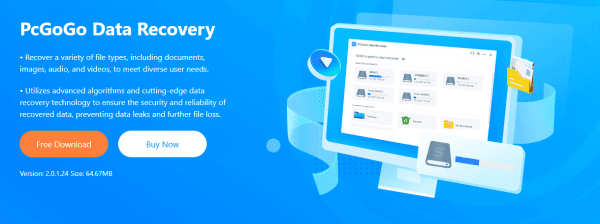
How to Use PcGoGo Data Recovery
Follow these simple steps to recover your lost files using PcGoGo Data Recovery:
Step 1: Download and Install PcGoGo Data Recovery
Visit the official PcGoGo Data Recovery website and download the latest version of the software
Install it on a different drive to avoid overwriting the lost data. Avoid installing it on the same drive you want to recover data from
Step 2: Select the Drive to Scan
Launch PcGoGo Data Recovery and choose the drive where the data loss occurred
This could be your internal hard drive, external USB drive, or SD card
If the drive is external, ensure it's properly connected to your PC
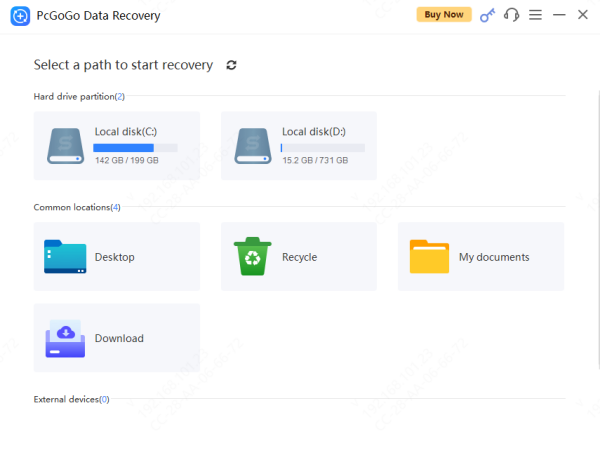
Step 3: Scan
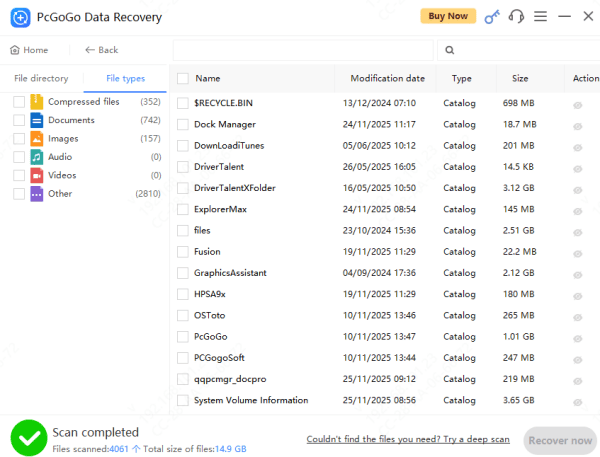
Use Scan to find recently deleted files
Step 4: Preview Files Before Recovery
PcGoGo Data Recovery allows you to preview the detected files to make sure they are intact
This helps you select the files that are important to you, preventing you from wasting time recovering unnecessary files
Step 5: Recover and Save Your Files
After previewing the files, select the ones you want to recover
Choose a safe location to save the recovered files
Don't save the recovered files to the same drive as the original data—this may overwrite the remaining lost data
Troubleshooting Common Issues with Data Recovery
While PcGoGo Data Recovery is highly reliable, here are some common issues users may encounter and how to handle them:
Program crashing or freezing: Restart the software or try running it in compatibility mode. Ensure your system meets the program's requirements
Corrupted recovered files: If files appear corrupted, it could be due to severe damage or overwriting. Try using advanced recovery features or contact professional support
Frequently Asked Questions
Can permanently deleted files still be recovered on Windows?
Sometimes. Recovery is more likely if the deleted data has not been overwritten. Stop using the affected drive immediately and save recovered files to another storage device.
Can data recovery software recover files from an SSD?
Possibly, but SSD recovery is often limited by TRIM, which may erase deleted data internally. Recovery chances depend on whether TRIM ran and how much the SSD was used afterward.
Why are some recovered files corrupted or unable to open?
The original data may have been partially overwritten, damaged by file-system corruption, or stored on failing sectors. A filename appearing in scan results does not guarantee that its contents remain intact.
Conclusion
Data loss doesn't have to be permanent. With PcGoGo Data Recovery, you can quickly recover lost or deleted files from your Windows computer. Its powerful features, ease of use, and high success rate make it an essential tool for anyone dealing with data loss. Don't wait for the data to be overwritten—download PcGoGo Data Recovery today and recover your valuable files safely




