






Losing important photos on a Windows computer can be frustrating, whether they are personal memories, professional images, or valuable work files. Photo loss can happen for many reasons, including accidental deletion, formatting, system crashes, or storage device corruption. Fortunately, deleted or lost photos are often recoverable if you stop using the affected drive and take the right recovery steps as soon as possible. In this guide, we'll explain the common causes of photo loss on Windows and show you how to safely restore lost images using PcGoGo Data Recovery.
Is Photo Data Recovery Possible on Windows?
In most situations, photo recovery is possible because deleted files are not immediately erased from the storage device
Instead, the space they occupy is marked as available for new data. As long as new files have not overwritten that space, recovery software can locate and restore the lost photos
Recovery success depends on factors such as how soon you act, whether the device is still in use, and the condition of the storage media
Recover Deleted Photos
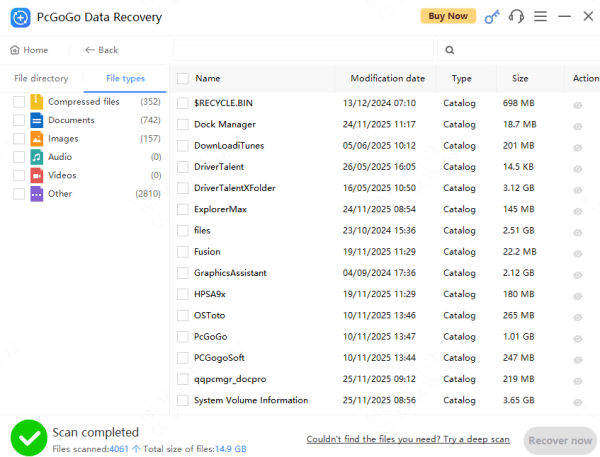
Recovering photos with PcGoGo Data Recovery is straightforward and does not require technical skills
First, download and install PcGoGo Data Recovery on a drive different from the one where your photos were lost
Launch the software and select the drive or storage device that originally contained the missing photos, such as an internal hard drive, external drive, USB flash drive, or SD card
Click the scan button to search for deleted or lost photos
Once the scan is complete, preview the recoverable photos to verify their quality
Finally, select the photos you want to restore and save them to a secure location on another drive
Tips to Maximize Photo Recovery Success
To increase your chances of successful photo recovery, stop using the affected device immediately to avoid overwriting data
Do not install new software or save files to the same drive
Always save recovered photos to a different storage location, and avoid running multiple recovery tools simultaneously
How to Prevent Photo Data Loss in the Future
Preventing data loss is just as important as recovery
Regularly back up your photos to cloud storage or external drives, safely remove storage devices before disconnecting them, protect your system with reliable antivirus software, and monitor disk health to detect issues early
Replacing aging storage devices before failure can also help prevent unexpected photo loss
Photo data loss on Windows can be stressful, but it doesn't have to be permanent. With prompt action and the right recovery tool, most lost photos can be restored successfully. PcGoGo Data Recovery provides a safe, powerful, and user-friendly solution for Windows users, making photo recovery simple even for beginners. By following the steps and best practices in this guide, you can recover your photos with confidence and better protect your data in the future.




