






PcGoGo Data Recovery is a powerful Windows data recovery tool designed to restore deleted, lost, or corrupted files caused by accidental deletion, formatting, system crashes, or drive errors. This guide explains its key features and shows how to recover documents, photos, videos, and other important data safely with a simple step-by-step recovery process.
Why Choose PcGoGo Data Recovery
PcGoGo Data Recovery stands out as a trusted Windows data recovery solution for several reasons:
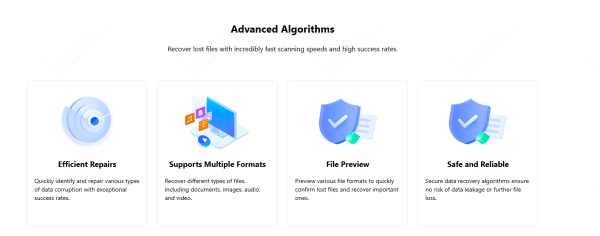
Advanced Deep Scan Technology: Its intelligent deep scan can locate files lost due to formatting, corruption, or severe system errors, significantly increasing recovery success rates
Wide File Type Support: Recover a broad range of file types, including documents, photos, videos, audio files, and compressed archives
Preview Before Recovery: Preview images, videos, PDFs, and documents before restoring them, so you only recover the files you truly need
Multi-Device Compatibility: PcGoGo Data Recovery supports recovery from internal hard drives, SSDs, external drives, USB flash drives, SD cards, and more
How to Recover Data Safely on Windows with PcGoGo Data Recovery
Step 1: Download and Install PcGoGo Data Recovery
Go to the official PcGoGo Data Recovery website and download the newest version of the software
During installation, choose a different drive than the one you plan to recover data from to avoid overwriting any lost files
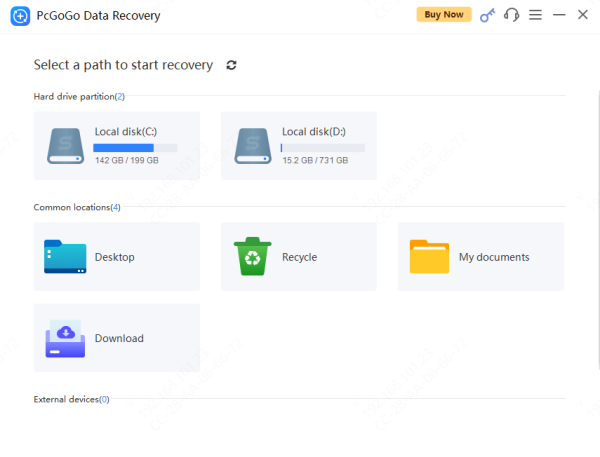
Step 2: Choose the Path to Scan
Open PcGoGo Data Recovery and select the storage device where the data loss occurred
If you are scanning an external device, make sure it is properly connected and recognized by your computer
Step 3: Start Scanning
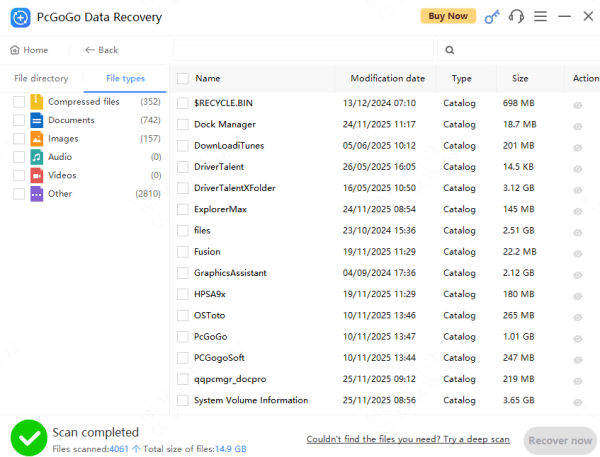
Click the Scan button to search for recently deleted or lost files on the selected drive
Step 4: Preview Recoverable Files
Use the built-in preview feature to check the condition of the found files before recovery
This allows you to confirm file integrity and focus only on the data you truly need
Step 5: Recover and Save Your Data
Select the files you want to restore and choose a secure location to save them
Avoid saving recovered files to the original drive, as this could overwrite remaining data and reduce recovery success
Never save recovered files back to the original drive to avoid overwriting remaining data
Tips to Maximize Data Recovery Success
To improve your recovery results:
Stop using the affected drive immediately
Avoid installing new software on the same disk
Run a Deep Scan for formatted or corrupted drives
Save recovered files to a different drive or external device
Following these steps significantly increases recovery success
PcGoGo Data Recovery is Ideal for Who
PcGoGo Data Recovery is ideal for:
Home users and beginners
Office workers handling important documents
Photographers and content creators
IT professionals and technical support staff
No matter your experience level, PcGoGo Data Recovery makes data recovery simple and effective
Common Windows Data Loss Scenarios
Windows users often experience data loss due to the following situations:
Accidental deletion of files or emptying the Recycle Bin
Hard drive or partition formatting
Windows system crashes or failed updates
Virus or malware attacks
File system corruption resulting in RAW drives
External device issues such as USB or SD card errors
No matter how your data was lost, PcGoGo Data Recovery is built to handle these scenarios efficiently
Conclusion
When data loss strikes, choosing the right recovery tool can make all the difference. PcGoGo Data Recovery delivers a perfect balance of safety and power for Windows users, offering reliable recovery without risk. With its advanced features, secure recovery process, and user-friendly design, PcGoGo Data Recovery is a trusted solution for restoring lost data quickly and safely. Don't let lost files become permanent—use PcGoGo Data Recovery to take control of your data recovery today.




