






Losing data from your WD external hard drive can be frustrating and stressful, especially when it involves important documents, photos, or work files. Fortunately, data loss is not always permanent, and in many cases, files can still be recovered using the right methods and tools. This guide walks you through several effective recovery solutions, from built-in Windows options to third-party tools like PcGoGo Data Recovery, to help you restore lost files from your WD external hard drive. One common cause of data loss is bad sectors, which develop over time when parts of the drive begin to fail. These damaged areas can make files inaccessible or corrupted, but recovery is often still possible depending on the severity of the issue.
Step 1: Use Windows Built-In Recovery Tools
There are several tools built into Windows that can help you recover deleted files from your WD external hard drive:
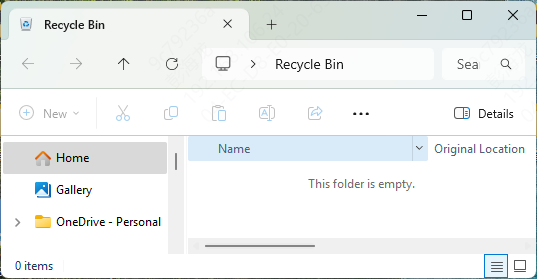
Check the Recycle Bin
Often, deleted files are moved to the Recycle Bin
If your files are there, simply right-click and select Restore
Restore Previous Versions
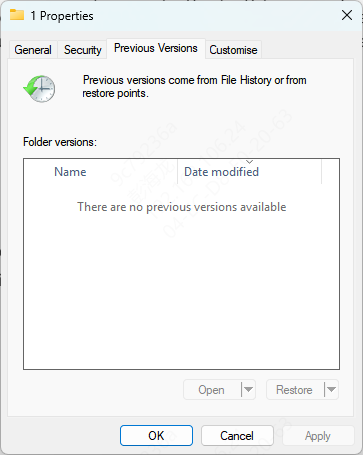
If you've used File History or have System Restore enabled, right-click on the folder where your files were located
Select Restore previous versions
Windows File Recovery Tool
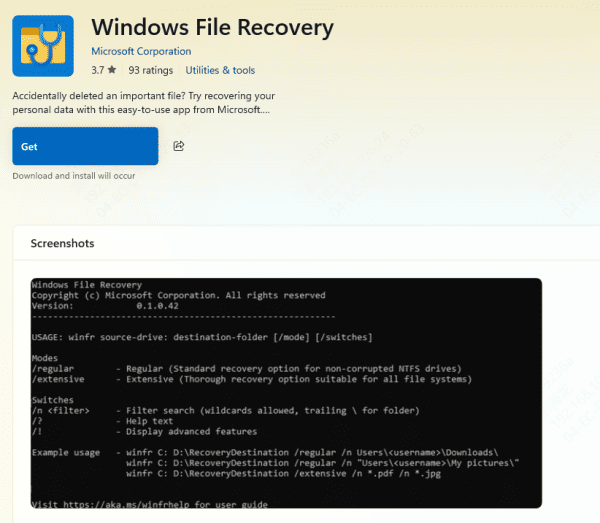
Microsoft provides a free tool called Windows File Recovery, which is available in the Microsoft Store
It's a command-line tool designed to recover files from damaged or corrupted drives
Step 2: Use PcGoGo Data Recovery for Advanced Recovery
For more advanced recovery, PcGoGo Data Recovery is a powerful and easy-to-use tool that can recover lost data from your WD external hard drive. Here's how to use it:
Download and Install PcGoGo Data Recovery
Visit the official website and download the latest version of PcGoGo Data Recovery
Install it on a drive that is not the one you're recovering from, to prevent overwriting any lost data
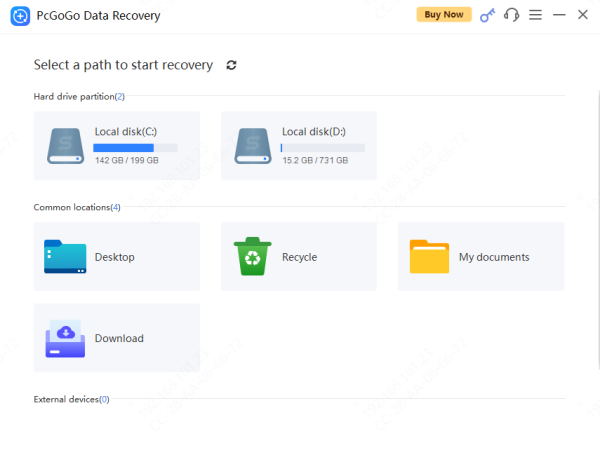
Select the Drive to Scan
After launching the software, select your WD external hard drive from the list of available drives
If it's an external drive, ensure it's properly connected to your PC
Scan for Lost Files
Click the Scan button to begin the search for deleted or lost files
PcGoGo Data Recovery will locate recently deleted files and provide a list of recoverable data
Preview and Verify Files
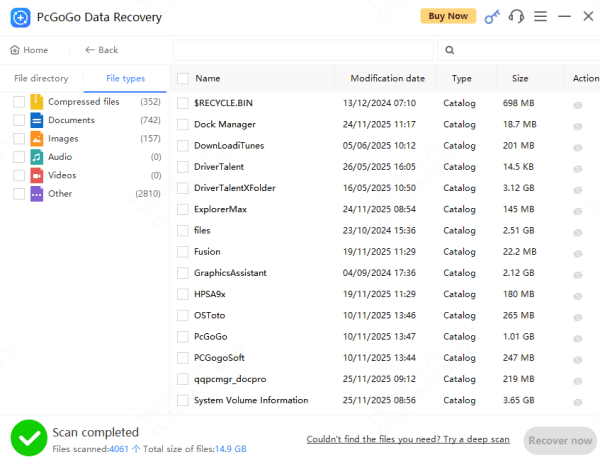
After the scan is complete, PcGoGo Data Recovery will display a list of recoverable files
You can preview images, documents, and other files to ensure they are intact and choose which ones you need to recover
Recover and Save Your Files
Select the files you wish to recover and choose a safe location to save them
Be sure to save them to a different drive to avoid overwriting other lost data
Why Data Loss Happens on WD External Hard Drives
Data loss can occur due to a variety of reasons. Here are some common causes of data loss on WD external hard drives:
Accidental Deletion: A simple error like accidentally deleting files or folders can result in data loss
Formatting Errors: Whether you formatted the drive by accident or formatted it for a fresh start, this can wipe your data
System Crashes: A system crash can cause file corruption, leading to lost files on the external hard drive
File System Corruption: Corrupted files or damaged file systems can prevent access to stored data
Malware or Virus Infections: Malicious software can delete, corrupt, or hide your files
Physical Damage: Dropping the drive or exposure to extreme conditions can cause irreversible damage to your external hard drive
Conclusion
Losing data from your WD external hard drive can be alarming, but with the right tools and methods, it's often possible to recover your files. Whether you're using Windows' built-in tools, WD's own utilities, or a third-party tool like PcGoGo Data Recovery, there are plenty of ways to restore lost data. Don't forget to back up your files regularly and keep your drive in good health to avoid future data loss.




