
Western Digital portable hard drives are convenient for storing documents, photos, videos, backups, and other important files. Their compact design also makes it easy to carry large amounts of data between different computers.
However, portable drives can be affected by accidental deletion, unsafe removal, malware, physical damage, power failures, and hardware wear. These problems may corrupt files or make the entire drive inaccessible. This guide explains how to protect your WD portable hard drive and recover important files if data loss has already occurred.
1. Handle the Drive Carefully
Many WD portable hard drives contain sensitive moving components. A sudden impact or strong vibration can damage these components, particularly while the drive is running.
Place the drive on a flat and stable surface before connecting it. Do not move, shake, or drop it w
hile files are being transferred. When carrying the drive, keep it in a padded protective case to reduce the risk of impact damage.
Avoid placing heavy objects on top of the drive. Excessive pressure may damage the enclosure, USB connector, or internal components.
2. Keep the Drive Away from Heat and Moisture
High temperatures can shorten the life of a portable hard drive and increase the risk of read or write errors. Do not leave your WD drive in direct sunlight, near a heater, or inside a hot vehicle.
Make sure air can circulate around the drive while it is operating. Avoid placing it on beds, carpets, or sofas because soft materials may trap heat.
Water and high humidity can also damage the circuit board and USB connector. Keep drinks away from the drive and store it in a cool, dry location when it is not being used.
3. Eject the Drive Safely
Close all files stored on the WD drive.
Wait for copying, downloading, or backup tasks to finish.
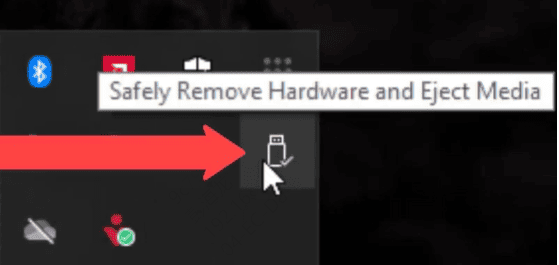
Click the "Safely Remove Hardware" icon on the Windows taskbar.
Select the Western Digital portable hard drive.
Unplug it only after Windows confirms that removal is safe.
4. Use a Reliable USB Cable and Port
Use the original cable supplied with the WD drive whenever possible. Replace it if the cable is bent, frayed, loose, or frequently loses its connection.
Connect the drive directly to the computer instead of using a low-quality USB hub. Some unpowered hubs cannot provide enough power for stable operation. If a hub is necessary, use a reliable powered model.
5. Protect the Drive from Malware
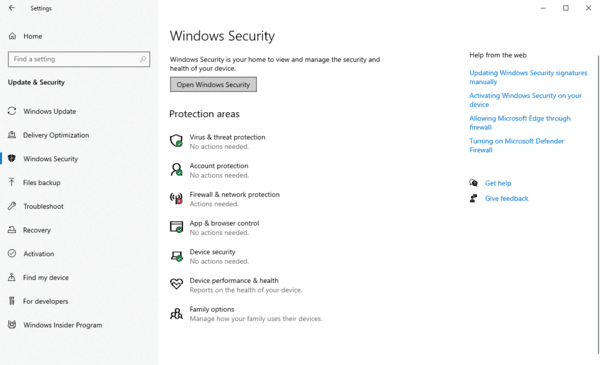
Keep your antivirus software updated and scan the drive regularly. Avoid connecting it to unknown or public computers unless necessary. Do not open unfamiliar programs, shortcuts, or suspicious files stored on the drive.
Enabling file extension visibility in Windows can also help you recognize potentially dangerous executable files disguised as documents or images.
6. Back Up Important Files
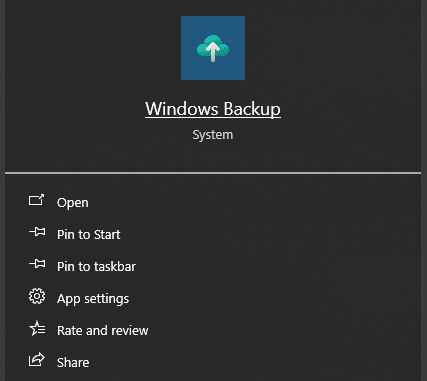
Keep three copies of your data.
Store the copies on two different types of storage.
Keep one copy at another physical location.
Test your backups periodically to confirm that the files can be opened and restored successfully.
7. Keep Enough Free Storage Space
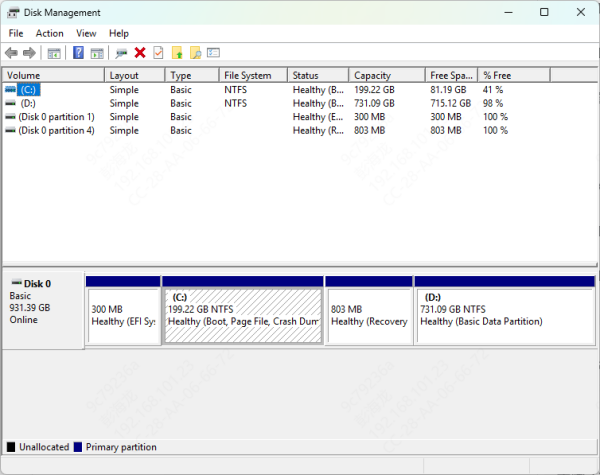
Delete unnecessary files and old backups regularly. Keeping approximately 10% to 20% of the drive free is a useful general practice, especially if you frequently transfer large files.
Use clearly named folders and organize files by type, project, or date. A consistent folder structure reduces the risk of accidentally deleting important content.
How to Recover Lost Files from a WD Portable Hard Drive
Even with proper protection, accidental deletion and unexpected drive problems may still occur. If you lose files, stop using the WD drive immediately. Adding new files could overwrite the deleted data and reduce the chance of successful recovery.
Do not format the drive, reinstall software on it, or save new data to it before attempting recovery.
Method 1: Check the Recycle Bin
Files deleted from an external drive do not always appear in the Recycle Bin, but it is still worth checking.
Open the Recycle Bin from the Windows desktop.
Search for the deleted files.
Right-click the files you need.
Select "Restore."
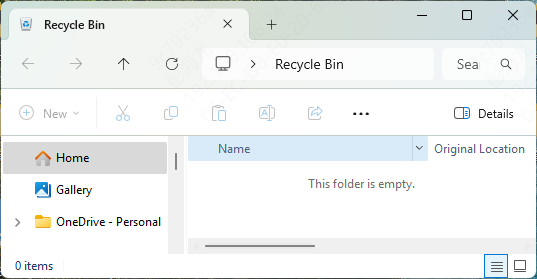
Windows will return the files to their original location when possible.
Method 2: Use File History or Previous Versions
If File History or Windows backup features were enabled before the files were lost, you may be able to restore an earlier copy.
Open File Explorer.
Locate the folder where the missing files were previously stored.
Right-click the folder and select "Restore previous versions."
Choose an available version.
Click "Open" to inspect it or "Restore" to recover it.
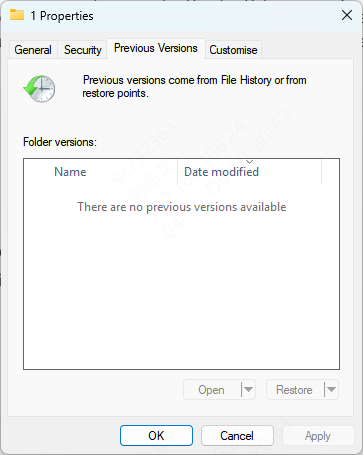
This method only works when Windows has already created a backup or previous version.
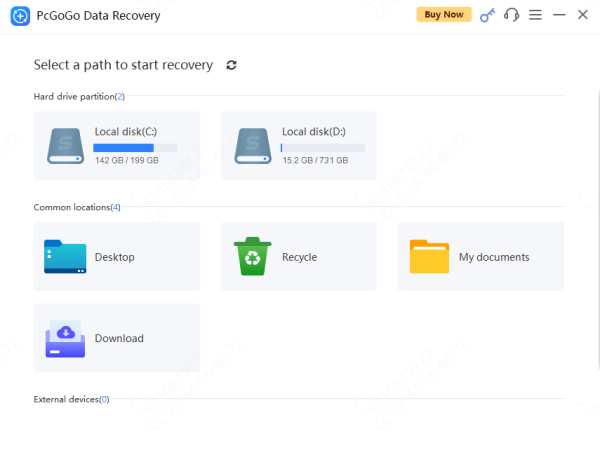
Method 3: Recover Files with PcGoGo Data Recovery
If built-in Windows tools cannot find the missing files, PcGoGo Data Recovery can scan the Western Digital portable hard drive for recoverable documents, photos, videos, and other data.
Step 1: Download and Install PcGoGo Data Recovery
Step 2: Connect and Select the WD Drive
Step 3: Scan for Lost Files
Step 4: Preview the Detected Files
Step 5: Recover and Save the Files
Conclusion
Protecting a Western Digital portable hard drive requires careful handling, safe removal, reliable USB connections, malware protection, proper storage, and regular health checks. Most importantly, maintain at least one separate backup of every valuable file.
If data loss occurs, stop using the drive to prevent overwriting. Begin with Windows tools such as the Recycle Bin and File History. If those options cannot restore the files, PcGoGo Data Recovery can scan the WD drive and recover many types of deleted or lost data. Always save recovered files to a different drive and seek professional help when physical damage is suspected.