





Lost files from your Kingston flash drive? This guide walks you through how to recover deleted, formatted, or corrupted data using PcGoGo Data Recovery — with step-by-step instructions for scanning, previewing, and safely restoring your files — plus tips to prevent future data loss on Kingston USB drives.
Precautions Before You Start Recovery
Stop Using the Drive: Once you realize that data is missing from your Kingston flash drive, stop using it immediately. Continuing to use the drive could overwrite the lost data, making it harder to recover
Don't Attempt to Format the Drive: If the drive is showing errors, avoid formatting it, as this can permanently erase the files you're trying to recover
Backup New Files: If you're working on files after data loss, save them to another drive or cloud storage to avoid further overwriting any valuable data on the Kingston flash drive
Step-by-Step Guide to Recover Lost Files from Kingston Flash Drive
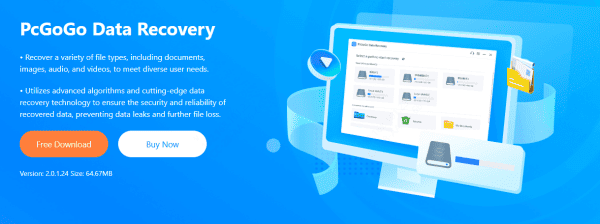
Step 1: Download and Install PcGoGo Data Recovery
Visit the official PcGoGo Data Recovery website to download the software
Make sure to install it on your computer's internal drive, not on the Kingston flash drive, to avoid overwriting the lost data
Step 2: Plug in the Kingston Flash Drive
Insert your Kingston flash drive into the USB port of your computer
Wait for the system to recognize the device
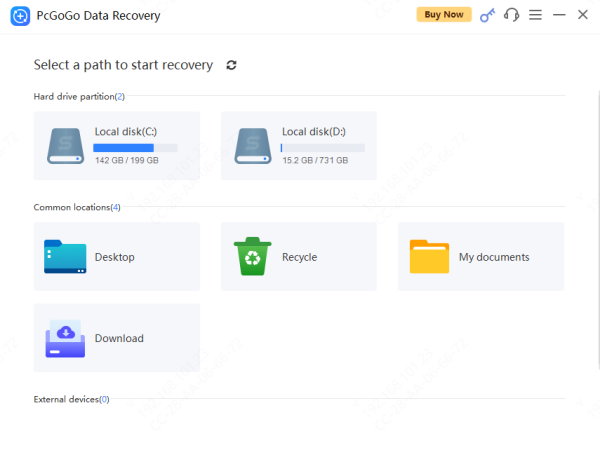
Step 3: Select the Kingston Flash Drive in PcGoGo Data Recovery
Open PcGoGo Data Recovery and select the Kingston flash drive from the list of available drives
Step 4: Start the Scan for Lost Files
Click the "Scan" button to begin searching for lost, deleted files
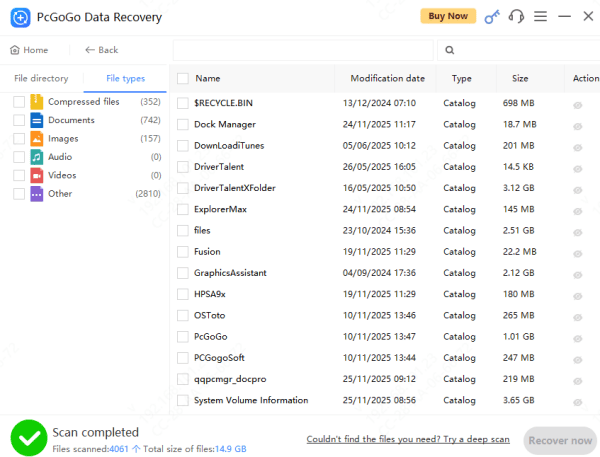
The software will identify the deleted files and show them in the recovery window
Step 5: Preview the Files Before Recovery
Once the scan is complete, you can preview the files to verify they are intact and recoverable
This is an important step to ensure that you're recovering the right files
Step 6: Recover and Save Your Files
Select the files you want to recover and click the "Recover Now" button
Be sure to save the recovered files to another drive or external storage device to prevent overwriting any remaining data on your Kingston flash drive
How to Prevent Data Loss on Kingston Flash Drives
Regular Backups: Make it a habit to back up files from your Kingston flash drive regularly to another drive or cloud storage
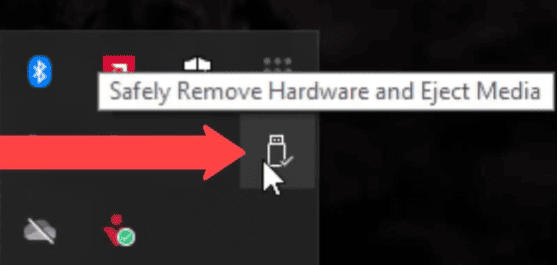
Proper Ejection: Always safely eject your Kingston flash drive before removing it from the USB port to avoid file system corruption
Use Antivirus Software: Protect your Kingston flash drive from viruses and malware by regularly scanning your system with up-to-date antivirus software
Store Safely: Keep your Kingston flash drive in a secure location, away from physical damage or environmental hazards
Why Data Loss Happens on Kingston Flash Drives
Accidental Deletion: It's easy to delete files unintentionally, especially when managing large amounts of data. Whether you've emptied the Recycle Bin by mistake or deleted files without realizing, they might still be recoverable
Formatting Issues: Sometimes, when trying to fix errors on a flash drive or use it on a different system, the drive might get formatted by accident, causing all data to become inaccessible
File Corruption: Flash drives are prone to file system corruption due to improper ejection, unexpected system shutdowns, or malware infections, which can render files unreadable
Hardware Failure: In some cases, physical damage, power surges, or mechanical failures can lead to data loss. If your Kingston drive is making unusual noises, it may require professional help
Virus/Malware Attacks: Malicious software can corrupt files or make them inaccessible. Always keep your system protected to minimize the risk of infection
Conclusion
Data loss on Kingston flash drives can be distressing, but with the right recovery method and tools like PcGoGo Data Recovery, your lost files can often be restored safely and efficiently. Remember, prompt action and the correct recovery method are crucial for successful data retrieval. By following this step-by-step guide, you can quickly recover your important files and reduce the risk of future data loss.




