






Losing files from a Kingston USB drive does not always mean the data is permanently gone. Accidental deletion, formatting, file-system corruption, interrupted transfers, malware, or improper removal can make documents, photos, videos, and other files disappear or become inaccessible. What you do immediately after noticing the loss can significantly affect the chances of recovery, so it is important to stop writing new data to the USB drive before attempting repairs. This guide covers several ways to recover files from a Kingston USB drive.
Immediate Actions After Data Loss
Stop using the USB drive to avoid overwriting deleted files
Do not copy new files or reformat the drive
Reconnect the drive safely and check if it is detected by your system
Prepare a secondary storage location to save recovered files safely
Acting quickly greatly increases the chances of a successful recovery
Check Windows Built-in Recovery Options
Windows provides a few built-in recovery solutions:
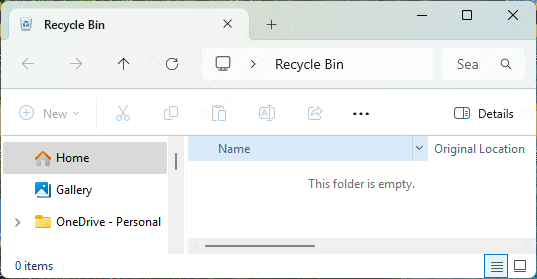
Restore from Recycle Bin
Open the Recycle Bin on your desktop
Look for deleted files from your USB drive
Right-click the file and select Restore to return it to its original location
Recover Using File History or Previous Versions
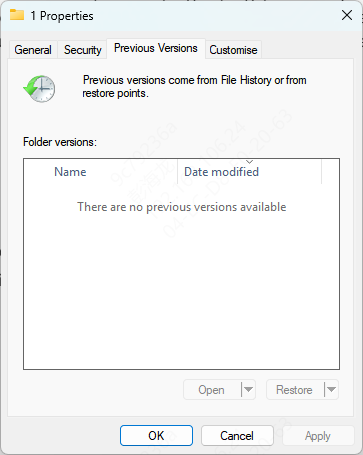
Right-click the folder where the file was stored and select Restore previous versions
Choose a version from the list and restore it
If File History is enabled, navigate to Settings > Update & Security > Backup > Restore files from a current backup and follow prompts
Limitations
If the USB drive has been formatted or overwritten, these tools may not help
SSDs or USB drives with TRIM or garbage collection may permanently erase deleted data
File system corruption or malware may prevent built-in tools from detecting lost files
Because of these limitations, specialized recovery software is often more effective
Best Solution: Kingston USB Drive Data Recovery with PcGoGo Data Recovery
Using PcGoGo Data Recovery
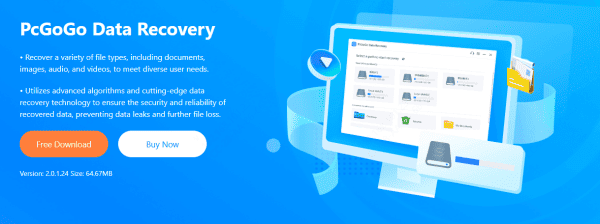
Step 1: Download and Install PcGoGo Data Recovery
Go to the official PcGoGo Data Recovery website and download the software
Install it on a different drive than your Kingston USB drive to avoid overwriting lost data
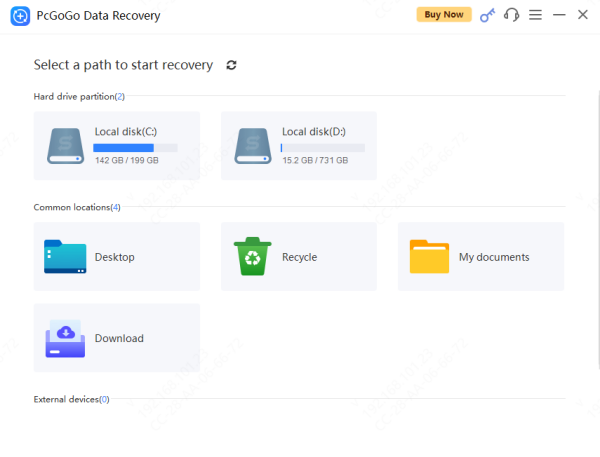
Step 2: Select Your Kingston USB Drive
Launch PcGoGo Data Recovery and choose your Kingston USB drive from the list of connected devices
Make sure the drive is properly recognized by your computer
Step 3: Scan for Lost Files
Click Scan to start searching for deleted or lost files
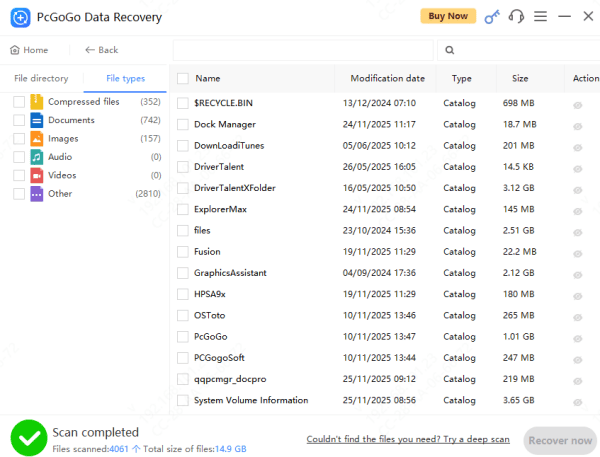
Step 4: Preview Recoverable Files
Once scanning is complete, preview photos, documents, videos, and other file types
Select only the files you want to recover to save time and storage space
Step 5: Recover and Save Files
Choose a safe location on a different drive or external storage to save recovered files
Do not save recovered files back to the Kingston USB drive to avoid overwriting remaining data
Preventing Future Data Loss on Kingston USB Drives
Safely eject your USB drive before unplugging
Regularly back up important files to cloud or external storage
Use antivirus software to protect against malware
Replace aging or damaged USB drives to reduce risk
Conclusion
Data loss from a Kingston USB drive can happen unexpectedly, but with the right approach, most files can be successfully recovered. PcGoGo Data Recovery offers an easy, reliable, and secure way to restore your lost documents, photos, videos, and other files. By acting quickly, following the recovery steps, and implementing preventive measures, you can safeguard your important data and recover it when accidents occur. Start recovering your Kingston USB drive files today with PcGoGo Data Recovery – safe, fast, and hassle-free.




