






Deleted files on a Kingston SSD may still be recoverable, but SSD features such as TRIM can reduce the chance of recovery over time. Stop using the drive immediately to avoid overwriting recoverable data, and do not install recovery software or save restored files to the affected SSD. This guide explains how to check Windows backups and use PcGoGo Data Recovery to scan, preview, and safely restore lost files.
Restore from Recycle Bin
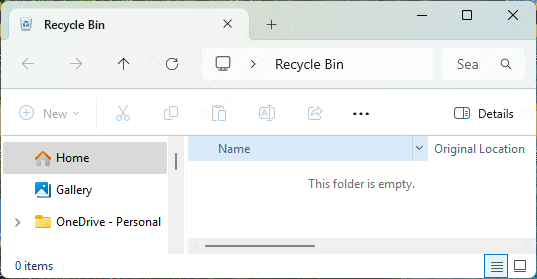
When you delete a file on your Kingston SSD, Windows often moves it to the Recycle Bin rather than removing it permanently. To check:
Open the Recycle Bin on your desktop
Look for the deleted file or folder
Right-click the file and select Restore
The file will be returned to its original location. This method works well for files accidentally deleted but emptied from a standard location.
Recover Using File History or Previous Versions
Windows offers built-in backup features that can help recover older versions of files:
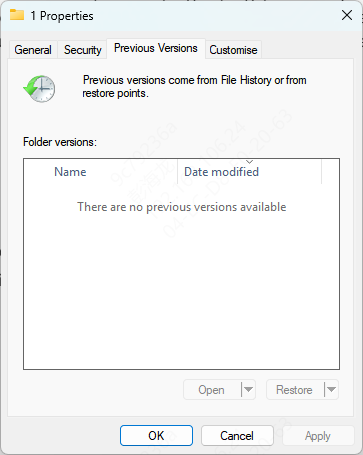
Navigate to the folder where your file was stored
Right-click the folder and select Restore previous versions
Browse the list of available versions and select one to restore
Similarly, if File History is enabled on your system, you can restore files from the backup drive:
Go to Settings > Update & Security > Backup > More options
Click Restore files from a current backup and follow the prompts
These options are convenient if you've previously set up backups or if the files were recently changed.
Restore Deleted Files using PcGoGo Data Recovery
Step 1: Download and Install PcGoGo Data Recovery
Visit the official PcGoGo Data Recovery website and download the software
Install it on a different drive than the one you want to recover files from to avoid overwriting lost data
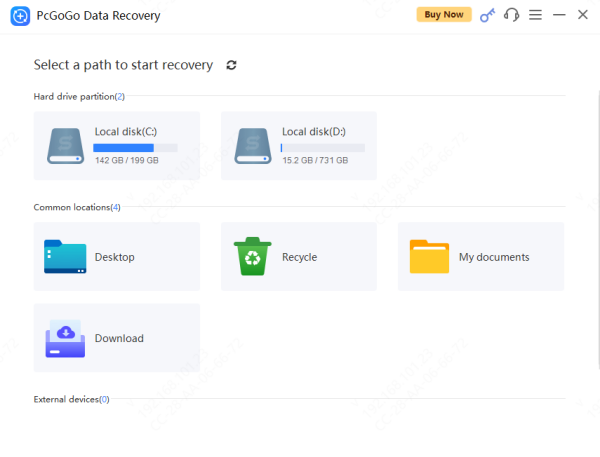
Step 2: Select Your Kingston SSD
Open PcGoGo Data Recovery and select the Kingston SSD from the list of available drives
Ensure your SSD is properly connected and recognized by your computer
Step 3: Scan for Deleted Files
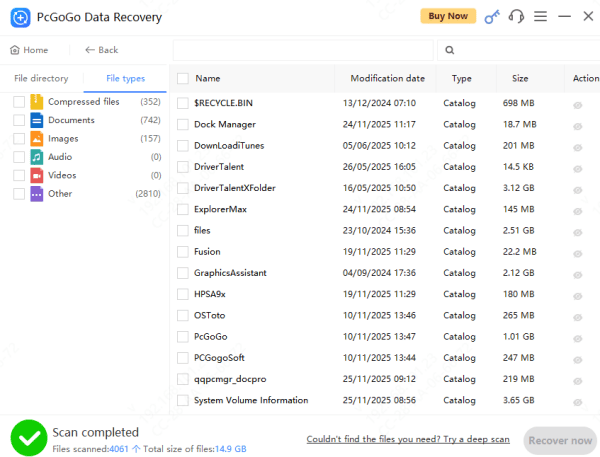
Click the Scan button
Step 4: Preview Recovered Files
PcGoGo Data Recovery allows you to preview images, documents, videos, and other file types before recovery
Select only the files you want to restore to save time and storage space
Step 5: Recover and Save Files
Choose a safe location to save recovered files—never save them back to the Kingston SSD to avoid overwriting remaining lost data
Your files are now restored and ready for use
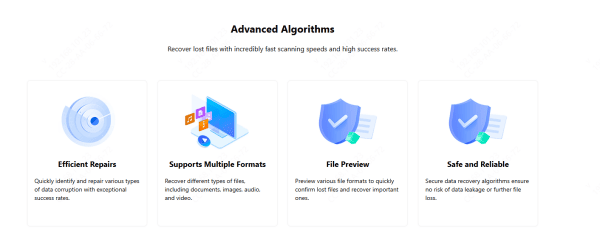
Advantages of Using PcGoGo Data Recovery
Wide File Type Support: Retrieve documents, photos, videos, audio files, and more
Preview Before Recovery: Ensures you recover only the files you need
Safe, Non-Destructive Scans: Protects existing data during the recovery process
Fast and Efficient: Saves time while maximizing recovery success
How to Prevent Future Data Loss on Kingston SSDs
Enable automatic backups via cloud services or external drives
Safely eject the SSD instead of unplugging it suddenly
Monitor SSD health regularly using tools like SMART status checks
Keep antivirus software up to date to prevent malware infections
Common Causes of Data Loss on Kingston SSDs
Accidental deletion: Files removed unintentionally or emptied from the Recycle Bin
Formatting errors: The SSD is formatted by mistake, erasing all stored data
System crashes: Windows or software failures may corrupt files or make them inaccessible
File system corruption: Drive showing as RAW or unrecognized due to improper ejection or power loss
Malware or virus attacks: Malicious programs can damage, encrypt, or delete files
Conclusion
Data loss on a Kingston solid state drive can happen unexpectedly, but with the right approach, it is often recoverable. Using PcGoGo Data Recovery, you can safely and efficiently restore deleted files from your SSD, whether it's documents, photos, videos, or other essential files. Remember to act quickly, follow the recovery steps carefully, and implement preventive measures to protect your data in the future. Take action today: Download PcGoGo Data Recovery and recover your lost Kingston SSD files in just a few clicks.




