
If your SD card is not showing up in Windows 11 or Windows 10, the problem may be related to a loose connection, faulty card reader, missing drive letter, disabled device, corrupted file system, or outdated SD card drivers. In some cases, the card may work on another device but remain invisible in File Explorer or Disk Management on your PC. This guide explains six practical ways to restore SD card detection.
Why Is My SD Card Not Showing Up in Windows 11/10?
Outdated or corrupt drivers
Faulty SD card reader or port
SD card not properly formatted
Drive letter conflict
Windows system errors
Physically damaged SD card
Fix 1: Check Physical Connections
Before troubleshooting software issues, rule out hardware problems:
Reinsert the SD card into the slot.
Try a different USB port (if using an external reader).
Test the SD card on another device (phone, camera, or another PC).
Tip: If the card works elsewhere, the issue is with your PC's reader or drivers.
Fix 2: Update or Reinstall Drivers
Outdated or corrupt drivers are a leading cause of SD card detection failures.
Manual Method (Basic Fix)
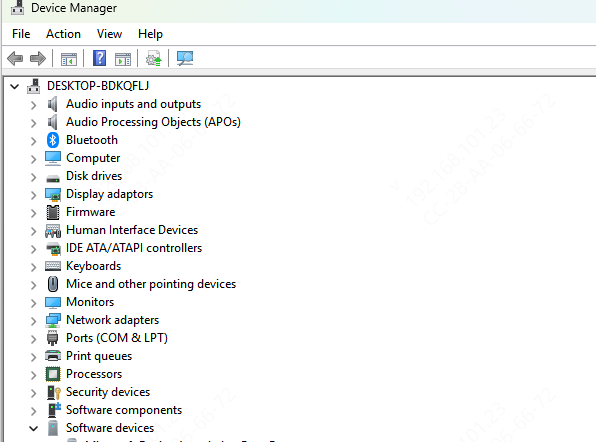
Press Win + X → Device Manager.
Expand Disk drives and Universal Serial Bus controllers.
Right-click the SD card or USB driver → Update driver.
Select Search automatically for drivers.
If Windows doesn't find an update, right-click the driver → Uninstall device → Restart your PC (Windows will reinstall the driver).
Automatic Method ( Driver Sentry)
Manually updating drivers can be tedious. Driver Sentry automates the process, ensuring your drivers are always up to date.
Why Use Driver Sentry?
✔ One-click driver updates (No manual searching)
✔ Backup & restore drivers (Prevents system instability)
✔ Scheduled scans (Keeps drivers optimized)
✔ Fixes USB/SD card detection issues instantly
How to Update Drivers with Driver Sentry
Download & install Driver Sentry.
Launch the app and click Scan.
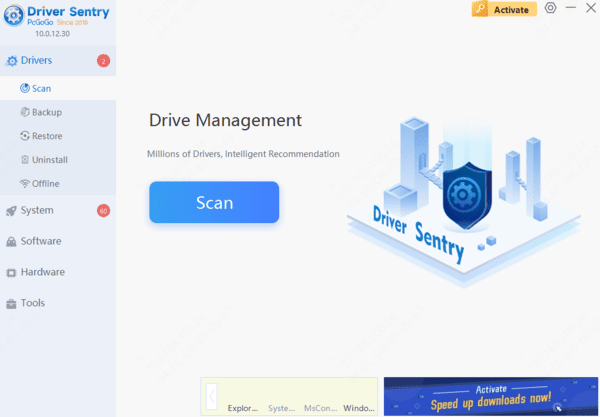
Review outdated drivers and click Update All.
Restart your PC and check if the SD card appears.
Note: Automated tools like Driver Sentry resolve ~90% of driver-related SD card issues, saving time and effort.
Fix 3: Assign a New Drive Letter
If the SD card has a conflicting drive letter, Windows may not display it.
Press Win + X → Disk Management.
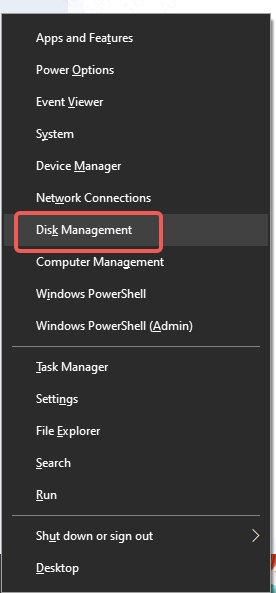
Locate your SD card (marked as "Removable").
Right-click it → Change Drive Letter and Paths.
Click Add or Change → Assign a new letter (e.g., G:).
Fix 4: Format the SD Card
Warning: This erases all data—only proceed if you have backups.
Open Disk Management.
Right-click the SD card → Format.
Choose FAT32 (for cards ≤32GB) or exFAT (for larger cards).
Tip: If formatting fails, the SD card may be corrupted. Try recovery tools like Recuva before formatting.
Fix 5: Enable & Reinstall the SD Card Reader
If the reader itself is disabled:
Open Device Manager.
Expand Memory technology devices.
Right-click the SD host adapter → Enable device (if disabled).
If already enabled, uninstall → Restart PC.
Fix 6: Run Hardware Troubleshooter
Windows has built-in troubleshooters for hardware issues:
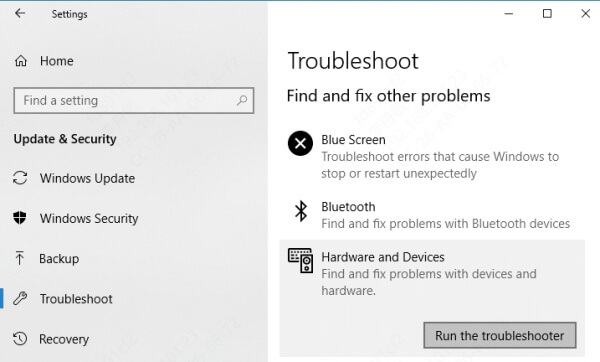
Go to Settings → Update & Security → Troubleshoot.
Run the Hardware and Devices troubleshooter.
Frequently Asked Questions
What should I do if the SD card appears as RAW or unallocated?
Stop writing data to the card. Recover important files before formatting or creating a new partition, as either action may make recovery more difficult.
Will formatting the SD card fix detection problems?
Formatting can repair some file-system problems, but it permanently removes stored data. Use it only after recovering or backing up important files.
How can I tell whether the SD card or card reader is faulty?
Test the card with another reader or device, then test a known-working card in the original reader. These comparisons help identify which component is failing.