


The Windows Search bar makes it easy to find applications, documents, system settings, and other files without manually browsing through folders. However, when the Search bar stops working, even simple tasks can become frustrating.
Some users find that clicking the Search bar does nothing, while others cannot type into it or receive blank search results. These issues can occur on both Windows 10 and Windows 11. This guide explains the most effective troubleshooting methods.
Why Is the Windows Search Bar Not Working?
Temporary Windows Explorer errors.
A frozen or unresponsive Windows Search process.
Problems with the Windows Search service.
Corrupted or incomplete search indexing data.
Windows update compatibility issues.
Damaged Windows system files.
Incorrect search settings.
Fix 1: Restart Windows Explorer
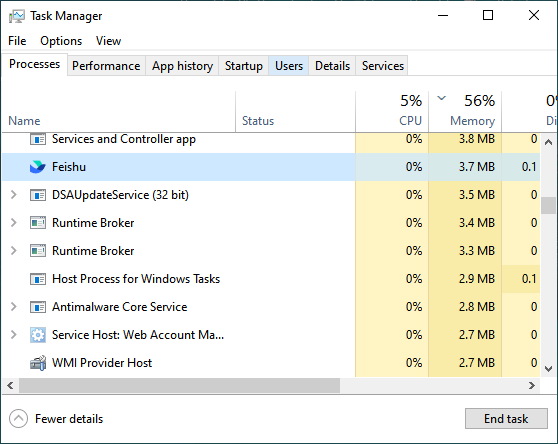
Press Ctrl + Shift + Esc to open Task Manager.
Find Windows Explorer under the Processes tab.
Right-click it and select Restart.
Wait for the desktop and taskbar to refresh.
Click the Search bar again.
Your taskbar may briefly disappear and reappear during the restart.
Fix 2: Restart the Windows Search Process
Open Task Manager.
Select the Details tab.
Look for SearchHost.exe or SearchApp.exe.
Right-click the relevant process.
Select End task.
Open the Search bar again.
Fix 3: Check the Windows Search Service
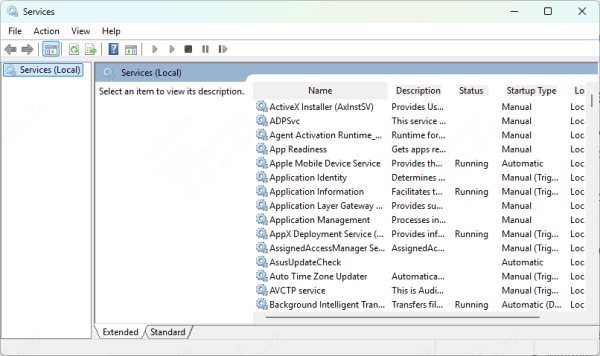
Press Windows + R.
Type services.msc and press Enter.
Scroll down and locate Windows Search.
Double-click the service.
Check its current status.
Select Start or Restart when appropriate.
Click Apply and OK if you made changes.
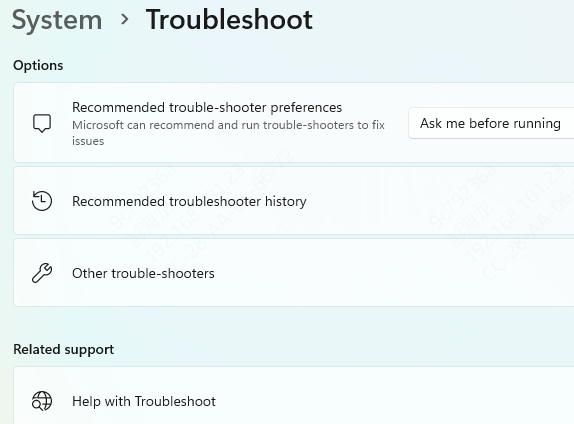
Fix 4: Run the Search and Indexing Troubleshooter
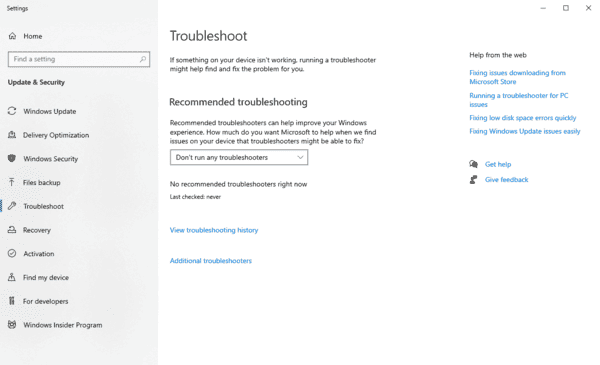
On Windows 10, you can check:
Settings > Update & Security > Troubleshoot > Additional troubleshooters
Look for Search and Indexing.
On Windows 11, open:
Settings > System > Troubleshoot > Other troubleshooters
If Search and Indexing is available, run it.
Follow the on-screen instructions and select the symptoms that match your problem.
Fix 5: Rebuild the Windows Search Index
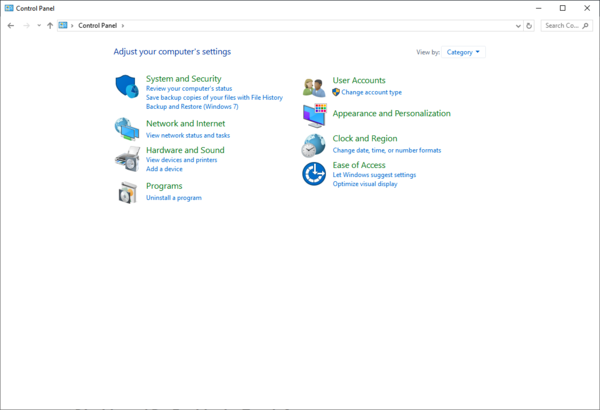
Open Control Panel.
Change the view to Large icons if necessary.
Select Indexing Options.
Click Advanced.
Under the Troubleshooting section, click Rebuild.
Confirm the operation.
Windows will begin recreating the search index.
Fix 6: Review Search Permissions and Indexing Settings
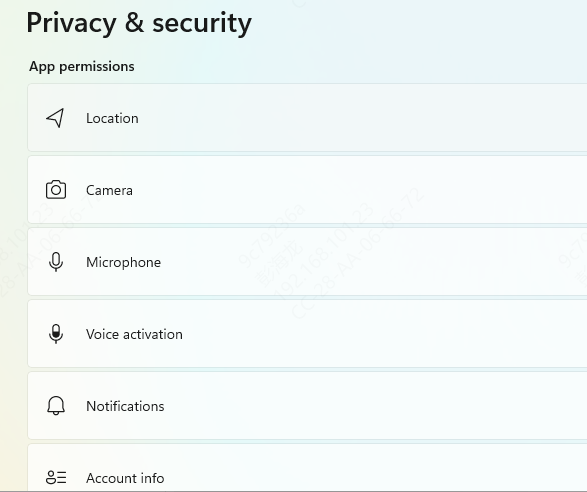
Open Settings.
Select Privacy & security.
Click Searching Windows.
Review the available search options.
Check the excluded folders.
Fix 7: Install Windows Updates
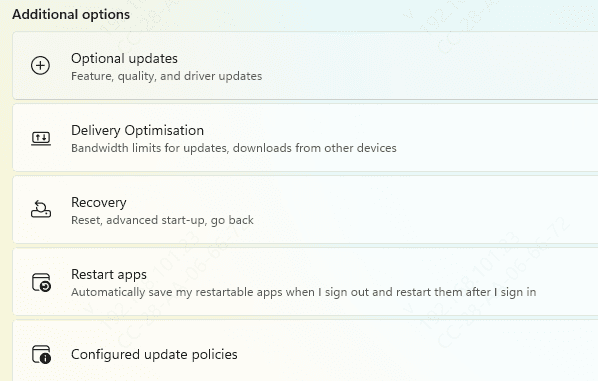
Press Windows + I.
Open Windows Update.
Click Check for updates.
Download and install applicable updates.
Restart your computer.
After restarting, test the Search bar.
Fix 8: Repair Corrupted Windows System Files
Press Ctrl + Shift + Esc.
Select Run new task.
Type cmd.
Enable the option to create the task with administrative privileges.
Click OK
First, run:
DISM /Online /Cleanup-Image /RestoreHealth
Wait for the operation to finish.
Then enter:
sfc /scannow
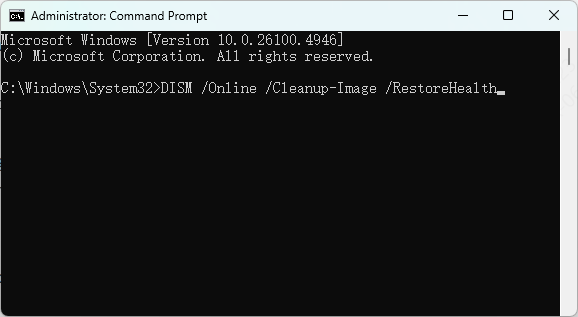
System File Checker will scan protected Windows files and attempt to repair detected problems.
Restart Windows after the scan completes.
Fix 9: Check Third-Party Software and System Drivers
Some taskbar customization utilities, Start menu replacements, and aggressive system optimization programs can interfere with Windows Search.
If the problem began after installing one of these applications, temporarily disable or uninstall it and test Search again.
You should also investigate system drivers if the Search problem occurs alongside broader Windows instability.
For example, if keyboard input fails in multiple applications or Windows frequently freezes, a hardware or driver issue may be involved.
Driver Sentry provides an additional way to identify supported outdated, missing, or problematic Windows device drivers.
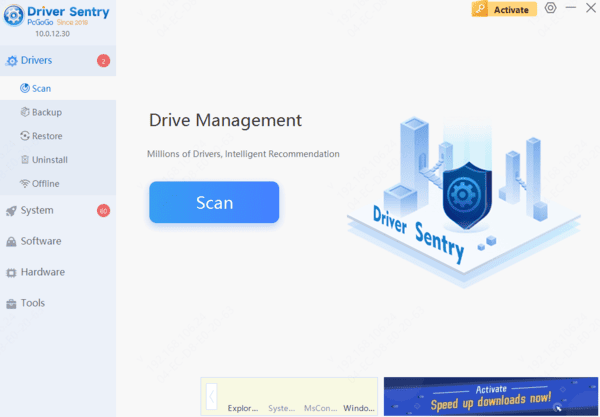
Driver Sentry may help investigate supported driver-related problems, but updating drivers is not a primary solution for an isolated Windows Search indexing or interface issue.
By identifying whether the issue affects the Search interface, keyboard input, or indexing, you can choose the most relevant solution and restore normal Windows Search functionality.