






Many Windows users may encounter scroll wheel jumping issues when using a mouse, affecting smooth operation. This article will share several practical solutions to help you quickly fix the issue and improve your overall mouse experience.
1. Reconnect the USB Port
Turn off your computer and unplug the mouse USB cable.
Try inserting it into a different USB port (USB 2.0 is recommended, as some USB 3.0 ports may have compatibility issues).
Restart your computer and test if the scroll wheel functions normally.
2. Update Device Drivers
Outdated or corrupted drivers may cause scroll wheel jumping issues, affecting daily operations. Updating the driver can resolve such issues and enhance the mouse's compatibility and performance. It is recommended to use Driver Sentry to automatically detect and update drivers, saving time and reducing the risk of installing incorrect drivers.
Click the Download button to get the latest version of Driver Sentry. Install and open the software, then click "Scan".
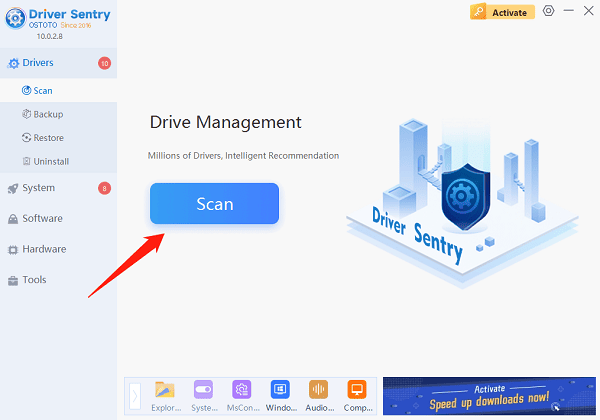
After scanning, it will display missing or outdated drivers. Locate the mouse driver in the list and click "Upgrade".
After the update, restart your computer to ensure the new driver takes effect.
3. Clean the Mouse Scroll Wheel
Turn off the mouse (remove the battery for wireless mouse).
Use a blower or compressed air to remove dust around the scroll wheel.
Dip a cotton swab in alcohol and gently clean the scroll wheel to remove dirt buildup.
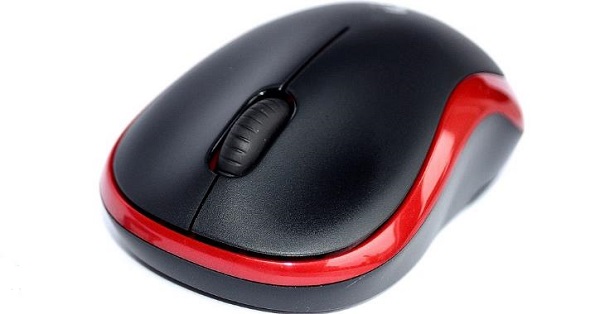
If your mouse is removable, open the shell and clean the internal scroll sensor.
After cleaning, reassemble the mouse and check if the scroll wheel works properly.
4. Adjust Mouse Scroll Settings
Press Win + I to open Settings.
Go to "Devices" > "Mouse".
Click "Additional mouse options" and navigate to the "Wheel" tab.
Find "The number of lines to scroll each time", and adjust it to 3-5 lines to prevent excessive or slow scrolling.
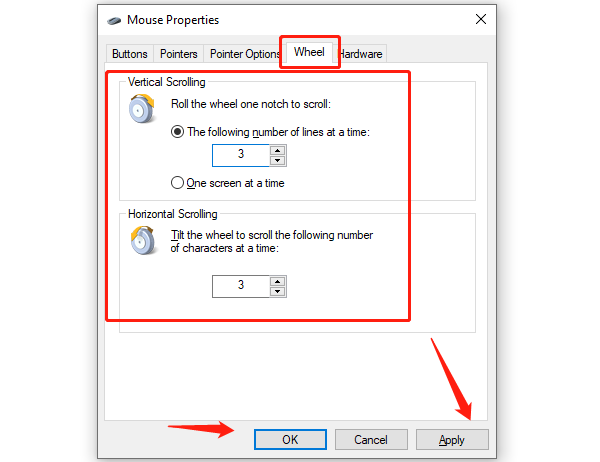
If using a touchpad mouse, adjust the scroll wheel sensitivity under "Other mouse options".
Click "Apply" and test the scroll wheel performance.
5. Run Windows Troubleshooter
Press Win + I to open Settings, then go to "Update & Security" > "Troubleshoot".
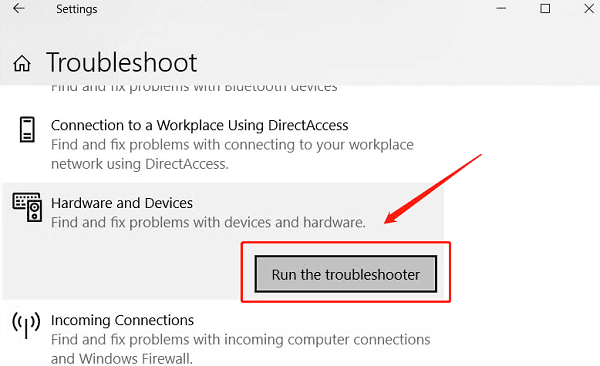
Click "Additional Troubleshooters", find "Hardware and Devices".
Click "Run the troubleshooter" and wait for Windows to complete the repair.
Restart your computer and check if the scroll wheel works normally.
6. Replace the Mouse or Repair Hardware
Test the mouse on another computer to determine if the issue is hardware-related.
If a new mouse does not have scrolling issues, the original mouse may be defective.
If using a high-end mouse (e.g., Logitech, Razer), contact the official support team for repairs.
By following the above methods, you should be able to effectively resolve the scroll wheel jumping issue and restore smooth functionality. If the problem persists, consider seeking professional technical support for further troubleshooting.
See also:
Resolve Bluetooth audio stuttering issue on Windows 10
Ways to resolve the "Audio Device is Disabled" issue
How to fix Marvel Rivals crashing on PC
Methods to resolve the "Vanguard Not Initialized" issue in Valorant




