Are your Bluetooth headphones or speakers constantly stuttering, cutting out, or producing choppy audio on Windows 10? These interruptions can make listening to music, watching videos, or attending online meetings frustrating. Bluetooth audio problems may result from outdated or corrupted drivers, wireless interference, incorrect sound settings, aggressive power-saving features, or unstable device connections. Fortunately, you can often improve audio playback without replacing your Bluetooth device. This guide introduces six practical solutions to fix Bluetooth audio stuttering on Windows 10, including updating Bluetooth drivers with Driver Sentry, adjusting audio formats, disabling sound enhancements, changing power management settings, running the Bluetooth troubleshooter, and reconnecting your device.
1. Modify Audio Format
Right-click the volume icon in the taskbar and select "Sounds" to open the sound settings.
In the sound settings window, click the "Playback" tab, find your connected Bluetooth headphones or speakers, and right-click to select "Properties".
In the Properties window, switch to the "Advanced" tab.
In the default format dropdown menu, select a lower audio quality (e.g., 16-bit, 44100 Hz) to improve the stability of audio transmission.
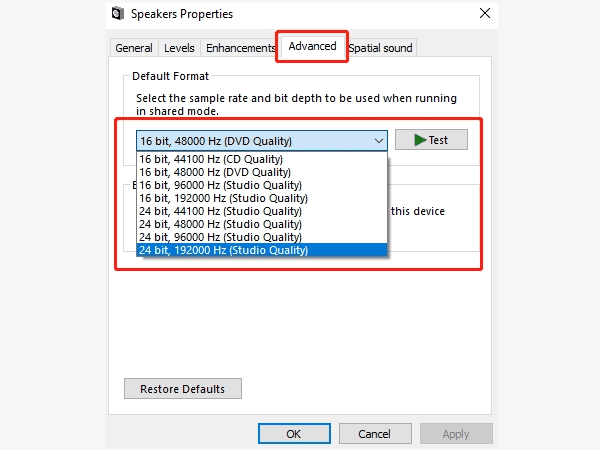
Click "Apply", then "OK".
By lowering the audio format quality, you can reduce the transmission load on the Bluetooth device and alleviate the stuttering issue.
2. Disable Power Saving Mode
Press Win + X and select "Device Manager".
Expand the Bluetooth device list, find your Bluetooth adapter, and right-click to select "Properties".
Switch to the "Power Management" tab.
Uncheck the option "Allow the computer to turn off this device to save power", then click "OK".
Restart your computer and check if the Bluetooth audio device is no longer stuttering.
3. Disable Audio Enhancements
Press Win + R to open the Run box, type "mmsys.cpl", and press Enter.
Find your Bluetooth audio device, right-click on it, and select "Properties".
Switch to the "Enhancements" tab and check the option "Disable all sound effects".
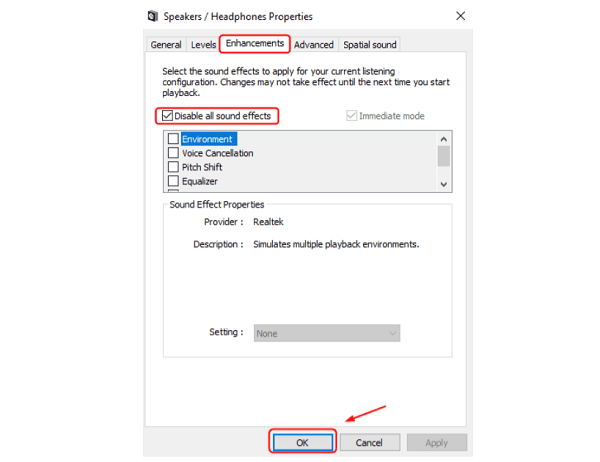
Click "Apply" > "OK", then restart your computer.
Test the audio playback to see if there is an improvement.
4. Update Bluetooth Drivers
Bluetooth audio stuttering may be caused by outdated or corrupted drivers. Checking for updated Bluetooth drivers is the first step in resolving the issue. It's recommend to use Driver Sentry to automatically detect and update drivers, saving you time and effort while avoiding the risk of downloading or installing incorrect drivers.
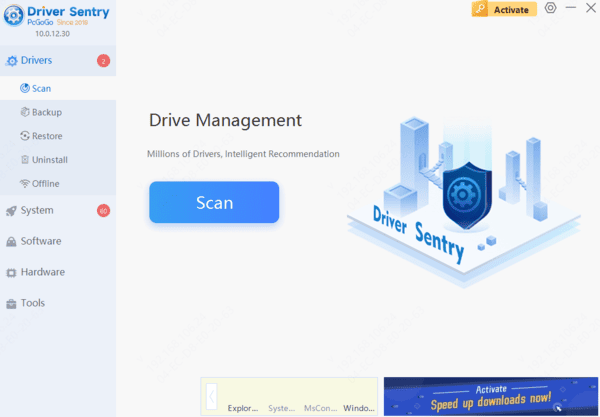
Once the scan is complete, it will display the drivers that are missing or need updating. Find the Bluetooth adapter driver in the list and click the "Upgrade" button.
After the update is complete, it is recommended to restart your computer to ensure the updated drivers take effect.
5. Run Bluetooth Troubleshooter
Press Win + I to open Settings, then select "Update & Security".
Go to "Troubleshoot" and click "Additional troubleshooters".
Under the "Bluetooth" section, click "Run the troubleshooter".
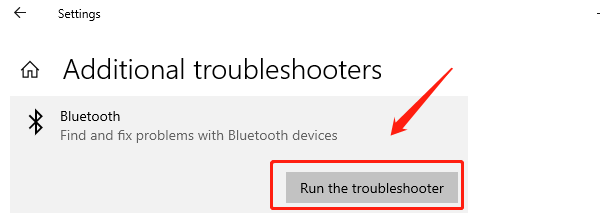
Wait for Windows to complete the diagnosis and provide repair suggestions.
Follow the prompts to fix the issues, restart your computer, and check audio playback.
6. Reset Bluetooth Settings
Press Win + I to open Settings, then go to "Devices" > "Bluetooth & other devices".
Select Manage Bluetooth devices, then select "Remove device".
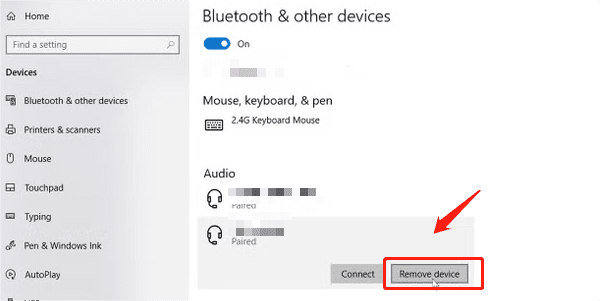
Re-pair the Bluetooth device and check if the audio playback is smooth.
Resetting Bluetooth settings can eliminate possible connection errors and ensure proper audio transmission.
Frequently Asked Questions
1. Why does Bluetooth audio become choppy during voice calls?
Using the headphones' microphone can switch Bluetooth audio into a hands-free mode with lower playback quality. Try selecting your laptop's built-in microphone while keeping the headphones as the audio output.
2. Can Wi-Fi interference cause Bluetooth audio stuttering?
Yes. Bluetooth and 2.4 GHz Wi-Fi share the same frequency band. Try connecting your PC to 5 GHz Wi-Fi and keeping the headphones close to
the computer, away from routers and other wireless devices.
3. What if the Advanced, Enhancements, or Power Management tab is missing?
These options depend on the device and its driver, so they are not available on every system. Skip unavailable settings and continue with driver updates, interference checks, and re-pairing.
By following these steps, you can effectively solve Bluetooth audio stuttering issues in Windows 10. If the problem persists, it is recommended to contact professional support for further assistance.