When using Windows 11, you may encounter the "Unidentified Network" issue, preventing you from connecting to the internet. This article provides several effective solutions to help you quickly restore your network connection.
1. Check Network Devices
Restart Your Router and Computer:
Turn off your WiFi router, wait 1-2 minutes, then turn it back on.
Restart your Windows 11 computer to reload the network settings.
Check Physical Connections (For Wired Networks):
Ensure the Ethernet cable is securely connected.
Try replacing the cable or plugging it into a different port to test for issues.
2. Update Network Drivers
Outdated or corrupted drivers are one of the most common causes of the "Unidentified Network" issue in Windows 11. Checking and updating your network drivers can effectively resolve this problem. It is recommended to use Driver Sentry to automatically detect and update drivers, saving time and reducing the risk of downloading or installing incorrect drivers.
Click the download button to get the latest version of Driver Sentry, install it, open the software, and click "Scan".
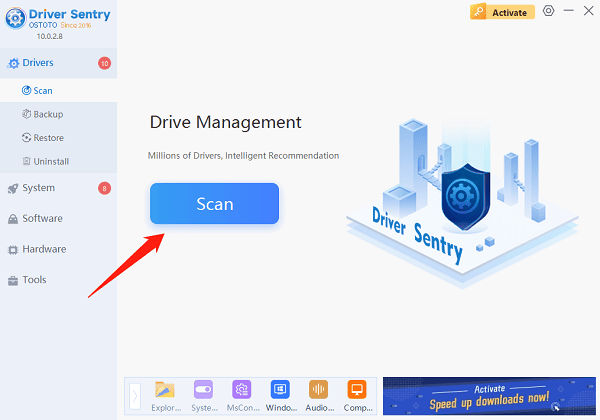
After scanning, the software will display missing or outdated drivers. Locate the network driver in the list and click "Upgrade".
Once the update is complete, restart your computer to ensure the new driver takes effect.
3. Check Network Service Status
Press Win + R, type "services.msc", and press Enter.
In the Services Manager, locate the following services:
DHCP Client
DNS Client
Network Connections
Network List Service
WLAN AutoConfig (For WiFi connections)
Ensure the Startup Type for these services is set to "Automatic". If any of them are disabled, right-click and select "Start".
4. Reset Network Settings
Open Settings, click "Network & Internet".
Scroll down and select "Advanced network settings", then find "Network reset".
Click "Reset now", and the system will prompt you to reset all network adapters.
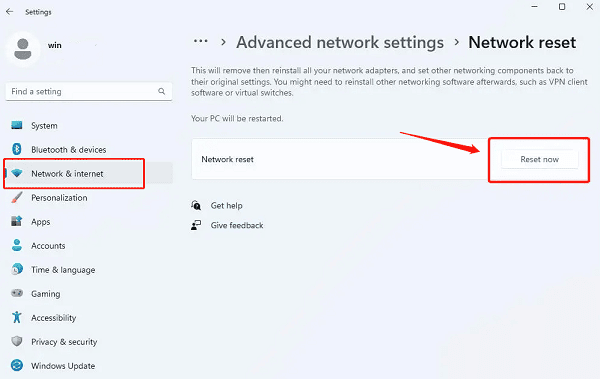
Click "Yes" to confirm.
Your computer will restart automatically. After the reset, reconnect to WiFi and check the network status.
5. Change DNS Server Settings
Press Win + I to open Settings, then go to "Network & Internet".
In the network settings, find and click "Advanced network settings".
Under More network adapter options, locate the affected network connection, right-click it, and select "Properties".
Find Internet Protocol Version 4 (TCP/IPv4), select it, and click "Properties".
Enter the following DNS server addresses:
Preferred DNS server: 8.8.8.8
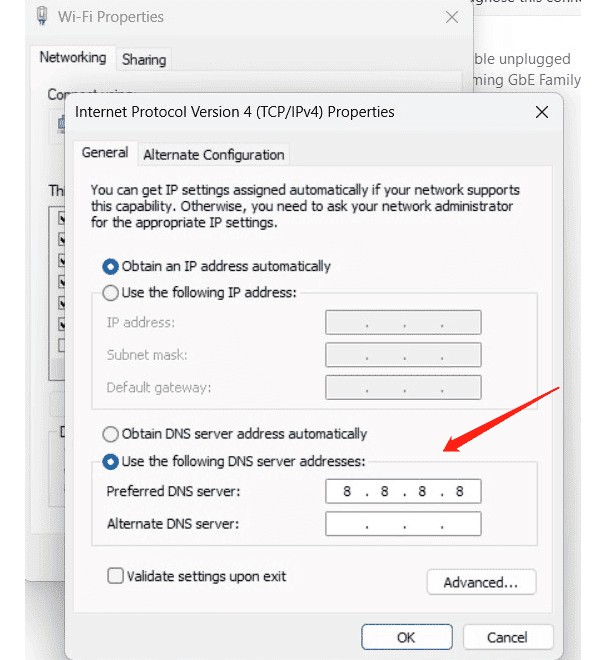
Click "Save", reconnect to the network, and check if the issue is resolved.
6. Run Network Troubleshooter
Open Settings (press Win + I), click System, and then select "Troubleshoot".
On the Troubleshoot page, click "Other troubleshooters".
Find "Network and Internet", then click "Run".
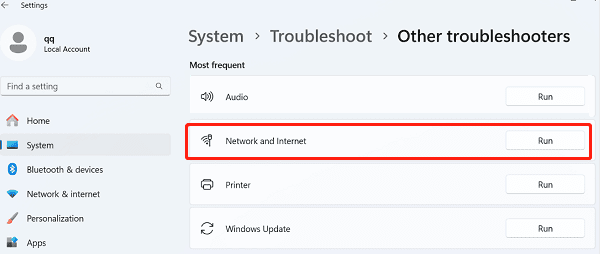
Follow the on-screen instructions to complete the troubleshooting process and check if the network issue is resolved.
By following these methods, you can usually resolve the "Unidentified Network" issue in Windows 11. If the problem persists, consider seeking assistance from a professional technician for further troubleshooting.
See also:
How to Fix Windows 11 Unable to Enter Sleep Mode
Methods to Fix 'HP Printer Driver Is Unavailable'